> ## Documentation Index
> Fetch the complete documentation index at: https://docs.wolfia.com/llms.txt
> Use this file to discover all available pages before exploring further.

# Wolfia Quickstart: Start in Slack, Web, or Chrome

> Get started with Wolfia in minutes. Ask questions in Slack, in our web app, or via the Chrome extension to fill out vendor portal questionnaires.

## Ways to use Wolfia

Wolfia offers multiple ways to access your organization’s knowledge:

1. [Direct message in Slack](#direct-messaging-wolfia-in-slack): Chat privately with our AI for quick answers
2. [Tag in Slack channels](#tagging-wolfia-in-slack-channels): Share knowledge with your team by mentioning `@Wolfia`
3. [Use the web app](#using-wolfia-in-the-web-app): Get detailed responses with citations in our full interface
4. [Process questionnaires](#autofill-questionnaires): Automatically fill out security questionnaires, RFPs, and more

Whatever your workflow, Wolfia integrates seamlessly to provide expert answers when and where you need them.

### 1. Direct messaging Wolfia in Slack

Chat privately with Wolfia in Slack for quick answers to your questions.

<AccordionGroup>
  <Accordion icon="magnifying-glass" title="Find Wolfia in Slack">
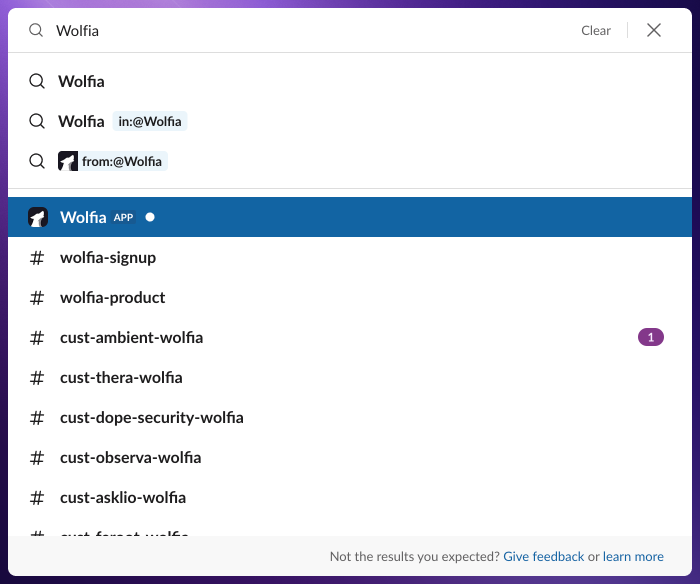
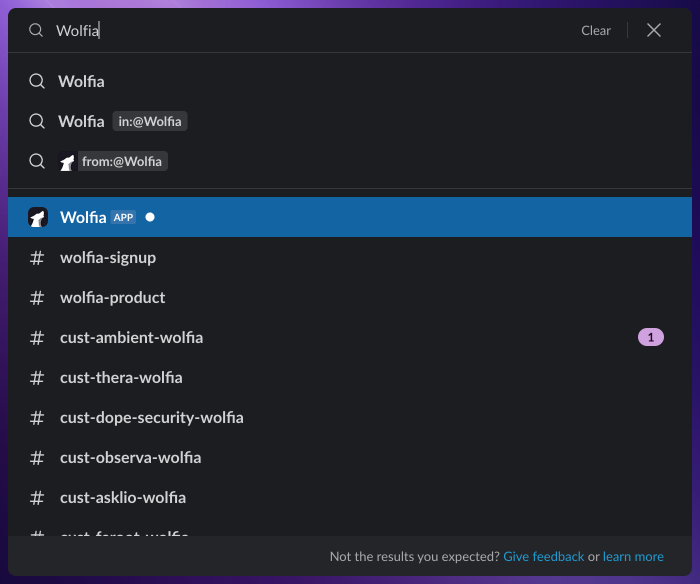
    1. Press `Cmd+K` (or `Ctrl+K` on Windows) to open Slack’s search, then type `Wolfia` to find our app.
    <Frame>
      <img className="block dark:hidden" src="https://mintcdn.com/wolfia/hr3SeGf5IVa0Yv_W/images/wolfia-gettingStarted-quickstart-findWolfia-light.png?fit=max&auto=format&n=hr3SeGf5IVa0Yv_W&q=85&s=536a4f38e6e232414a8c2c19b44210ca" alt="Finding Wolfia in Slack" width="700" height="584" data-path="images/wolfia-gettingStarted-quickstart-findWolfia-light.png" />

      <img className="hidden dark:block" src="https://mintcdn.com/wolfia/hr3SeGf5IVa0Yv_W/images/wolfia-gettingStarted-quickstart-findWolfia-dark.png?fit=max&auto=format&n=hr3SeGf5IVa0Yv_W&q=85&s=9302448beef424a28b988f2322174bef" alt="Finding Wolfia in Slack" width="700" height="584" data-path="images/wolfia-gettingStarted-quickstart-findWolfia-dark.png" />
    </Frame>
  </Accordion>

  <Accordion icon="message" title="Ask your question">
    Type your question directly to Wolfia in the message field. Be as specific as possible for the best results.


    <Frame>
      <img className="block dark:hidden" src="https://mintcdn.com/wolfia/hr3SeGf5IVa0Yv_W/images/wolfia-gettingStarted-quickstart-askQuestion-light.png?fit=max&auto=format&n=hr3SeGf5IVa0Yv_W&q=85&s=e8f6431d1281ca25303270dda1d375af" alt="Asking Wolfia a question in Slack" width="968" height="163" data-path="images/wolfia-gettingStarted-quickstart-askQuestion-light.png" />

      <img className="hidden dark:block" src="https://mintcdn.com/wolfia/hr3SeGf5IVa0Yv_W/images/wolfia-gettingStarted-quickstart-askQuestion-dark.png?fit=max&auto=format&n=hr3SeGf5IVa0Yv_W&q=85&s=eebc1c2594bf2878d1816eb6b59dcea1" alt="Asking Wolfia a question in Slack" width="968" height="163" data-path="images/wolfia-gettingStarted-quickstart-askQuestion-dark.png" />
    </Frame>
  </Accordion>

  <Accordion icon="clipboard-check" title="Review your answer">
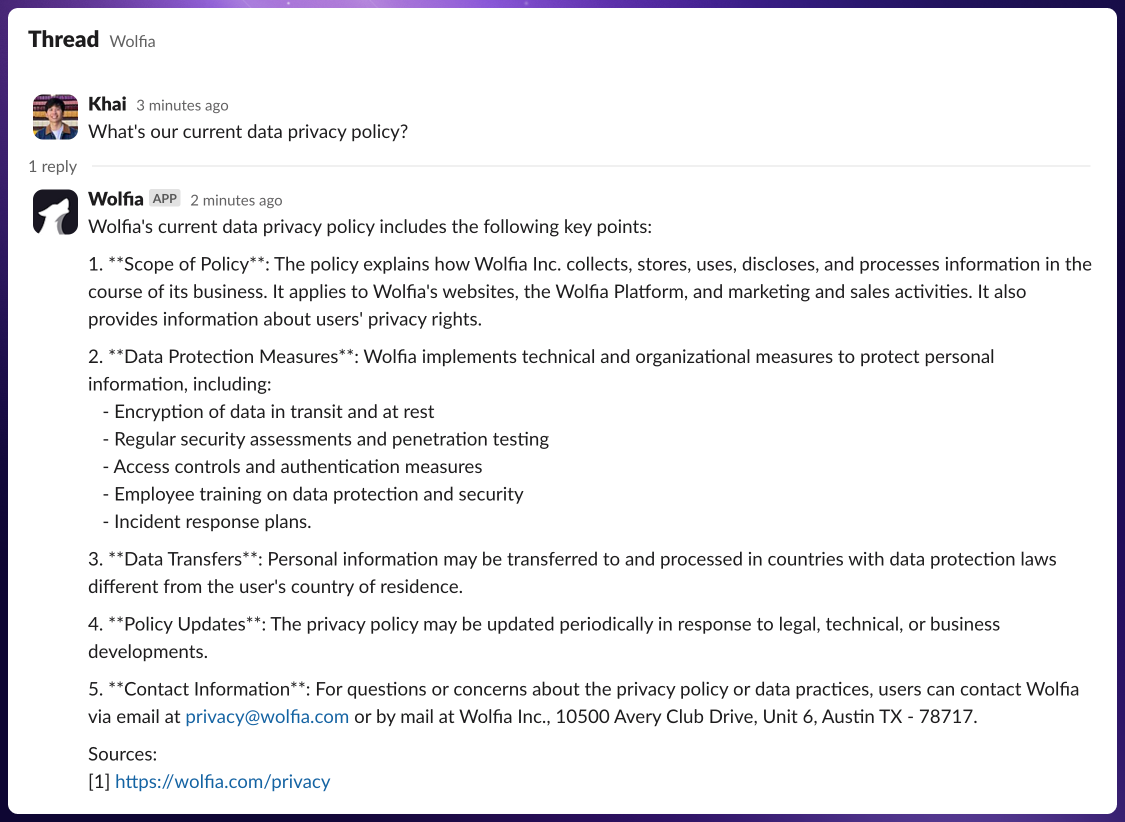
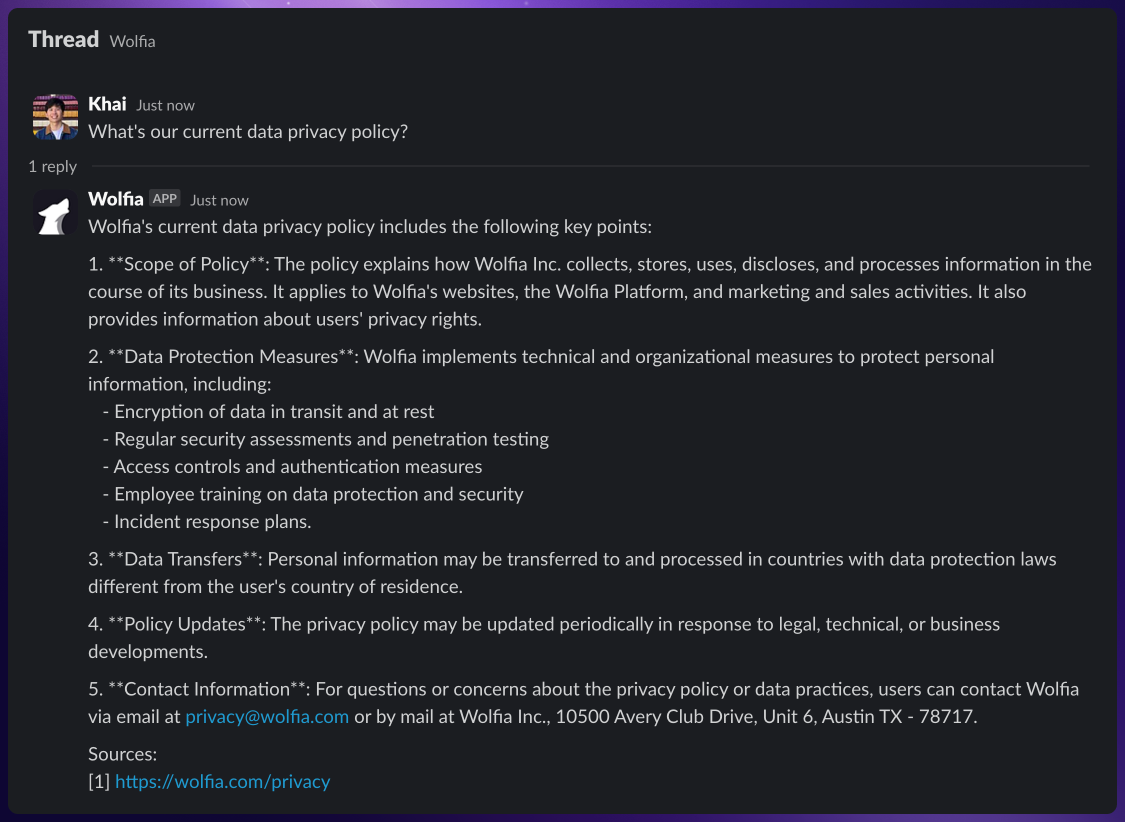
    Wolfia will respond with an answer based on your organization’s knowledge base, including citations to the original sources.
    <Frame>
      <img className="block dark:hidden" src="https://mintcdn.com/wolfia/hr3SeGf5IVa0Yv_W/images/wolfia-gettingStarted-quickstart-slackAnswer-light.png?fit=max&auto=format&n=hr3SeGf5IVa0Yv_W&q=85&s=85e16cb8b38531644ecd10827a71bfc3" alt="Wolfia answering in Slack with citations" width="1125" height="822" data-path="images/wolfia-gettingStarted-quickstart-slackAnswer-light.png" />

      <img className="hidden dark:block" src="https://mintcdn.com/wolfia/hr3SeGf5IVa0Yv_W/images/wolfia-gettingStarted-quickstart-slackAnswer-dark.png?fit=max&auto=format&n=hr3SeGf5IVa0Yv_W&q=85&s=0ab6e0f6ff7627f92be1d455f85fdbe3" alt="Wolfia answering in Slack with citations" width="1125" height="822" data-path="images/wolfia-gettingStarted-quickstart-slackAnswer-dark.png" />
    </Frame>
  </Accordion>
</AccordionGroup>

### 2. Tagging Wolfia in Slack channels

Use Wolfia in public channels to share knowledge with your team.

<AccordionGroup>
  <Accordion icon="at" title="Mention Wolfia in any channel">
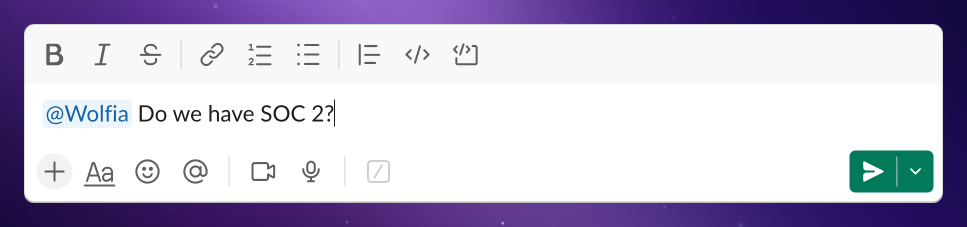
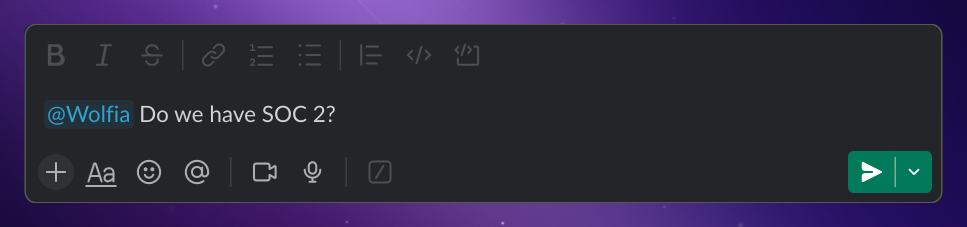
    Simply type `@Wolfia` followed by your question in any channel where Wolfia is available. This lets your team see both the question and the answer.
    <Frame>
      <img className="block dark:hidden" src="https://mintcdn.com/wolfia/hr3SeGf5IVa0Yv_W/images/wolfia-gettingStarted-quickstart-tagWolfia-light.png?fit=max&auto=format&n=hr3SeGf5IVa0Yv_W&q=85&s=b758796568d2f72edb67631a8f4fb1ff" alt="Tagging Wolfia in a Slack channel" width="967" height="227" data-path="images/wolfia-gettingStarted-quickstart-tagWolfia-light.png" />

      <img className="hidden dark:block" src="https://mintcdn.com/wolfia/hr3SeGf5IVa0Yv_W/images/wolfia-gettingStarted-quickstart-tagWolfia-dark.png?fit=max&auto=format&n=hr3SeGf5IVa0Yv_W&q=85&s=2d50de6a19086cece2724d3d694f509f" alt="Tagging Wolfia in a Slack channel" width="967" height="227" data-path="images/wolfia-gettingStarted-quickstart-tagWolfia-dark.png" />
    </Frame>
  </Accordion>

  <Accordion icon="clipboard-check" title="Review your answer">
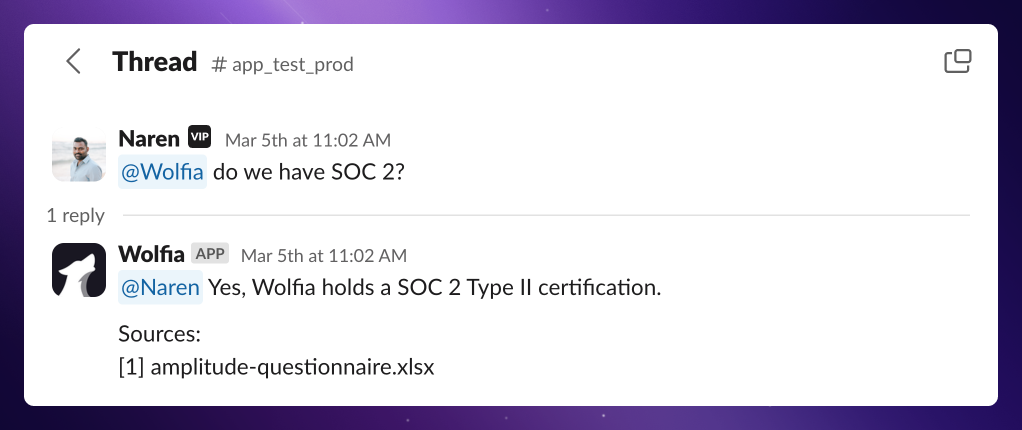
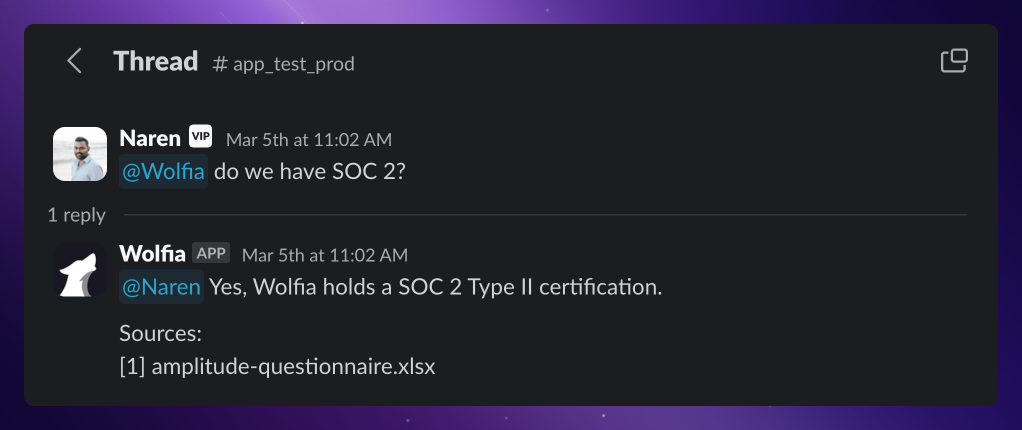
    Wolfia will respond in the channel with an answer based on your organization’s knowledge base, including citations to the original sources.
    <Frame>
      <img className="block dark:hidden" src="https://mintcdn.com/wolfia/hr3SeGf5IVa0Yv_W/images/wolfia-gettingStarted-quickstart-tagResult-light.png?fit=max&auto=format&n=hr3SeGf5IVa0Yv_W&q=85&s=9764c1dc01bc1a5b9926f15995afa7dd" alt="Wolfia answering in a Slack channel with citations" width="1022" height="430" data-path="images/wolfia-gettingStarted-quickstart-tagResult-light.png" />

      <img className="hidden dark:block" src="https://mintcdn.com/wolfia/hr3SeGf5IVa0Yv_W/images/wolfia-gettingStarted-quickstart-tagResult-dark.png?fit=max&auto=format&n=hr3SeGf5IVa0Yv_W&q=85&s=26e059be7bcee504e4a724532ce32c33" alt="Wolfia answering in a Slack channel with citations" width="1022" height="430" data-path="images/wolfia-gettingStarted-quickstart-tagResult-dark.png" />
    </Frame>
  </Accordion>
</AccordionGroup>

### 3. Using Wolfia in the web app

For a more comprehensive experience, use our web application.

<AccordionGroup>
  <Accordion icon="message" title="Ask your question">
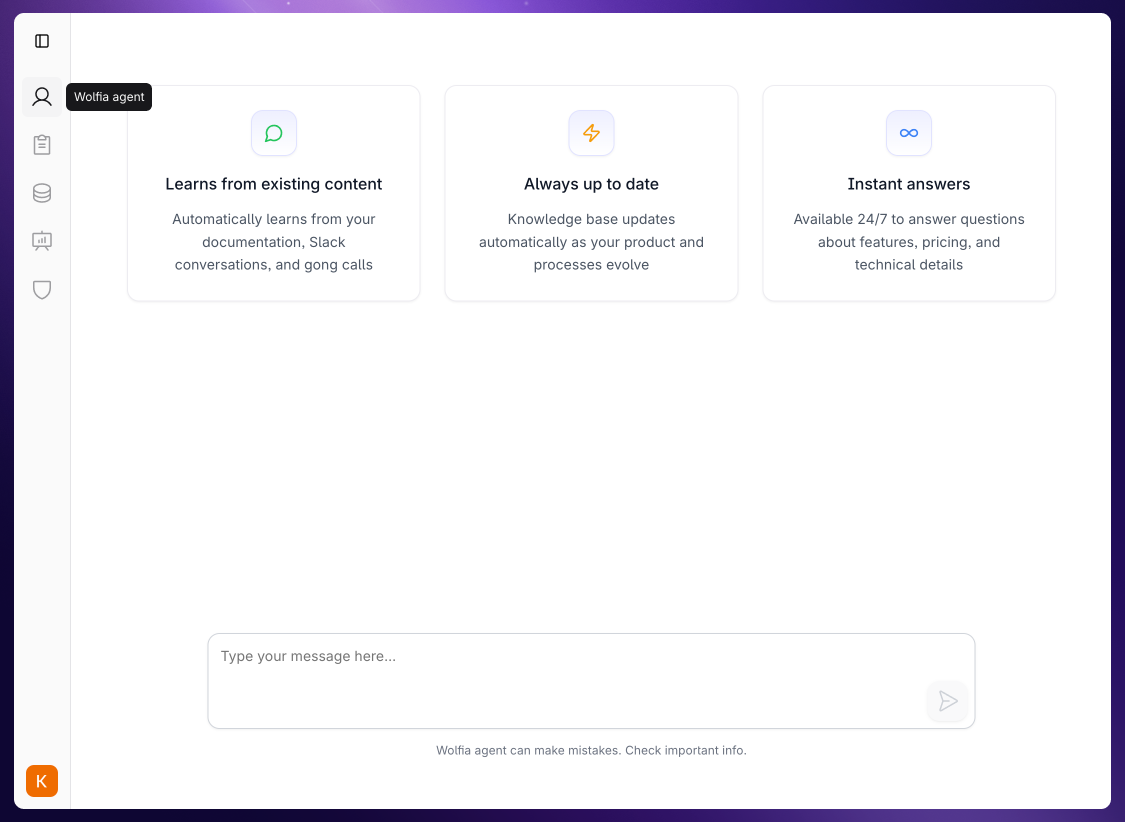
    1. Navigate to the [Agent tab](https://wolfia.com/agent) on your dashboard.
    <Frame>
      <img src="https://mintcdn.com/wolfia/hr3SeGf5IVa0Yv_W/images/wolfia-gettingStarted-quickstart-agentTab-light.png?fit=max&auto=format&n=hr3SeGf5IVa0Yv_W&q=85&s=2bafc469b58c4078715c9b81652b695c" alt="Wolfia web dashboard" width="1125" height="822" data-path="images/wolfia-gettingStarted-quickstart-agentTab-light.png" />
    </Frame>

    2. Type your question in the chat box at the bottom of the screen.

    <Frame>
      <img src="https://mintcdn.com/wolfia/hr3SeGf5IVa0Yv_W/images/wolfia-gettingStarted-quickstart-webChatbox-light.png?fit=max&auto=format&n=hr3SeGf5IVa0Yv_W&q=85&s=0cf2cb584b4603a0ffdc62e979c8747d" alt="Asking a question in Wolfia web app" width="1125" height="161" data-path="images/wolfia-gettingStarted-quickstart-webChatbox-light.png" />
    </Frame>
  </Accordion>

  <Accordion icon="clipboard-check" title="Review the results">
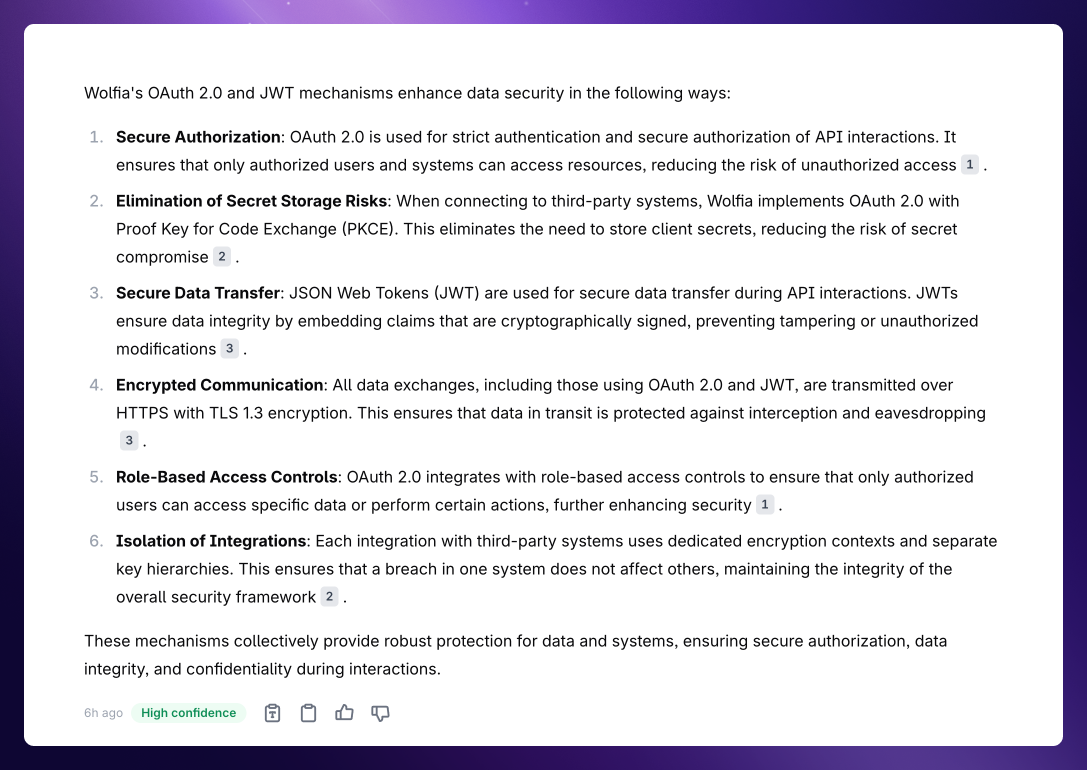
    Your answer will include:

    * Citations to source materials
    * Confidence scores showing reliability
    * Options to provide feedback
    * Copy buttons for easy sharing
    <Frame>
      <img src="https://mintcdn.com/wolfia/hr3SeGf5IVa0Yv_W/images/wolfia-gettingStarted-quickstart-result-light.png?fit=max&auto=format&n=hr3SeGf5IVa0Yv_W&q=85&s=8294bef8f959564555d206182a9f1281" alt="Wolfia web app results" width="1087" height="770" data-path="images/wolfia-gettingStarted-quickstart-result-light.png" />
    </Frame>
  </Accordion>
</AccordionGroup>

### 4. Autofill questionnaires

Save hours on security questionnaires, RFPs, or compliance assessments.

<Note>
  Use the questionnaire feature when you have multiple questions to answer at once, much more efficient than asking questions individually.
</Note>

<AccordionGroup>
  <Accordion icon="upload" title="Upload your document">
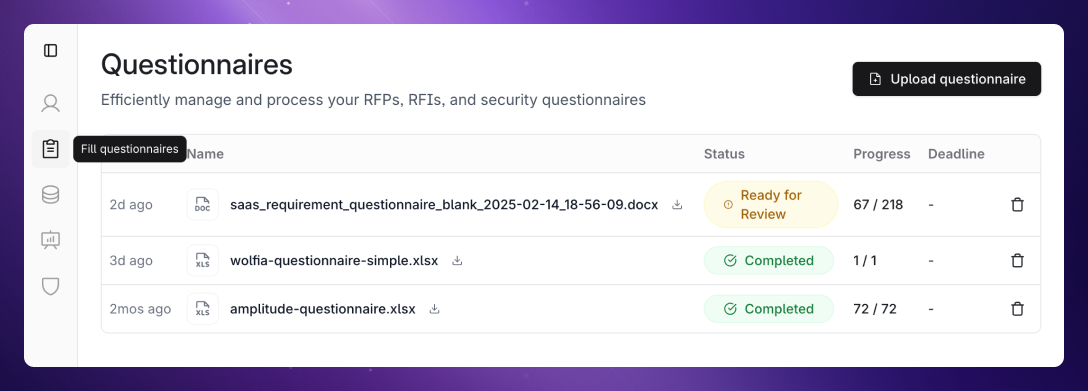
    1. Navigate to the [Questionnaires tab](https://wolfia.com/questionnaire).
    <Frame>
      <img src="https://mintcdn.com/wolfia/hr3SeGf5IVa0Yv_W/images/wolfia-gettingStarted-quickstart-questionnaireTab-light.png?fit=max&auto=format&n=hr3SeGf5IVa0Yv_W&q=85&s=7964f4d5ff630c7218d04005a28e95e4" alt="Wolfia web dashboard" width="1088" height="391" data-path="images/wolfia-gettingStarted-quickstart-questionnaireTab-light.png" />
    </Frame>

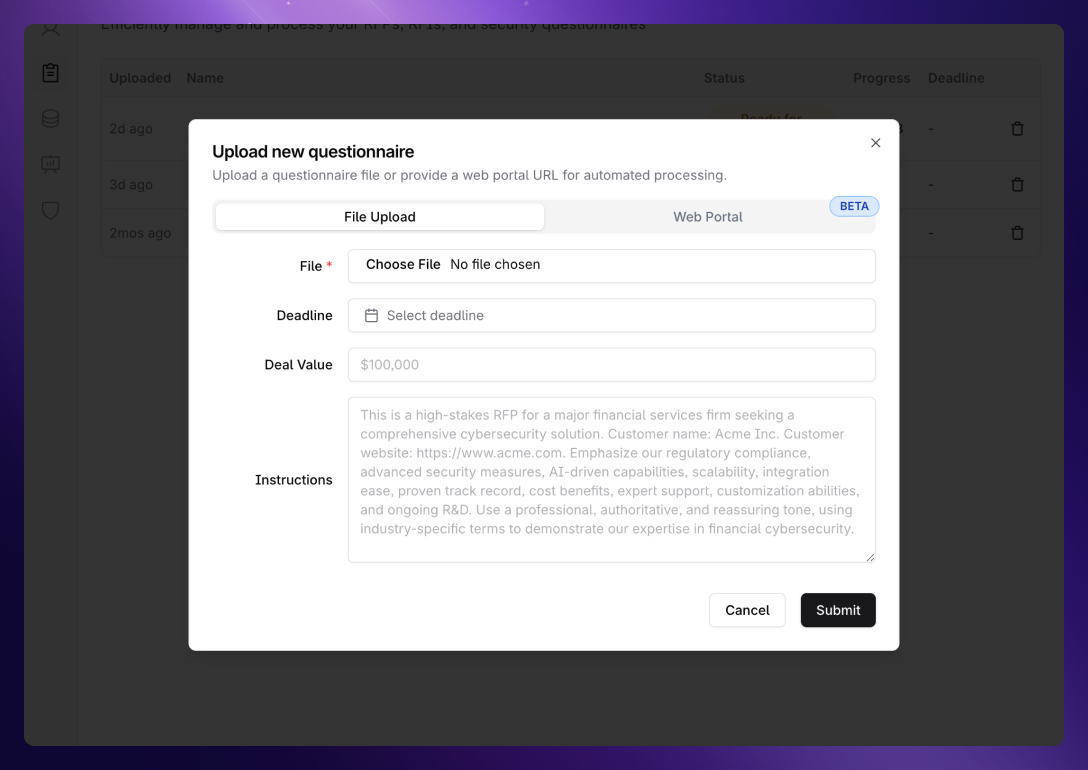
    2. Click `Upload questionnaire`. No need to manually format or identify questions; our AI handles that automatically. We support multiple formats including `.pdf`, `.docx`, `.xlsx`, and vendor portals through our Chrome extension.
    <Frame>
      <img src="https://mintcdn.com/wolfia/hr3SeGf5IVa0Yv_W/images/wolfia-gettingStarted-quickstart-questionnaireUpload-light.png?fit=max&auto=format&n=hr3SeGf5IVa0Yv_W&q=85&s=ebf88944eb92ea302d1a938bde5aa3b5" alt="Wolfia web dashboard" width="1088" height="770" data-path="images/wolfia-gettingStarted-quickstart-questionnaireUpload-light.png" />
    </Frame>
  </Accordion>

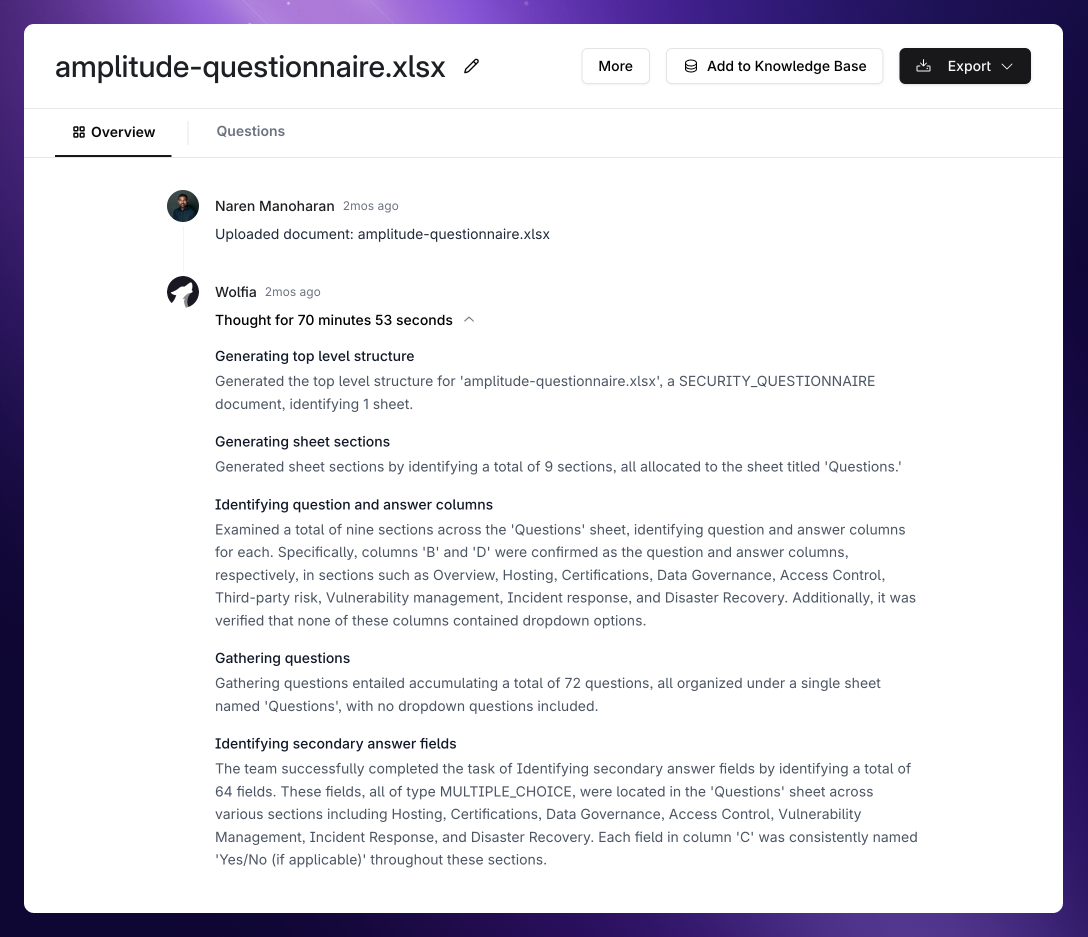
  <Accordion icon="wand-magic-sparkles" title="See the AI at work">
    Watch as Wolfia works through each question in real-time, showing its thought process and the sources it’s consulting.
    <Frame>
      <img src="https://mintcdn.com/wolfia/hr3SeGf5IVa0Yv_W/images/wolfia-gettingStarted-quickstart-agentThought-light.png?fit=max&auto=format&n=hr3SeGf5IVa0Yv_W&q=85&s=739b50578b799be6c2c259cd94b3c500" alt="Wolfia’s questionnaire thought process" width="1088" height="937" data-path="images/wolfia-gettingStarted-quickstart-agentThought-light.png" />
    </Frame>
  </Accordion>

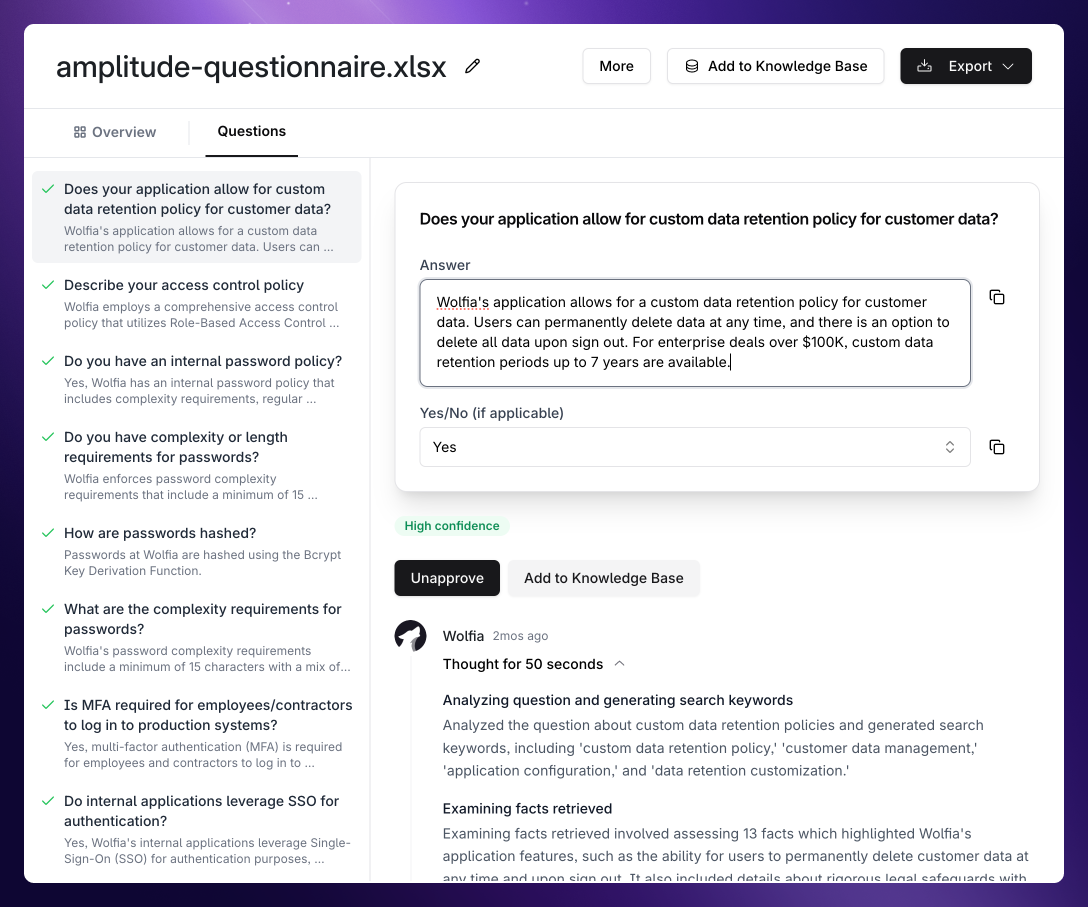
  <Accordion icon="pen-to-square" title="Review and edit answers">
    Make changes to any answers that need customization or remove questions that aren’t applicable.
    <Frame>
      <img src="https://mintcdn.com/wolfia/hr3SeGf5IVa0Yv_W/images/wolfia-gettingStarted-quickstart-questionnaireReview-light.png?fit=max&auto=format&n=hr3SeGf5IVa0Yv_W&q=85&s=f8f6ae2f99252e3f56d6e41aeccd4def" alt="Review and edit questionnaire answers" width="1088" height="907" data-path="images/wolfia-gettingStarted-quickstart-questionnaireReview-light.png" />
    </Frame>
  </Accordion>

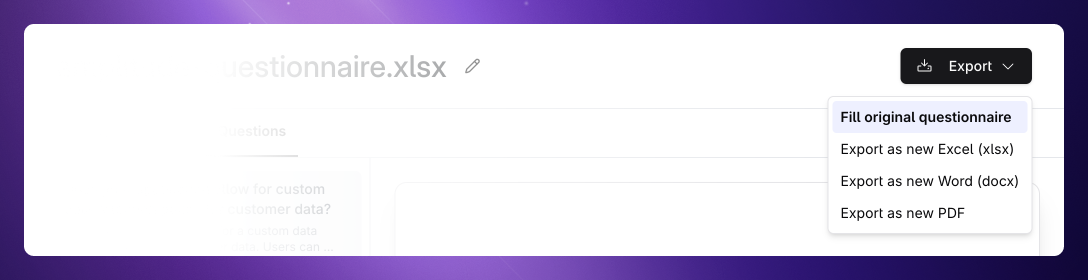
  <Accordion icon="file-export" title="Export your completed document">
    Download your finished questionnaire in:

    * The original format
    * Alternative formats if needed

    No reformatting or copy-pasting required.
    <Frame>
      <img src="https://mintcdn.com/wolfia/hr3SeGf5IVa0Yv_W/images/wolfia-gettingStarted-quickstart-questionnaireExport-light.png?fit=max&auto=format&n=hr3SeGf5IVa0Yv_W&q=85&s=c601dbb562f7cffc75228ce40fcd8248" alt="Exporting completed questionnaire" width="1088" height="280" data-path="images/wolfia-gettingStarted-quickstart-questionnaireExport-light.png" />
    </Frame>
  </Accordion>
</AccordionGroup>

## Next steps

Now that you’re up and running with Wolfia, explore these resources to get the most out of the platform:

<CardGroup>
  <Card title="FAQs" icon="circle-question" href="/faq/faq">
    Find answers to frequently asked questions about using Wolfia
  </Card>

  <Card title="How teams use Wolfia" icon="lightbulb" href="/getting-started/use-cases">
    Discover all the ways Wolfia’s AI can assist your team
  </Card>
</CardGroup>

Need help or want to provide feedback? Our team is ready to assist at [support@wolfia.com](mailto:support@wolfia.com).
