> ## Documentation Index
> Fetch the complete documentation index at: https://docs.wolfia.com/llms.txt
> Use this file to discover all available pages before exploring further.
# Install the Wolfia Chrome Extension
> Install the Wolfia Chrome extension from the Chrome Web Store, pin it to your toolbar, and log in once to start autofilling vendor portal questionnaires.
Installing takes about a minute. You'll need a Wolfia account at [wolfia.com](https://wolfia.com) to log in once the extension is added.
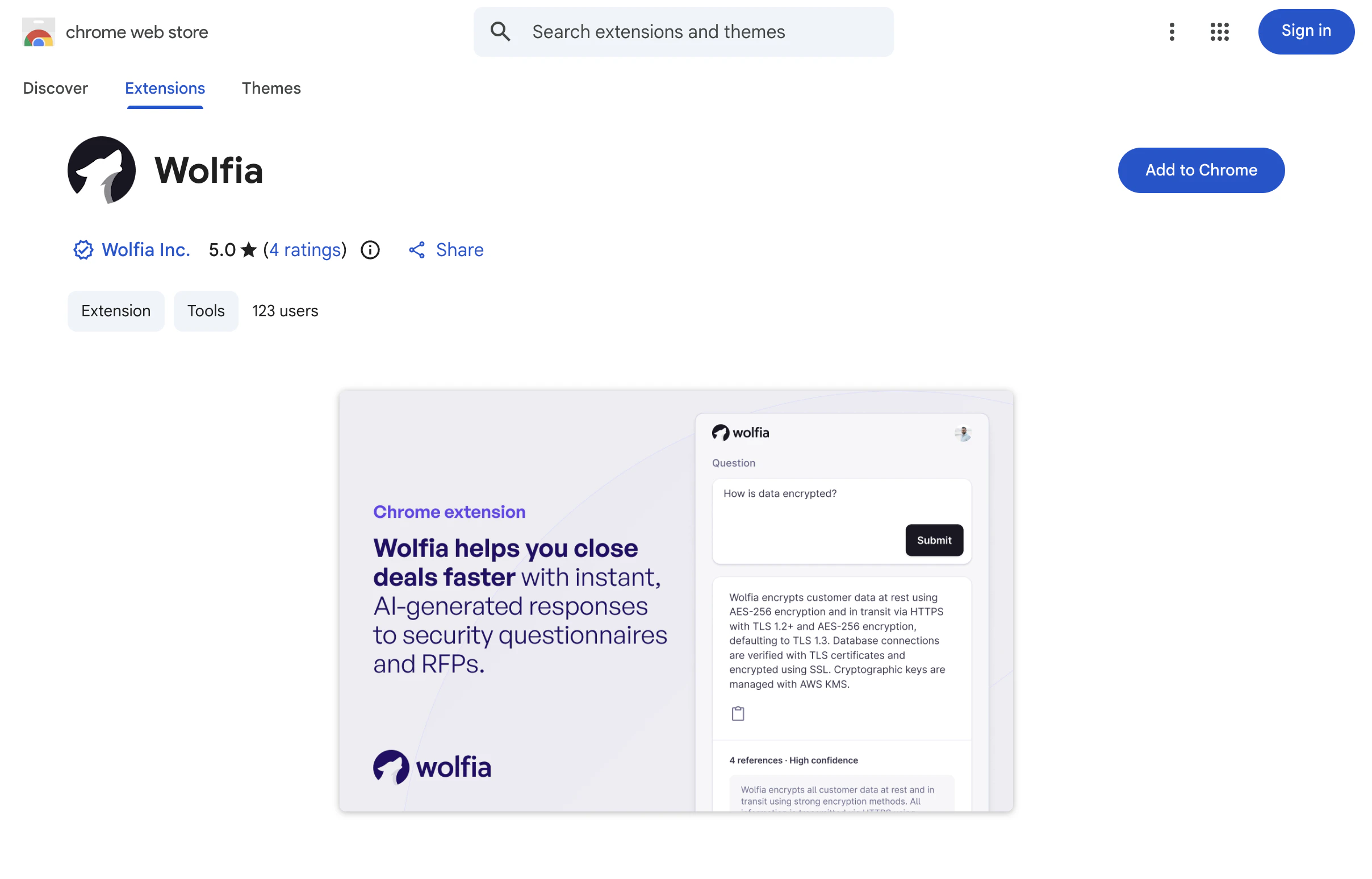
Open the [Wolfia Chrome extension listing](https://chromewebstore.google.com/detail/wolfia/pjgnemhlmainfdompaonigbkoicdlkjf) and click **Add to Chrome**.
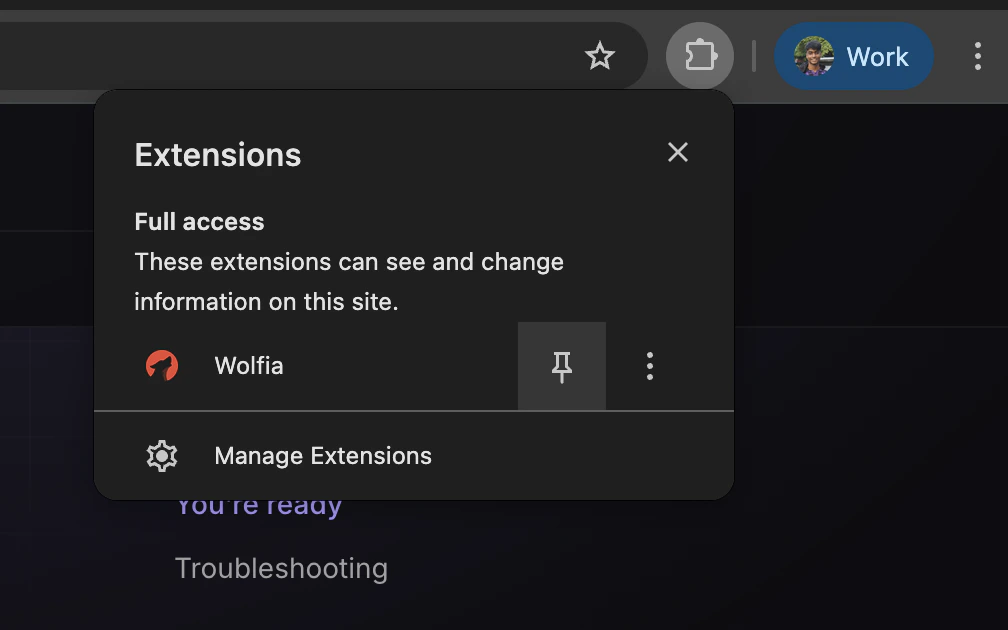
 Click the puzzle icon in the toolbar and pin **Wolfia** so it stays visible.
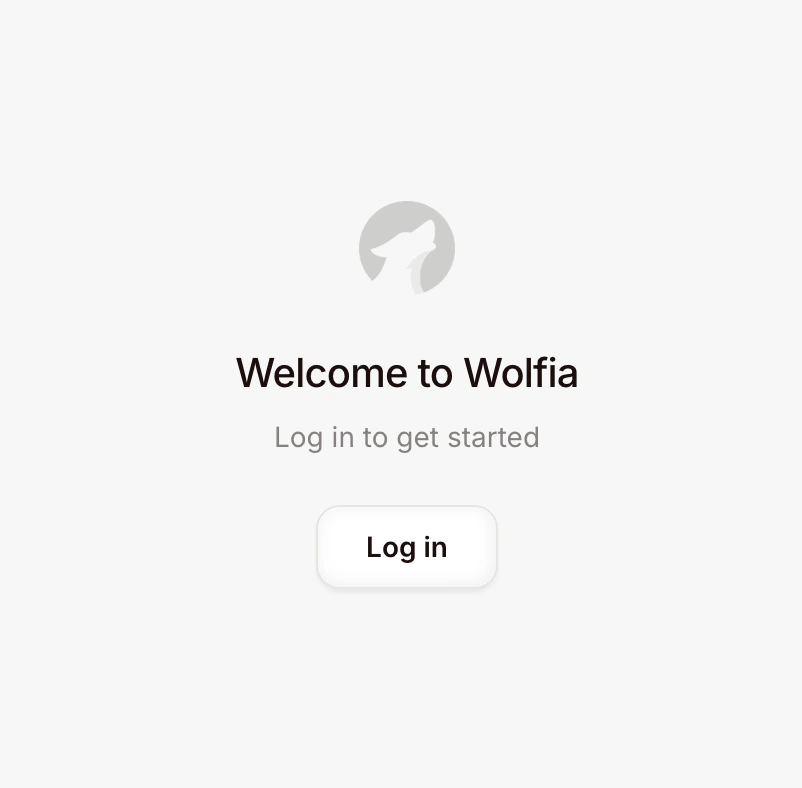
 Open the extension and click **Log in**. Use the same Google or SSO account you use at wolfia.com.
 ## You're ready
With the extension installed and logged in, head to the [quickstart](/how-to/chrome-extension/quickstart) to answer your first portal questionnaire.
## Troubleshooting
Click the puzzle icon, find Wolfia in the list, and click the pin so it appears as a fixed icon. Without pinning, the extension is still installed but lives behind the puzzle menu.
Confirm you can log in at [wolfia.com](https://wolfia.com) in the same browser profile. The extension uses your Wolfia session, so if your account isn't set up there, the extension can't sign you in. Reach out to your admin if you need an invite.
## You're ready
With the extension installed and logged in, head to the [quickstart](/how-to/chrome-extension/quickstart) to answer your first portal questionnaire.
## Troubleshooting
Click the puzzle icon, find Wolfia in the list, and click the pin so it appears as a fixed icon. Without pinning, the extension is still installed but lives behind the puzzle menu.
Confirm you can log in at [wolfia.com](https://wolfia.com) in the same browser profile. The extension uses your Wolfia session, so if your account isn't set up there, the extension can't sign you in. Reach out to your admin if you need an invite.