> ## Documentation Index
> Fetch the complete documentation index at: https://docs.wolfia.com/llms.txt
> Use this file to discover all available pages before exploring further.
# Updating
> Keep the Wolfia Chrome extension on the latest version
Chrome updates the Wolfia extension automatically in the background, usually within a few hours of a new release. You don't need to do anything to stay current. If you want a specific fix or feature right away, you can force an update in under a minute.
## Force an update
Paste `chrome://extensions` into a new tab's address bar, or click the puzzle icon in the toolbar and choose **Manage extensions**. You'll see the Wolfia card under **All Extensions**.
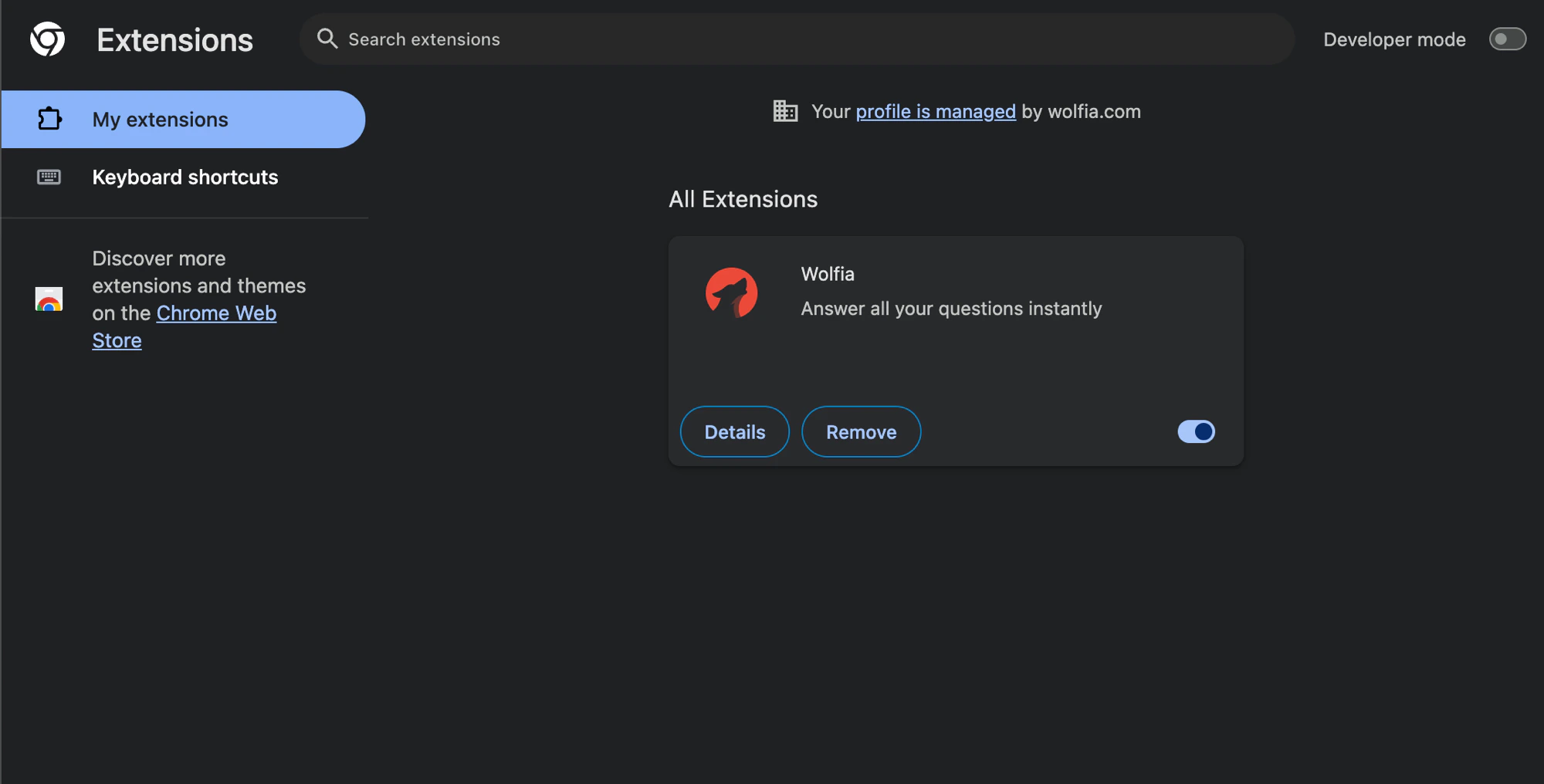 Toggle **Developer mode** on in the top-right corner. This reveals the **Load unpacked**, **Pack extension**, and **Update** buttons, and shows the installed version number on the Wolfia card.
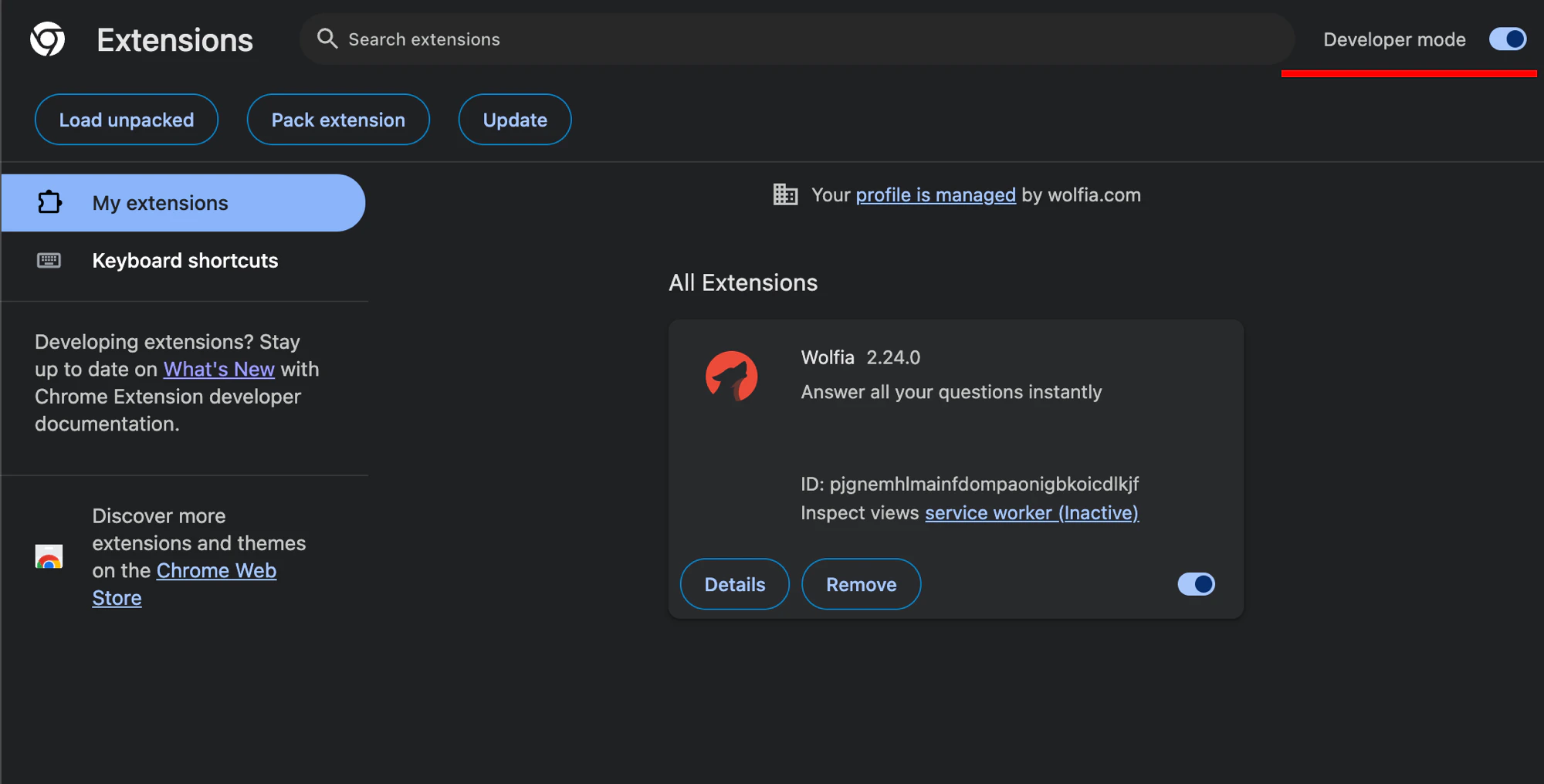 Click **Update** in the top toolbar. Chrome checks every installed extension and pulls the latest version of Wolfia.
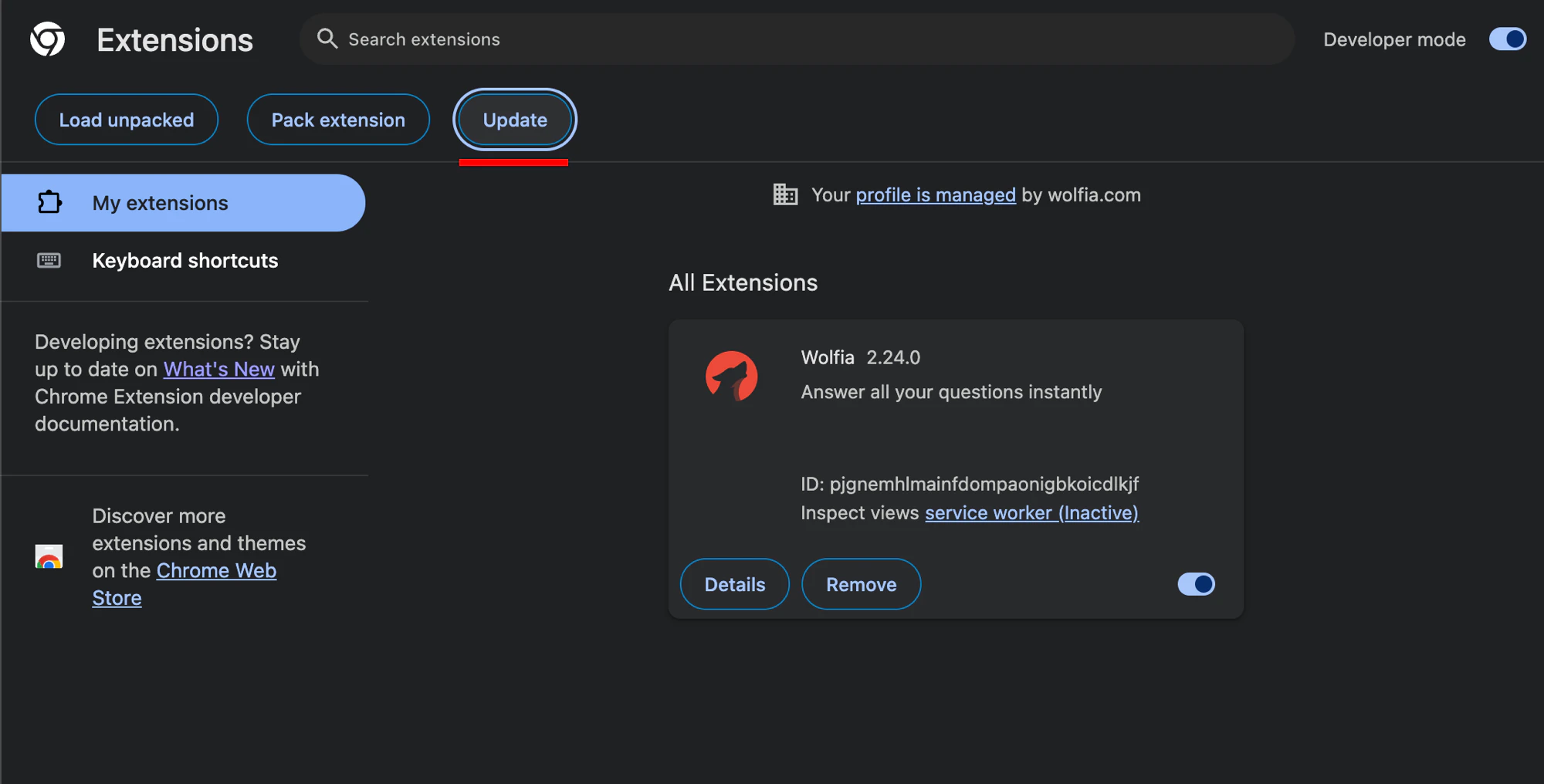 If you had a questionnaire portal open during the update, refresh the tab so the new extension version is active there.
You can turn Developer mode back off once the update is done. To confirm you're on the latest, compare the version on the Wolfia card against the version on the [Chrome Web Store listing](https://chromewebstore.google.com/detail/wolfia/pjgnemhlmainfdompaonigbkoicdlkjf).
## Troubleshooting
You're already on the latest version Chrome has cached. If a release just shipped, Chrome's update server may take a few hours to serve it. Wait and try again, or remove and reinstall the extension from the [Chrome Web Store](https://chromewebstore.google.com/detail/wolfia/pjgnemhlmainfdompaonigbkoicdlkjf).
If Chrome is managed by your IT team, extension updates may be controlled by policy and the **Update** button can be hidden or disabled. Ask your admin to push the latest Wolfia version.
Reach out at [support@wolfia.com](mailto:support@wolfia.com) with your extension version (from `chrome://extensions`) and the portal you were working on. We'll triage and ship a fix.
If you had a questionnaire portal open during the update, refresh the tab so the new extension version is active there.
You can turn Developer mode back off once the update is done. To confirm you're on the latest, compare the version on the Wolfia card against the version on the [Chrome Web Store listing](https://chromewebstore.google.com/detail/wolfia/pjgnemhlmainfdompaonigbkoicdlkjf).
## Troubleshooting
You're already on the latest version Chrome has cached. If a release just shipped, Chrome's update server may take a few hours to serve it. Wait and try again, or remove and reinstall the extension from the [Chrome Web Store](https://chromewebstore.google.com/detail/wolfia/pjgnemhlmainfdompaonigbkoicdlkjf).
If Chrome is managed by your IT team, extension updates may be controlled by policy and the **Update** button can be hidden or disabled. Ask your admin to push the latest Wolfia version.
Reach out at [support@wolfia.com](mailto:support@wolfia.com) with your extension version (from `chrome://extensions`) and the portal you were working on. We'll triage and ship a fix.