> ## Documentation Index
> Fetch the complete documentation index at: https://docs.wolfia.com/llms.txt
> Use this file to discover all available pages before exploring further.
# GitHub Integration for Knowledge Sync
> Connect Wolfia to GitHub and sync documentation, policies, and other files from your repositories into your knowledge base.
## Overview
Teams that keep security policies, runbooks, and product documentation in a GitHub repository can make that content answerable in Wolfia without copying it anywhere. You choose the repositories, branches, and files to include, and Wolfia keeps its knowledge base in step with the repository as files change.
 ## What we sync
* **Documentation files** - Markdown (`.md`, `.mdx`), plain text, HTML, and JSON
* **Office documents** - Word (`.docx`, `.doc`), Excel (`.xlsx`, `.xlsm`, `.xls`), PowerPoint (`.pptx`), and CSV
* **PDFs** - Policy documents, reports, and attestations
* **Images** - PNG, JPG, and WebP diagrams such as architecture overviews
* **Email files** - `.eml` messages saved into the repository
All access is read-only. Wolfia never writes to your repositories.
## Prerequisites
* A GitHub organization or user account with the repositories you want to sync
* Permission to install a GitHub App on that organization or account
* **Admin role in Wolfia** to connect the integration
## Setup instructions
Navigate to **Knowledge Hub** in the left sidebar, find the **GitHub** integration, and click **Connect**. You will be redirected to GitHub to install the Wolfia app.
During installation, grant access to all repositories or only the specific repositories you want Wolfia to read. You can change this later from your GitHub settings.
Back in Wolfia, click **Manage repositories**, pick the repositories to sync, and choose the branch to read from for each one.
Browse the repository file tree and select the folders and files to bring into your knowledge base. Only supported file types are selectable.
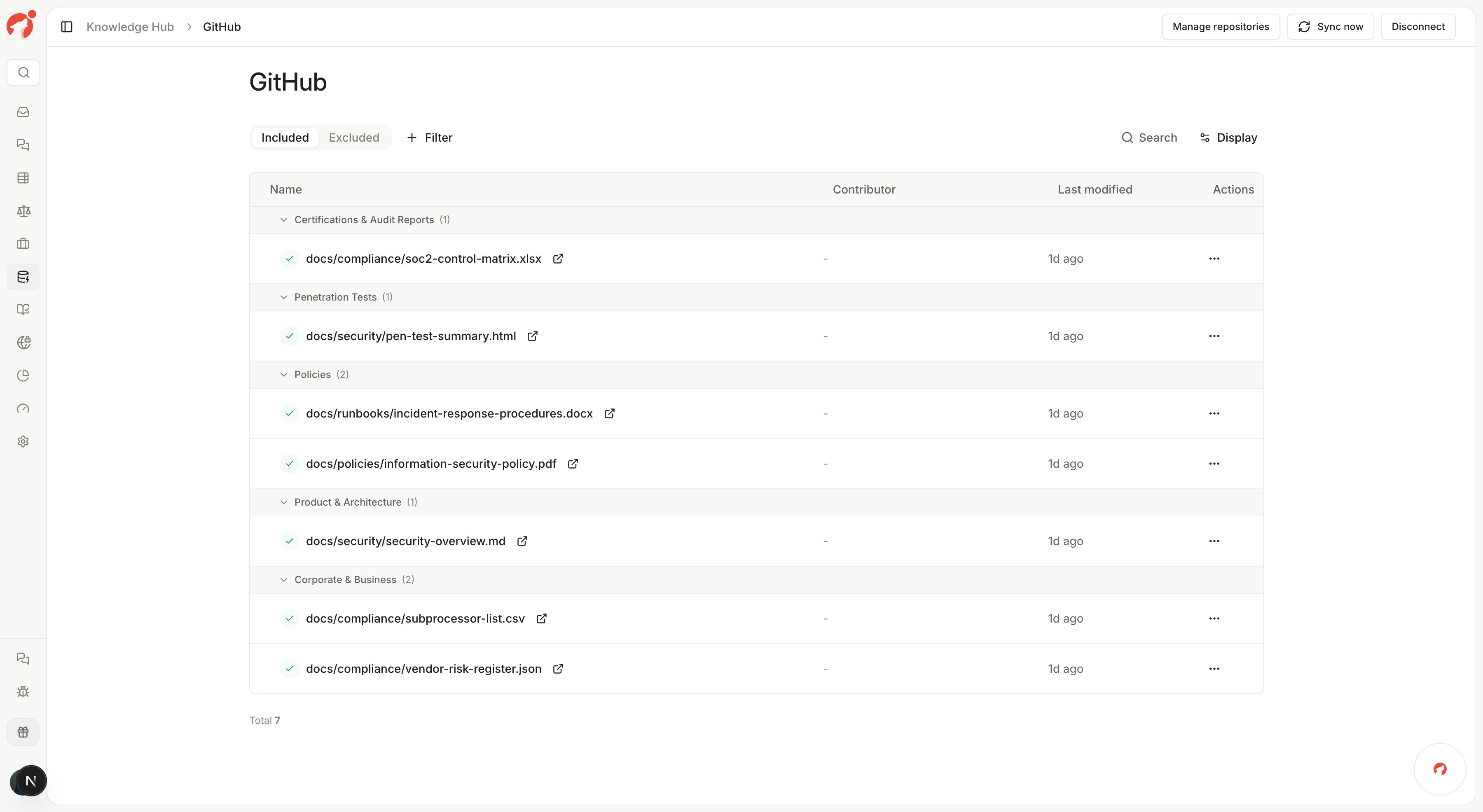
Click **Sync now** to run the first sync. Files appear in the Knowledge Hub with their repository paths, grouped into folders such as Policies and Certifications & Audit Reports as they are classified.
## How syncing works
* **Automatic refresh** - Synced repositories refresh once a day, so answers reflect your latest committed documentation.
* **Only changes are re-processed** - **Sync now** and the daily refresh compare each file against the version already synced. Unchanged files are skipped, so syncs stay fast even in large repositories.
* **Deletions are honored** - When a synced file is removed from the repository, its content is removed from your knowledge base on the next sync.
* **Facts are extracted automatically** - After a file syncs, Wolfia extracts the facts it contains so they can be used in questionnaire answers, chat, and RFP responses.
## Good practices
* Sync from your default branch so the knowledge base always reflects reviewed, merged content.
* Keep customer-facing documentation in dedicated folders (for example `docs/policies/`, `docs/security/`) and select those folders rather than the whole repository.
* Use descriptive file names. The file path is shown in the Knowledge Hub and helps your team find sources quickly.
## FAQ
Markdown, MDX, plain text, HTML, JSON, PDF, Word, Excel, PowerPoint, CSV, PNG, JPG, WebP, and EML files are supported. Unsupported file types do not appear in the file picker.
Wolfia only syncs the files you explicitly select. If you select only documentation folders, source code is never read into the knowledge base.
Wolfia checks the selected files against the repository and re-processes only the files that changed since the last sync. Files that are unchanged are skipped.
Click **Disconnect** on the GitHub page in the Knowledge Hub. You can also uninstall the Wolfia app from your GitHub organization settings.
## Related pages
Sync documentation from GitLab projects the same way.
How Wolfia organizes and uses your synced knowledge.
Other ways to bring content into Wolfia.
Sync pages and attachments from Confluence Cloud.
## What we sync
* **Documentation files** - Markdown (`.md`, `.mdx`), plain text, HTML, and JSON
* **Office documents** - Word (`.docx`, `.doc`), Excel (`.xlsx`, `.xlsm`, `.xls`), PowerPoint (`.pptx`), and CSV
* **PDFs** - Policy documents, reports, and attestations
* **Images** - PNG, JPG, and WebP diagrams such as architecture overviews
* **Email files** - `.eml` messages saved into the repository
All access is read-only. Wolfia never writes to your repositories.
## Prerequisites
* A GitHub organization or user account with the repositories you want to sync
* Permission to install a GitHub App on that organization or account
* **Admin role in Wolfia** to connect the integration
## Setup instructions
Navigate to **Knowledge Hub** in the left sidebar, find the **GitHub** integration, and click **Connect**. You will be redirected to GitHub to install the Wolfia app.
During installation, grant access to all repositories or only the specific repositories you want Wolfia to read. You can change this later from your GitHub settings.
Back in Wolfia, click **Manage repositories**, pick the repositories to sync, and choose the branch to read from for each one.
Browse the repository file tree and select the folders and files to bring into your knowledge base. Only supported file types are selectable.
Click **Sync now** to run the first sync. Files appear in the Knowledge Hub with their repository paths, grouped into folders such as Policies and Certifications & Audit Reports as they are classified.
## How syncing works
* **Automatic refresh** - Synced repositories refresh once a day, so answers reflect your latest committed documentation.
* **Only changes are re-processed** - **Sync now** and the daily refresh compare each file against the version already synced. Unchanged files are skipped, so syncs stay fast even in large repositories.
* **Deletions are honored** - When a synced file is removed from the repository, its content is removed from your knowledge base on the next sync.
* **Facts are extracted automatically** - After a file syncs, Wolfia extracts the facts it contains so they can be used in questionnaire answers, chat, and RFP responses.
## Good practices
* Sync from your default branch so the knowledge base always reflects reviewed, merged content.
* Keep customer-facing documentation in dedicated folders (for example `docs/policies/`, `docs/security/`) and select those folders rather than the whole repository.
* Use descriptive file names. The file path is shown in the Knowledge Hub and helps your team find sources quickly.
## FAQ
Markdown, MDX, plain text, HTML, JSON, PDF, Word, Excel, PowerPoint, CSV, PNG, JPG, WebP, and EML files are supported. Unsupported file types do not appear in the file picker.
Wolfia only syncs the files you explicitly select. If you select only documentation folders, source code is never read into the knowledge base.
Wolfia checks the selected files against the repository and re-processes only the files that changed since the last sync. Files that are unchanged are skipped.
Click **Disconnect** on the GitHub page in the Knowledge Hub. You can also uninstall the Wolfia app from your GitHub organization settings.
## Related pages
Sync documentation from GitLab projects the same way.
How Wolfia organizes and uses your synced knowledge.
Other ways to bring content into Wolfia.
Sync pages and attachments from Confluence Cloud.