> ## Documentation Index
> Fetch the complete documentation index at: https://docs.wolfia.com/llms.txt
> Use this file to discover all available pages before exploring further.
# Gong integration
> Import Gong call transcripts into your Wolfia knowledge base
Customer and prospect calls are full of answers your team gives every day: how the product works, how data is handled, what your security posture looks like. The Gong integration lets you turn those conversations into knowledge. You pick the calls that matter, and Wolfia imports their transcripts so the content is available when answering questionnaires and chat questions.
## What syncs
* **Call transcripts** for the calls you select, including the call title, duration, and participants
* Each imported call becomes a knowledge source in your Knowledge Hub, alongside your documents and other integrations
Nothing is imported automatically. You choose which calls to process, so internal-only or sensitive conversations stay out of your knowledge base unless you add them.
## Connect Gong
In Gong, go to **Company Settings**, then **Ecosystem**, then **API**, and click **Get API Key**. Gong generates an **Access Key** and an **Access Key Secret**. Copy both values, since you'll need them in the next step. Your Gong user must have the **technical administrator** role to generate API keys.
In Wolfia, go to the **Knowledge Hub**, scroll to **Available Integrations**, and find **Gong** under **Sales**.
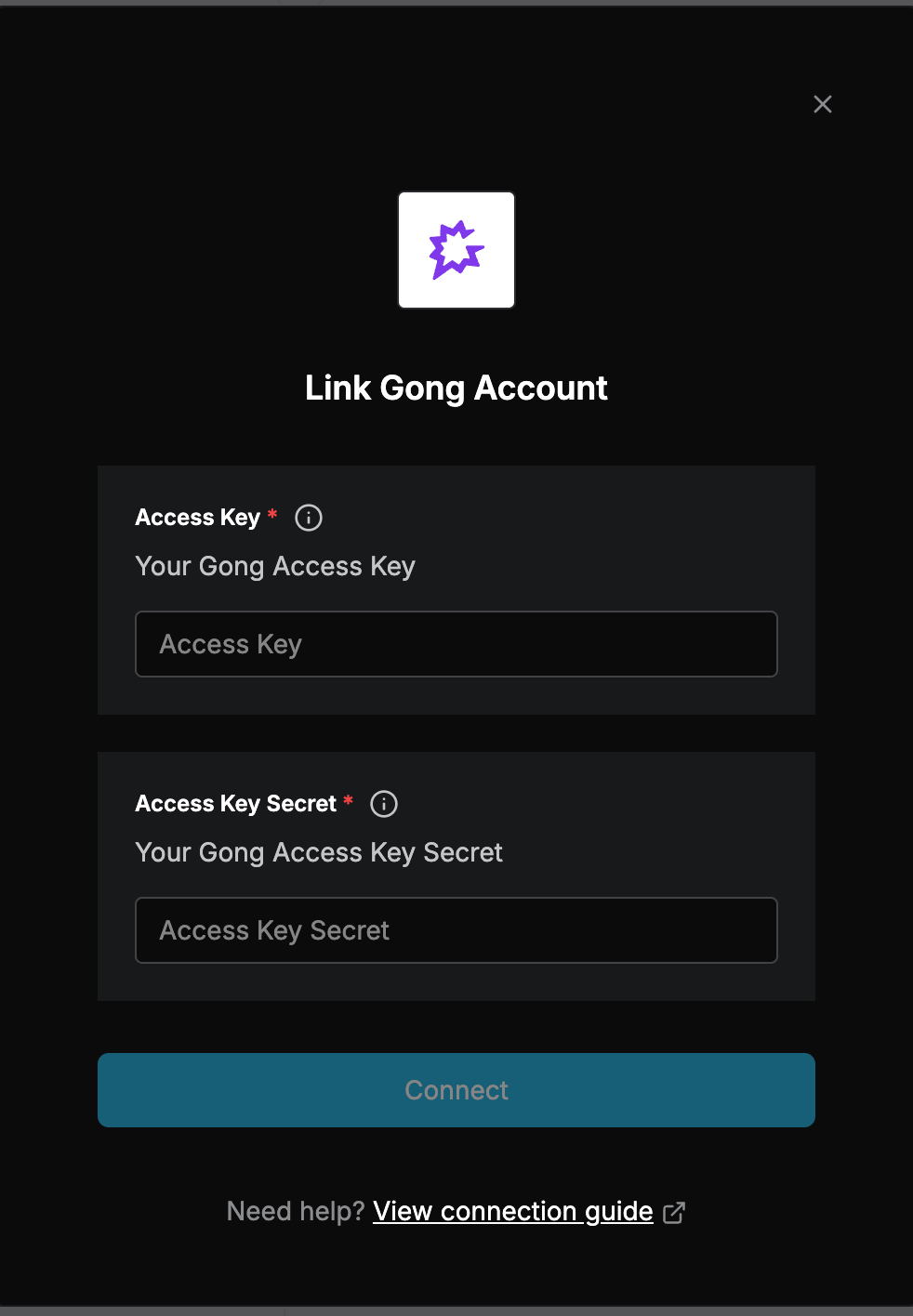
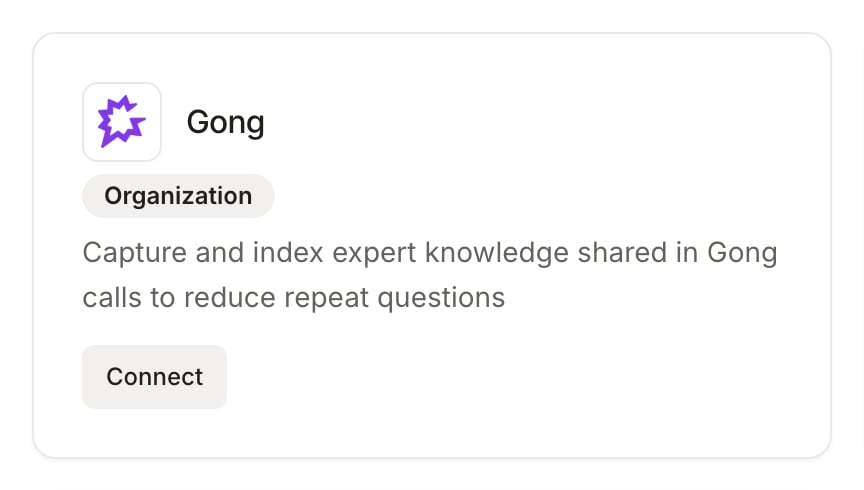 Click **Connect** on the Gong card, or open the Gong page and click **Connect Gong Account**. In the **Link Gong Account** dialog, enter your Gong **Access Key** and **Access Key Secret**, then click **Connect**.
 ## Import call transcripts
Once connected, open the Gong page from the Knowledge Hub to browse and import calls.
Use the date filters to choose the period you want to browse. By default, Wolfia shows calls from the last 30 days.
Check the calls you want to import. The list shows each call's title, time, duration, and participants so you can pick the right conversations.
Click **Process**. Wolfia fetches each selected call's transcript from Gong and adds it to your knowledge base. Once processing completes, the content is available to power answers.
Repeat this whenever you have new calls worth importing. Calls are imported on demand: there is no background sync pulling in calls you didn't select.
## FAQ
No. Only the calls you select and process are imported. Everything else in Gong is untouched.
Each call becomes a knowledge source containing the transcript, with the call title, duration, and participants. It is used for answering the same way as any other knowledge source.
You need a Gong API access key and secret, which only a user with the **technical administrator** role in Gong can generate (under Company Settings, Ecosystem, API).
Yes. Imported calls are knowledge sources, so you can manage or remove them from the Knowledge Hub like any other source.
## Related pages
How Wolfia organizes and uses your knowledge sources.
Other ways to bring content into Wolfia.
Sync documents and folders from Google Drive.
Bring CRM context into Wolfia.
## Import call transcripts
Once connected, open the Gong page from the Knowledge Hub to browse and import calls.
Use the date filters to choose the period you want to browse. By default, Wolfia shows calls from the last 30 days.
Check the calls you want to import. The list shows each call's title, time, duration, and participants so you can pick the right conversations.
Click **Process**. Wolfia fetches each selected call's transcript from Gong and adds it to your knowledge base. Once processing completes, the content is available to power answers.
Repeat this whenever you have new calls worth importing. Calls are imported on demand: there is no background sync pulling in calls you didn't select.
## FAQ
No. Only the calls you select and process are imported. Everything else in Gong is untouched.
Each call becomes a knowledge source containing the transcript, with the call title, duration, and participants. It is used for answering the same way as any other knowledge source.
You need a Gong API access key and secret, which only a user with the **technical administrator** role in Gong can generate (under Company Settings, Ecosystem, API).
Yes. Imported calls are knowledge sources, so you can manage or remove them from the Knowledge Hub like any other source.
## Related pages
How Wolfia organizes and uses your knowledge sources.
Other ways to bring content into Wolfia.
Sync documents and folders from Google Drive.
Bring CRM context into Wolfia.