> ## Documentation Index
> Fetch the complete documentation index at: https://docs.wolfia.com/llms.txt
> Use this file to discover all available pages before exploring further.
# Guru Integration: Sync Knowledge Cards into Wolfia
> Connect a Guru collection to Wolfia so the cards your team already verifies become answers, and stay current as cards change.
Teams keep product facts, support runbooks, and security answers in Guru cards because they are short, owned, and verified. Wolfia reads those cards straight from a collection, so a questionnaire answer can cite the same card your support team trusts, and a card edit in Guru shows up in Wolfia on the next sync.
## What Wolfia reads
Wolfia indexes each card's title and body from the collection you connect.
The collection name and the folders a card sits in are kept with the card, so answers can point back to where it lives in Guru.
A card that changes in Guru is re-read. A card deleted from the collection drops out of the knowledge base on the next sync.
Wolfia never creates, edits, or verifies cards in Guru.
One connection covers one Guru collection. Cards outside that collection are not read.
## Before you start
* An admin, expert, or integration admin role in Wolfia. Only these roles can connect integrations.
* A Guru account that can generate API tokens. In Guru, go to **Manage > Apps & Integrations**, open the **API Access** tab, and use **Generate a New Collection Token** for the collection you want to sync. Keep the collection ID and the token handy.
Use a collection token. Wolfia reads the collection ID from the credentials you enter, so a user token paired with a user ID will not sync any cards.
A Guru connection belongs to your organization. Anyone who can manage integrations can manage it, and Wolfia keeps one active Guru connection per organization.
## Connect Guru
In Wolfia, go to **Knowledge Hub** and find **Guru** under **Knowledge** in the list of integrations.
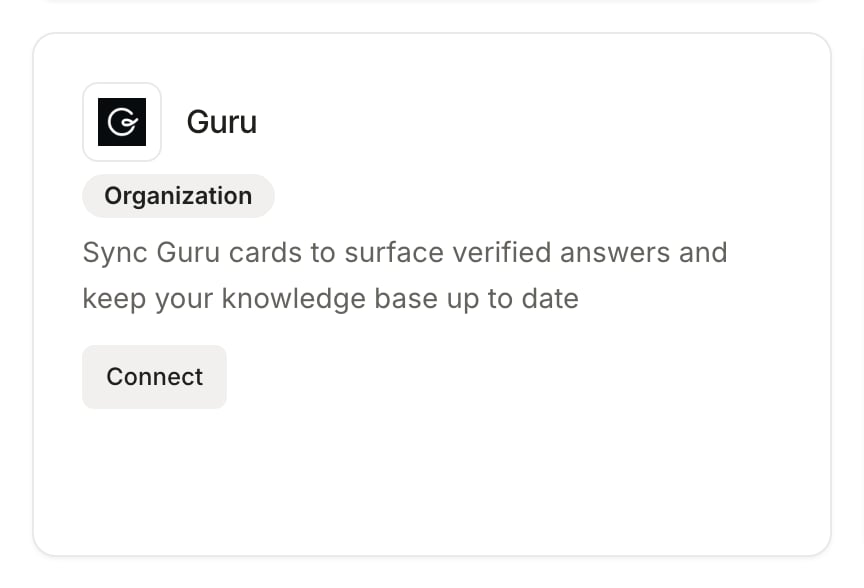 Click **Connect**. In the connection dialog, enter your collection ID as the **User/Collection ID** and your collection token as the **User/Collection Token**, then confirm. Wolfia checks the credentials against Guru and shows **Guru connected successfully!** before opening the Guru page.
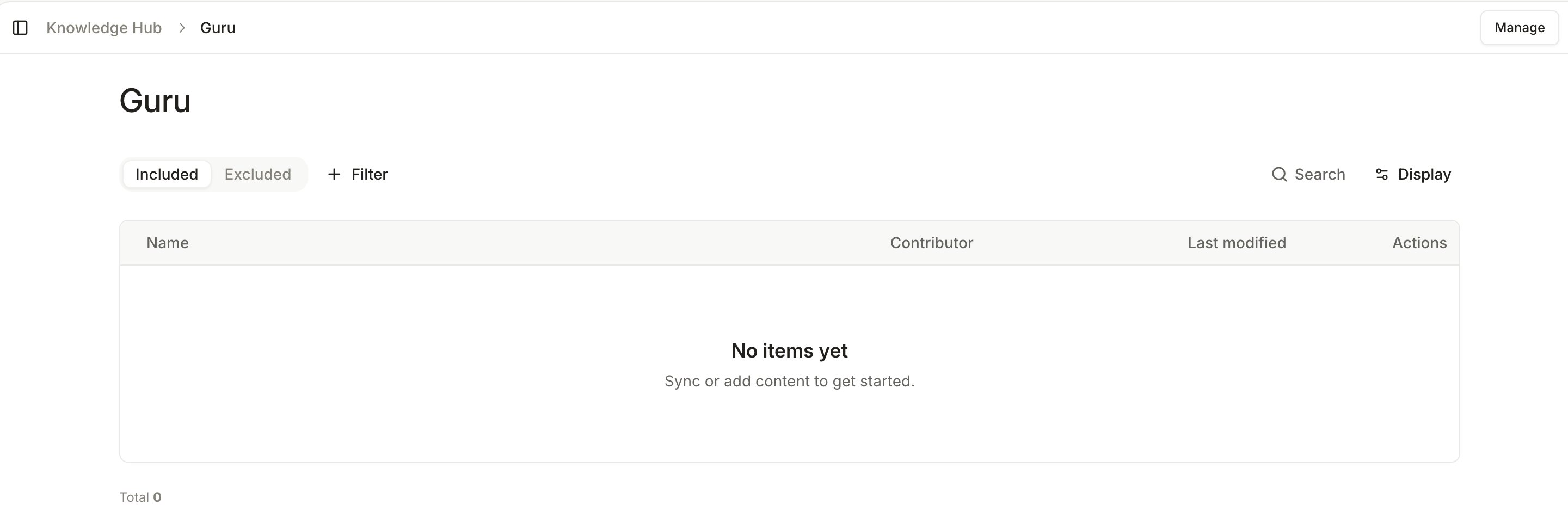
On the Guru page, click **Sync now**. Cards appear in the sources table as Wolfia reads them. Without this step, the first sync runs on the next daily schedule.
Indexing time depends on how many cards the collection holds. The sources table updates on its own as cards finish; you can keep using Wolfia while it runs.
Click **Connect**. In the connection dialog, enter your collection ID as the **User/Collection ID** and your collection token as the **User/Collection Token**, then confirm. Wolfia checks the credentials against Guru and shows **Guru connected successfully!** before opening the Guru page.
On the Guru page, click **Sync now**. Cards appear in the sources table as Wolfia reads them. Without this step, the first sync runs on the next daily schedule.
Indexing time depends on how many cards the collection holds. The sources table updates on its own as cards finish; you can keep using Wolfia while it runs.
 ## Keep Guru in sync
* **Automatic sync**: Wolfia re-reads the collection every day, picking up new cards, edited cards, and cards that were removed.
* **Sync now**: click **Sync now** on the Guru page to refresh immediately, for example right after a batch of card updates.
* **Exclude a card**: exclude a card from the sources table to keep it out of answers. Excluded cards stay excluded on later syncs, even when the card changes in Guru.
* **Rename the connection**: click **Manage**, then the pencil icon next to the collection, to give the connection a clearer name in Wolfia.
* **Remove the connection**: click **Manage**, then the trash icon, and confirm **Remove**. Cards indexed from that collection are removed from the knowledge base. This cannot be undone.
## Good practices
* Connect the collection your team keeps verified. Wolfia reads every card in it, so a collection with stale or draft cards will surface those too.
* Keep security and compliance answers in a dedicated collection, so the connection stays focused and easy to audit.
* Generate the collection token from an account that will stay on the team. If that account leaves and the token is revoked, syncing pauses until someone reconnects.
## Frequently asked questions
The token was revoked or regenerated in Guru, so syncing paused. Generate a new collection token in Guru, then click **Reconnect Guru** in the banner on the Guru page in Wolfia. Your indexed cards are kept, and syncing resumes.
Check that you entered a collection ID together with a collection token. A user ID with a user token connects but returns no cards. Then click **Sync now**. If the collection is large, give the sync time to finish.
Wolfia keeps one active Guru connection per organization. To switch collections, remove the current connection from **Manage** and connect the other collection.
No. Access is read only. Wolfia reads cards and never edits, verifies, or deletes them.
## Related pages
Every source Wolfia can index and how they fit together.
Upload documents directly when they do not live in Guru.
Sync wiki pages and spaces the same way.
Keep public documentation in sync alongside internal cards.
## Keep Guru in sync
* **Automatic sync**: Wolfia re-reads the collection every day, picking up new cards, edited cards, and cards that were removed.
* **Sync now**: click **Sync now** on the Guru page to refresh immediately, for example right after a batch of card updates.
* **Exclude a card**: exclude a card from the sources table to keep it out of answers. Excluded cards stay excluded on later syncs, even when the card changes in Guru.
* **Rename the connection**: click **Manage**, then the pencil icon next to the collection, to give the connection a clearer name in Wolfia.
* **Remove the connection**: click **Manage**, then the trash icon, and confirm **Remove**. Cards indexed from that collection are removed from the knowledge base. This cannot be undone.
## Good practices
* Connect the collection your team keeps verified. Wolfia reads every card in it, so a collection with stale or draft cards will surface those too.
* Keep security and compliance answers in a dedicated collection, so the connection stays focused and easy to audit.
* Generate the collection token from an account that will stay on the team. If that account leaves and the token is revoked, syncing pauses until someone reconnects.
## Frequently asked questions
The token was revoked or regenerated in Guru, so syncing paused. Generate a new collection token in Guru, then click **Reconnect Guru** in the banner on the Guru page in Wolfia. Your indexed cards are kept, and syncing resumes.
Check that you entered a collection ID together with a collection token. A user ID with a user token connects but returns no cards. Then click **Sync now**. If the collection is large, give the sync time to finish.
Wolfia keeps one active Guru connection per organization. To switch collections, remove the current connection from **Manage** and connect the other collection.
No. Access is read only. Wolfia reads cards and never edits, verifies, or deletes them.
## Related pages
Every source Wolfia can index and how they fit together.
Upload documents directly when they do not live in Guru.
Sync wiki pages and spaces the same way.
Keep public documentation in sync alongside internal cards.