> ## Documentation Index
> Fetch the complete documentation index at: https://docs.wolfia.com/llms.txt
> Use this file to discover all available pages before exploring further.
# Momentum.io Integration: Bring Meeting Transcripts into Wolfia
> Connect Momentum.io to Wolfia, choose which meeting transcripts to include, and keep customer conversations flowing into your knowledge base.
Sales and customer calls are where your team explains the product, answers security questions, and commits to how data is handled. With Momentum.io connected, those conversations become knowledge sources that Wolfia can draw on when answering questionnaires and chat questions, and you stay in control of exactly which meetings are included.
## What Wolfia reads
The full transcript of each meeting you include, with the speaker for each line.
The meeting title, host, attendees, and start and end time, so answers can cite the right conversation.
Wolfia lists every meeting Momentum.io returns, but nothing is added to your knowledge base until you include it. Meetings where every attendee is from your own company are treated as internal meetings and used as background context rather than as customer-facing evidence.
## Before you start
* An admin, expert, or integration admin role in Wolfia. Only these roles can connect Momentum.io or include and exclude transcripts.
* A Momentum.io account with API access enabled. If you do not see an option to create an API key, contact Momentum support and ask them to turn on API access for your workspace.
The Momentum.io connection belongs to your whole organization. Any admin can manage it, and included transcripts are available to everyone in your Wolfia workspace.
## Connect Momentum.io
Log in to Momentum.io, open the **Integrations** page, and select **Create API key**. Copy the key; you will paste it into Wolfia in the next step.
In Wolfia, go to **Knowledge Hub** and find **Momentum.io** under **Sales** in the list of available integrations.
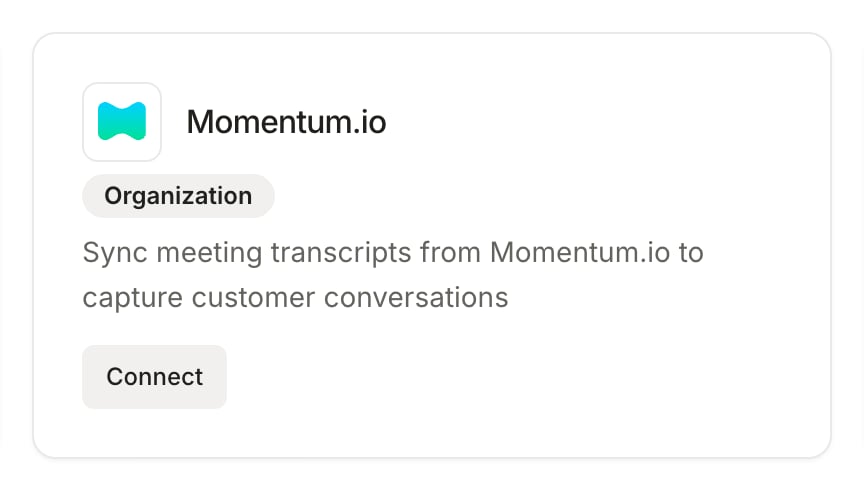 Click **Connect**. A connection form opens; paste your Momentum.io API key into the **API Key** field and submit. Wolfia verifies the key, confirms with **Momentum.io connected successfully!**, and opens the Momentum.io page.
Click **Sync now** on the Momentum.io page to fetch your meeting list right away. The first sync looks back over the last 90 days of meetings. If you skip this step, the list fills in with the next daily sync.
Click **Connect**. A connection form opens; paste your Momentum.io API key into the **API Key** field and submit. Wolfia verifies the key, confirms with **Momentum.io connected successfully!**, and opens the Momentum.io page.
Click **Sync now** on the Momentum.io page to fetch your meeting list right away. The first sync looks back over the last 90 days of meetings. If you skip this step, the list fills in with the next daily sync.
 ## Choose which transcripts to include
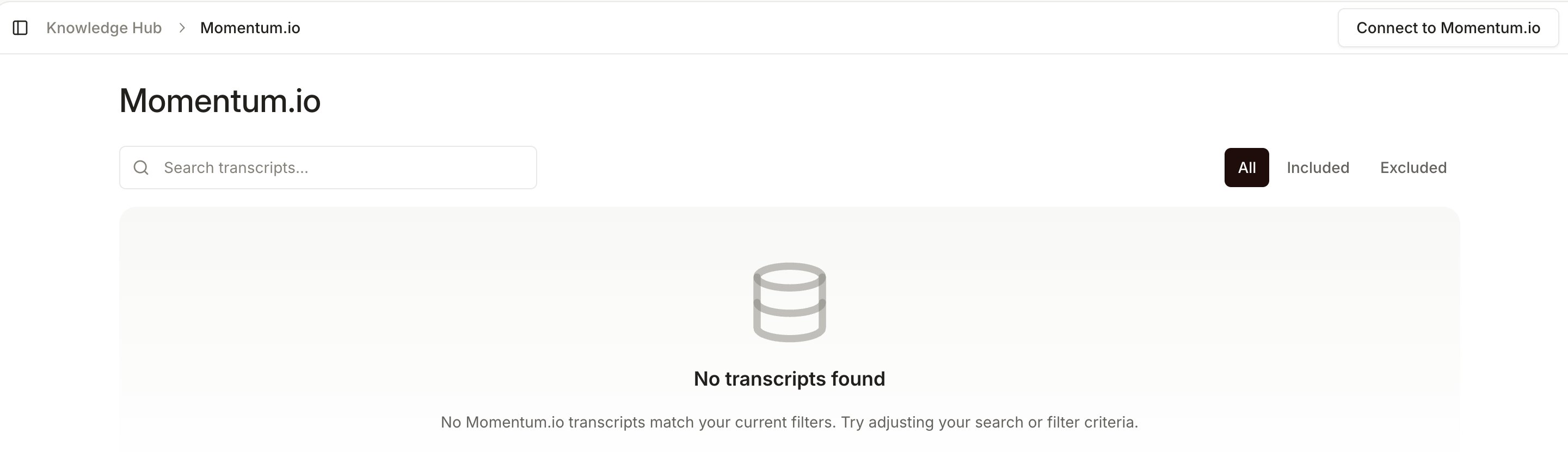
Every meeting arrives in the **Excluded** state. Open the Momentum.io page from the Knowledge Hub to decide what goes into the knowledge base.
* **Find a meeting**: type in **Search transcripts...** to filter by title, and switch between **All**, **Included**, and **Excluded** to narrow the list. Each row shows the meeting **Title** and **Call date**, newest first.
* **Include a transcript**: turn on the switch at the end of the row. Wolfia confirms with **Transcript included successfully** and starts processing the transcript in the background. It becomes available for answering once processing finishes.
* **Exclude a transcript**: turn the switch off. Wolfia confirms with **Transcript excluded successfully** and removes that transcript from the knowledge base.
## Keep Momentum.io in sync
* **Automatic sync**: Wolfia checks Momentum.io daily for meetings that ended since the last sync and adds them to the list as excluded, so nothing new enters the knowledge base without your say. Details such as the title and attendees of meetings already in the list are refreshed too.
* **Sync now**: click **Sync now** on the Momentum.io page to check for new meetings immediately, for example right after an important call.
* **Disconnect**: click **Disconnect**, then confirm in the **Confirm Momentum.io disconnect** dialog. Disconnecting stops new meetings from syncing. To remove an imported transcript from your knowledge base, exclude it before you disconnect.
## Good practices
* Review the **Excluded** list after each week of calls and include the customer and prospect conversations that contain reusable answers.
* Leave internal-only calls and sensitive negotiations excluded. Excluding is instant and reversible, so err on the side of caution.
* Prefer transcripts where your team explains how the product works, how data is handled, or how security controls operate. Those are the conversations questionnaires ask about.
## Frequently asked questions
Wolfia does not fetch meetings the moment you connect. Click **Sync now** to pull in the last 90 days of meetings, or wait for the next daily sync. If the list stays empty, check that your Momentum.io workspace has API access enabled and that the key you entered is still valid.
No. Every meeting starts out excluded. Only transcripts you switch on are processed and used for answering.
The transcript is removed from the knowledge base and stops contributing to answers. You can include it again at any time; Wolfia processes it fresh.
Only admins, experts, and integration admins can include or exclude transcripts. Other team members can still browse the list, and hovering the switch shows **Only administrators can change transcript status**.
No. Wolfia only reads your meetings. Nothing is written back to Momentum.io.
## Related pages
Every source Wolfia can index and how they fit together.
Upload documents directly when they do not live in an integration.
Import call transcripts from Gong the same way.
Connect your CRM alongside your meeting transcripts.
## Choose which transcripts to include
Every meeting arrives in the **Excluded** state. Open the Momentum.io page from the Knowledge Hub to decide what goes into the knowledge base.
* **Find a meeting**: type in **Search transcripts...** to filter by title, and switch between **All**, **Included**, and **Excluded** to narrow the list. Each row shows the meeting **Title** and **Call date**, newest first.
* **Include a transcript**: turn on the switch at the end of the row. Wolfia confirms with **Transcript included successfully** and starts processing the transcript in the background. It becomes available for answering once processing finishes.
* **Exclude a transcript**: turn the switch off. Wolfia confirms with **Transcript excluded successfully** and removes that transcript from the knowledge base.
## Keep Momentum.io in sync
* **Automatic sync**: Wolfia checks Momentum.io daily for meetings that ended since the last sync and adds them to the list as excluded, so nothing new enters the knowledge base without your say. Details such as the title and attendees of meetings already in the list are refreshed too.
* **Sync now**: click **Sync now** on the Momentum.io page to check for new meetings immediately, for example right after an important call.
* **Disconnect**: click **Disconnect**, then confirm in the **Confirm Momentum.io disconnect** dialog. Disconnecting stops new meetings from syncing. To remove an imported transcript from your knowledge base, exclude it before you disconnect.
## Good practices
* Review the **Excluded** list after each week of calls and include the customer and prospect conversations that contain reusable answers.
* Leave internal-only calls and sensitive negotiations excluded. Excluding is instant and reversible, so err on the side of caution.
* Prefer transcripts where your team explains how the product works, how data is handled, or how security controls operate. Those are the conversations questionnaires ask about.
## Frequently asked questions
Wolfia does not fetch meetings the moment you connect. Click **Sync now** to pull in the last 90 days of meetings, or wait for the next daily sync. If the list stays empty, check that your Momentum.io workspace has API access enabled and that the key you entered is still valid.
No. Every meeting starts out excluded. Only transcripts you switch on are processed and used for answering.
The transcript is removed from the knowledge base and stops contributing to answers. You can include it again at any time; Wolfia processes it fresh.
Only admins, experts, and integration admins can include or exclude transcripts. Other team members can still browse the list, and hovering the switch shows **Only administrators can change transcript status**.
No. Wolfia only reads your meetings. Nothing is written back to Momentum.io.
## Related pages
Every source Wolfia can index and how they fit together.
Upload documents directly when they do not live in an integration.
Import call transcripts from Gong the same way.
Connect your CRM alongside your meeting transcripts.