> ## Documentation Index
> Fetch the complete documentation index at: https://docs.wolfia.com/llms.txt
> Use this file to discover all available pages before exploring further.
# OneDrive for Business Integration: Sync Files and Folders into Wolfia
> Connect OneDrive for Business to Wolfia, pick the files and folders to index, and keep policies, past questionnaires, and sales collateral in sync automatically.
Most of the evidence a security questionnaire needs already sits in someone's OneDrive: the latest policy PDF, last quarter's SIG response, the architecture deck. Connecting OneDrive for Business lets Wolfia read those documents where they live, so answers cite the current version of each file and follow along as your team edits.
## What Wolfia reads
Word, Excel, PowerPoint, PDF, text, and Markdown files are indexed.
Select a folder and Wolfia indexes every supported file inside it, including nested subfolders.
Pick as many files and folders as you like in a single selection, and add more later.
A shortcut in OneDrive that points to a document in your SharePoint tenant is followed and the target document is indexed.
Files in other formats are skipped and shown as skipped in the sources table. Shortcuts that point outside your Microsoft 365 tenant are skipped as well. Access is read only: Wolfia never edits, moves, or shares your files.
## Before you start
* An admin, expert, or integration admin role in Wolfia. Only these roles can connect integrations.
* A Microsoft 365 work or school account with access to the files you want to index.
* Pop-ups allowed for Wolfia in your browser. The file picker opens in a new window.
A OneDrive for Business connection is personal. It belongs to the Microsoft account used to connect, and only that team member can see and manage the connection in Wolfia. Files are still available to your whole organization once indexed.
## Connect OneDrive for Business
In Wolfia, go to **Knowledge Hub** and find **OneDrive for Business** in the list of integrations. The card is labeled **Personal**.
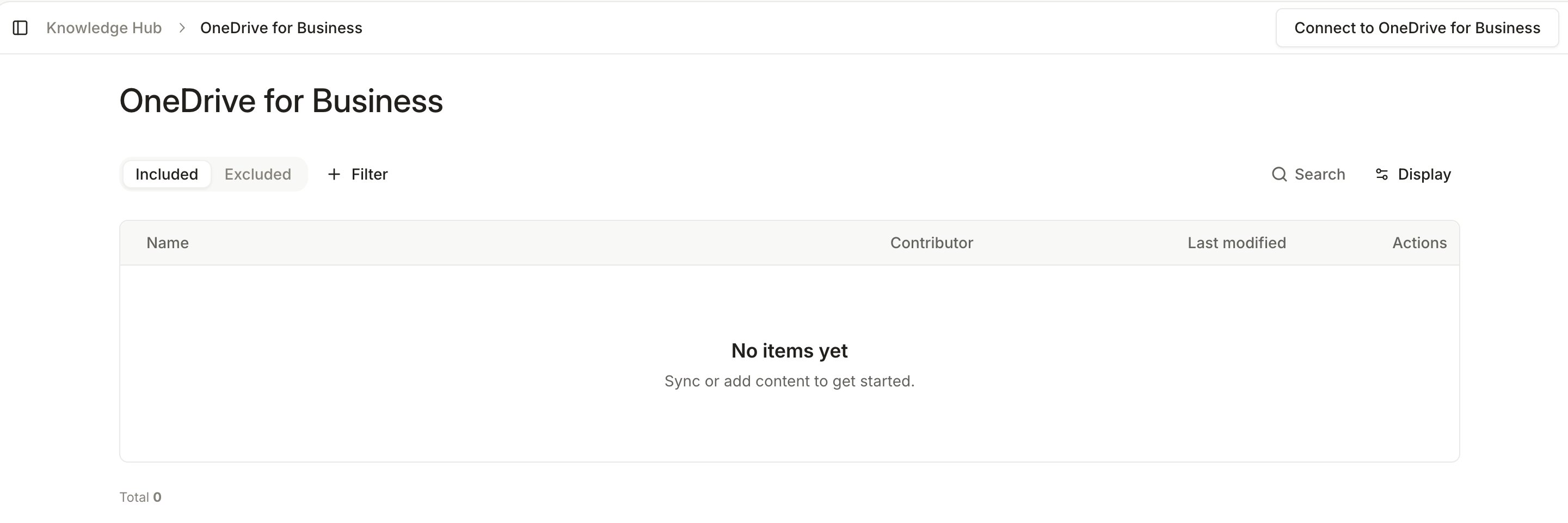
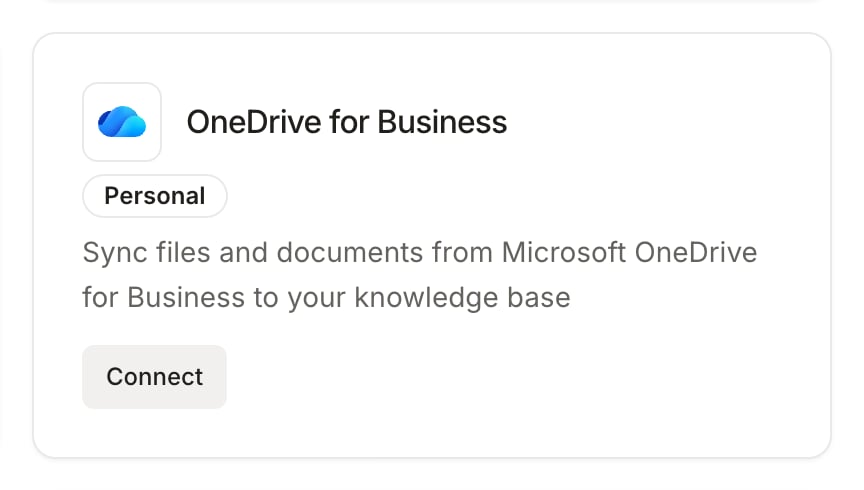 Click **Connect**. Sign in with the Microsoft account that has access to your documents and grant Wolfia read access. Wolfia confirms with **OneDrive for Business connected successfully!** and opens the OneDrive page.
Click **Manage**, then **Add items** to open the Microsoft file picker. Select any number of files and folders and confirm. Wolfia reports how many items were added, and your selection appears in the sources table as indexing begins. The connection is listed under **Connected integrations** in the Knowledge Hub.
Indexing time depends on how much you selected. The sources table updates on its own as files finish; you can keep using Wolfia while it runs.
Click **Connect**. Sign in with the Microsoft account that has access to your documents and grant Wolfia read access. Wolfia confirms with **OneDrive for Business connected successfully!** and opens the OneDrive page.
Click **Manage**, then **Add items** to open the Microsoft file picker. Select any number of files and folders and confirm. Wolfia reports how many items were added, and your selection appears in the sources table as indexing begins. The connection is listed under **Connected integrations** in the Knowledge Hub.
Indexing time depends on how much you selected. The sources table updates on its own as files finish; you can keep using Wolfia while it runs.
 ## Keep OneDrive in sync
* **Automatic sync**: Wolfia re-reads your selected files and folders every day, picking up edits, new files added to selected folders, and removals.
* **Sync now**: click **Sync now** on the OneDrive page to refresh immediately, for example right after a policy update.
* **Change the selection**: click **Manage** to open **Manage synced items**. Use **Add more items** to pick additional files and folders, or tick items and click **Remove selected** to stop syncing them. Changing the selection starts a sync right away, and removed items are dropped from the knowledge base.
* **Disconnect**: click **Disconnect** and confirm to revoke Wolfia's access. All content synced from OneDrive is removed from the knowledge base. This cannot be undone.
## Good practices
* Select folders over individual files. A folder keeps itself current as teammates add documents to it.
* Keep superseded versions out of the selected folders, or archive them, so answers cite the latest policy.
* Connect with an account that will keep access to the documents. The connection depends on that account's permissions.
## Frequently asked questions
Check that the file is a supported type and that the connected Microsoft account can open it. Unsupported files appear as skipped in the sources table. Click **Sync now** after fixing access.
The Microsoft authorization was revoked or expired, for example after a password change or an admin policy update. Syncing pauses until you reconnect. Click **Reconnect** on the OneDrive page; your file and folder selection is kept, and Wolfia confirms with **Reconnected. Syncing has resumed.**
Each connection is tied to one Microsoft account, and each team member sees only their own connection. Connect with the account that can see the documents you want indexed. For shared team libraries, the SharePoint integration is often a better fit.
No. Files you exclude in Wolfia stay excluded on later syncs, even while they remain in a selected folder.
No. Access is read only. Wolfia only reads the files you selected.
## Related pages
Every source Wolfia can index and how they fit together.
Sync shared team document libraries from Microsoft 365.
The same personal file sync for Google Workspace.
Upload documents directly when they do not live in OneDrive.
## Keep OneDrive in sync
* **Automatic sync**: Wolfia re-reads your selected files and folders every day, picking up edits, new files added to selected folders, and removals.
* **Sync now**: click **Sync now** on the OneDrive page to refresh immediately, for example right after a policy update.
* **Change the selection**: click **Manage** to open **Manage synced items**. Use **Add more items** to pick additional files and folders, or tick items and click **Remove selected** to stop syncing them. Changing the selection starts a sync right away, and removed items are dropped from the knowledge base.
* **Disconnect**: click **Disconnect** and confirm to revoke Wolfia's access. All content synced from OneDrive is removed from the knowledge base. This cannot be undone.
## Good practices
* Select folders over individual files. A folder keeps itself current as teammates add documents to it.
* Keep superseded versions out of the selected folders, or archive them, so answers cite the latest policy.
* Connect with an account that will keep access to the documents. The connection depends on that account's permissions.
## Frequently asked questions
Check that the file is a supported type and that the connected Microsoft account can open it. Unsupported files appear as skipped in the sources table. Click **Sync now** after fixing access.
The Microsoft authorization was revoked or expired, for example after a password change or an admin policy update. Syncing pauses until you reconnect. Click **Reconnect** on the OneDrive page; your file and folder selection is kept, and Wolfia confirms with **Reconnected. Syncing has resumed.**
Each connection is tied to one Microsoft account, and each team member sees only their own connection. Connect with the account that can see the documents you want indexed. For shared team libraries, the SharePoint integration is often a better fit.
No. Files you exclude in Wolfia stay excluded on later syncs, even while they remain in a selected folder.
No. Access is read only. Wolfia only reads the files you selected.
## Related pages
Every source Wolfia can index and how they fit together.
Sync shared team document libraries from Microsoft 365.
The same personal file sync for Google Workspace.
Upload documents directly when they do not live in OneDrive.