> ## Documentation Index
> Fetch the complete documentation index at: https://docs.wolfia.com/llms.txt
> Use this file to discover all available pages before exploring further.
# Salesforce Integration: Service Account Setup
> Connect Wolfia to Salesforce with a service-account user and dedicated permission set: sync accounts, opportunities, and leads for RFP context.
For Wolfia/Salesforce integration, service account based authentication is the preferred method. Other authentication methods are currently not supported.
## Overview
The Salesforce integration allows Wolfia to sync customer information with your Salesforce instance. This integration enables bidirectional data flow for accounts, opportunities, and leads to provide rich context when responding to security questionnaires and RFPs, while also updating Salesforce with relevant information.
## What we sync
* **Accounts** – Company details and information (read and write)
* **Opportunities** – Deal data and metadata (read and write)
* **Leads** – Prospect information and status (read and write)
## Prerequisites
Before setting up the integration, you'll need:
* Admin access to your Salesforce instance
* Ability to create permission sets and users in Salesforce
## Setup instructions
### Step 1: Create a permission set
First, we'll create a dedicated permission set for the Wolfia integration with the necessary read and write permissions.
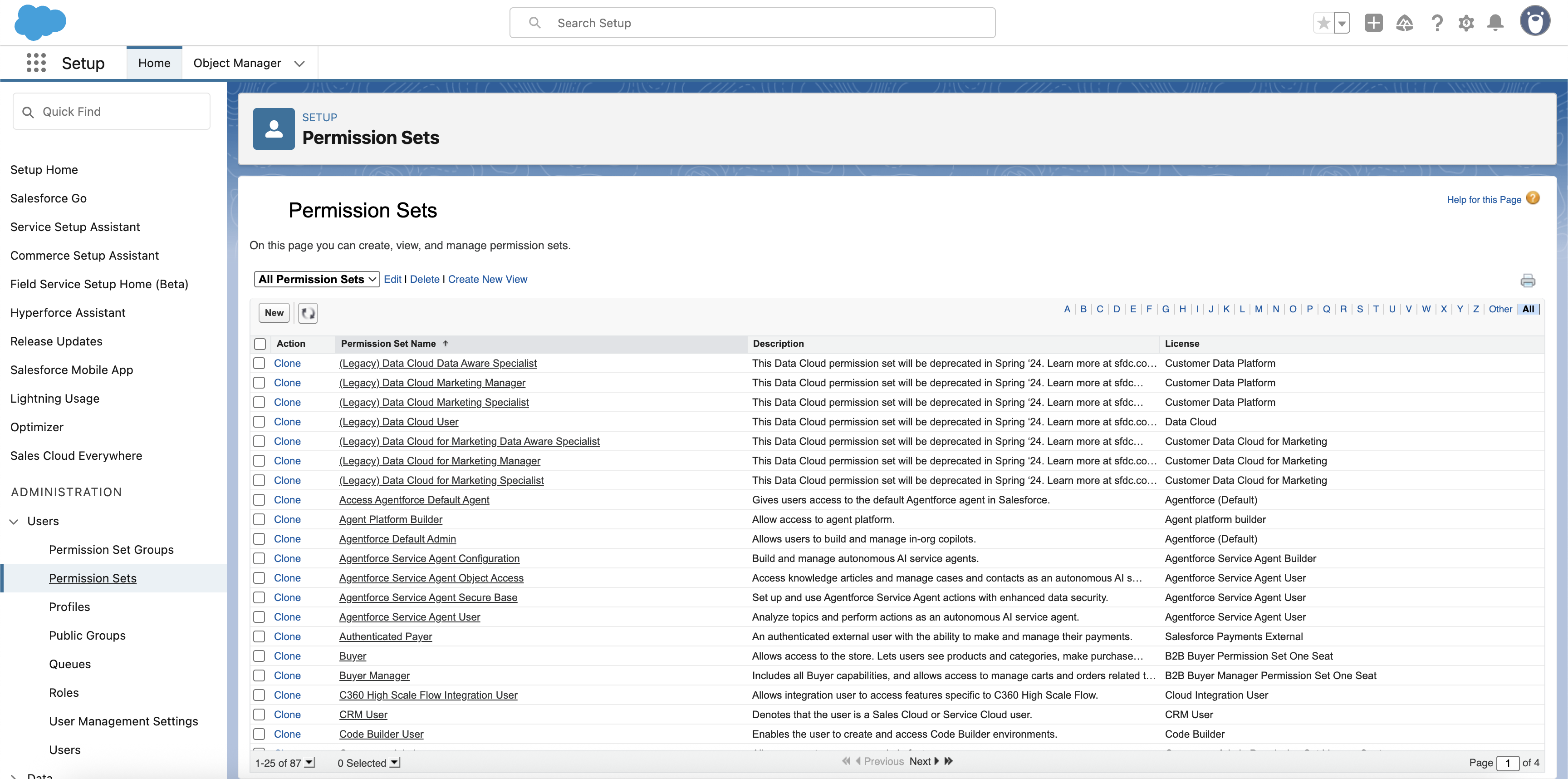
1. Navigate to **Setup → Users → Permission Sets**
2. Click **New** to create a new permission set
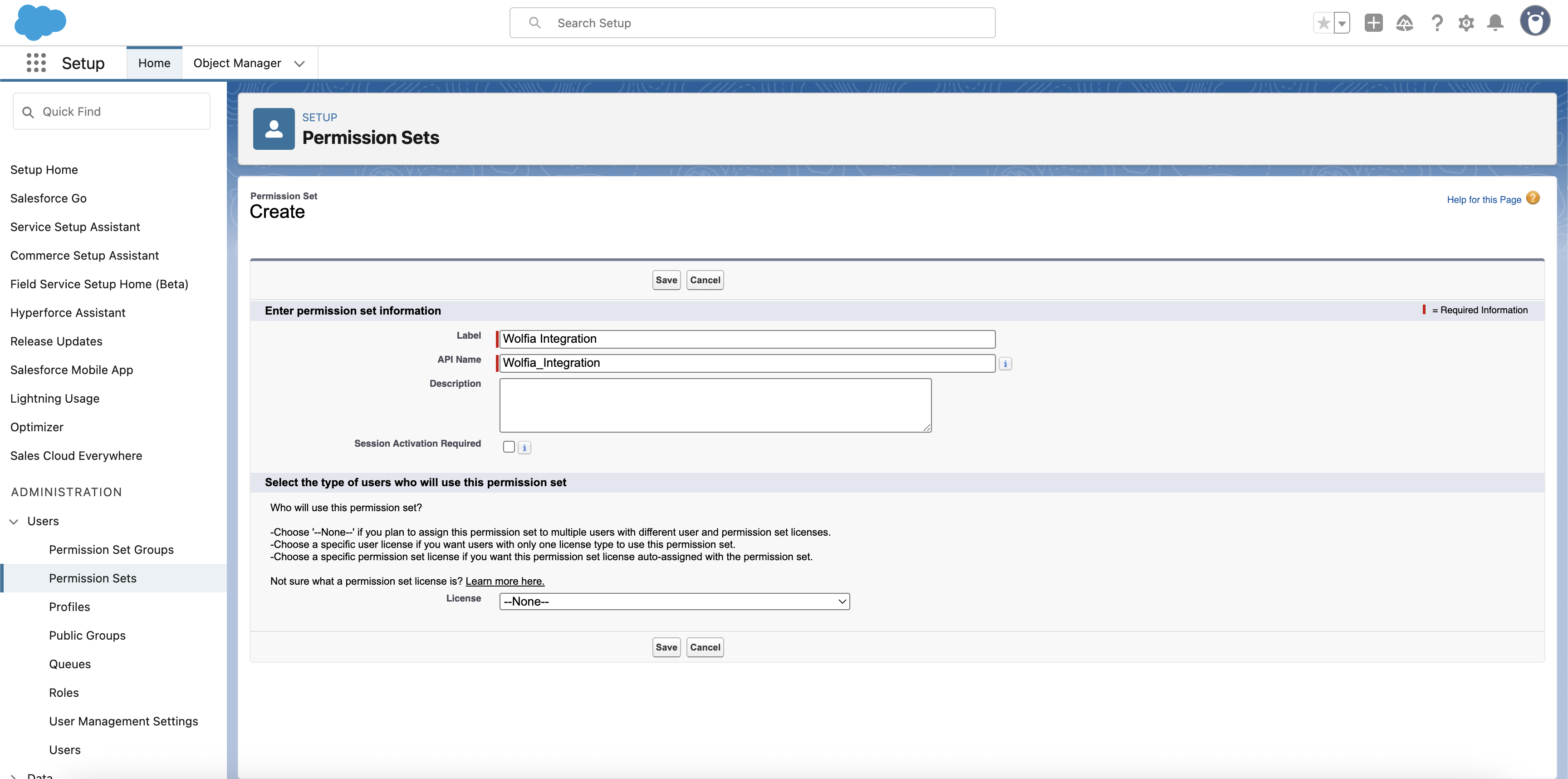
 3. Fill in the following details:
* **Label**: `Wolfia Integration`
* **API Name**: Will auto-populate
* Leave other fields as default
3. Fill in the following details:
* **Label**: `Wolfia Integration`
* **API Name**: Will auto-populate
* Leave other fields as default
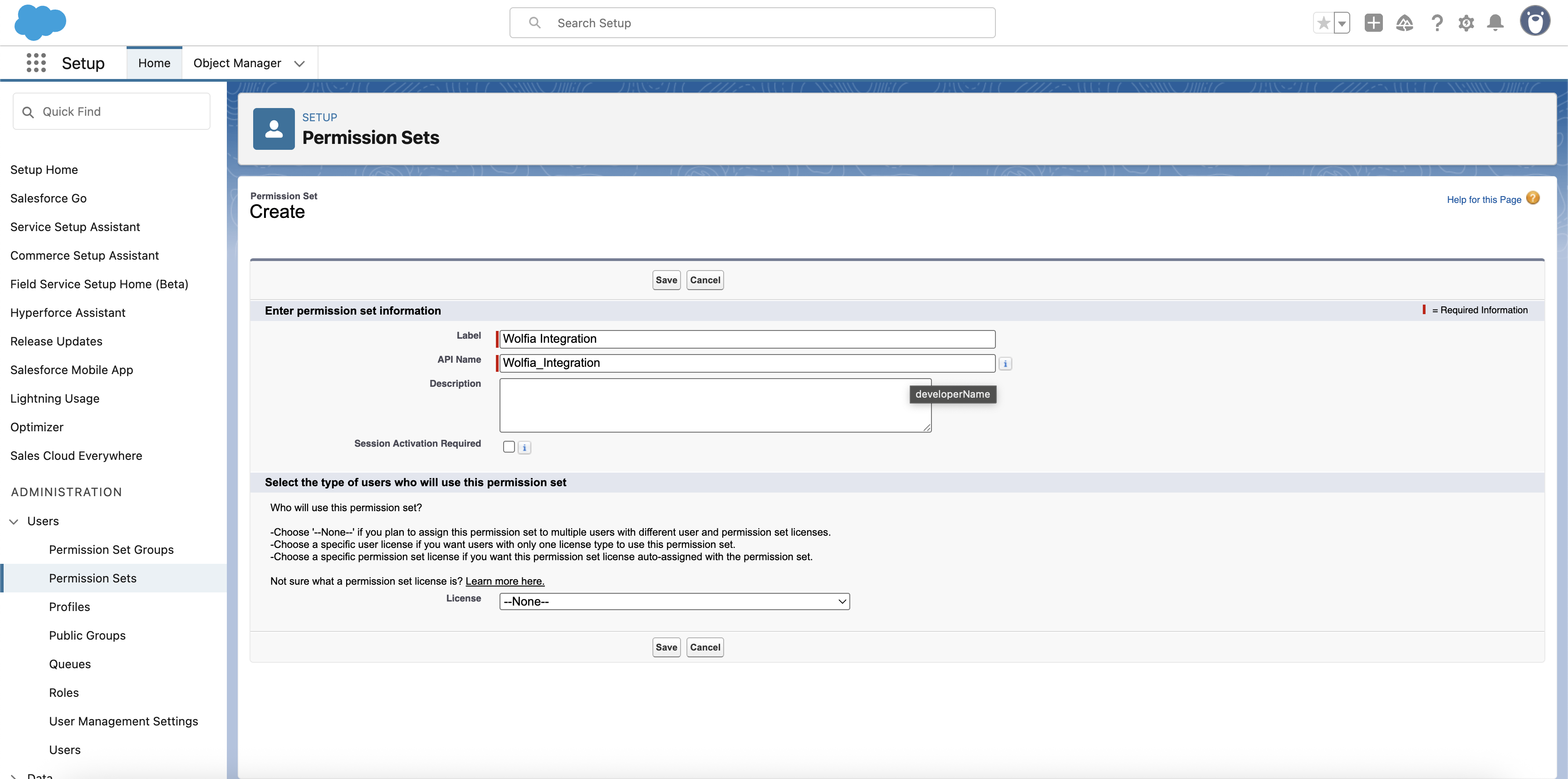 4. Click **Save** to create the permission set
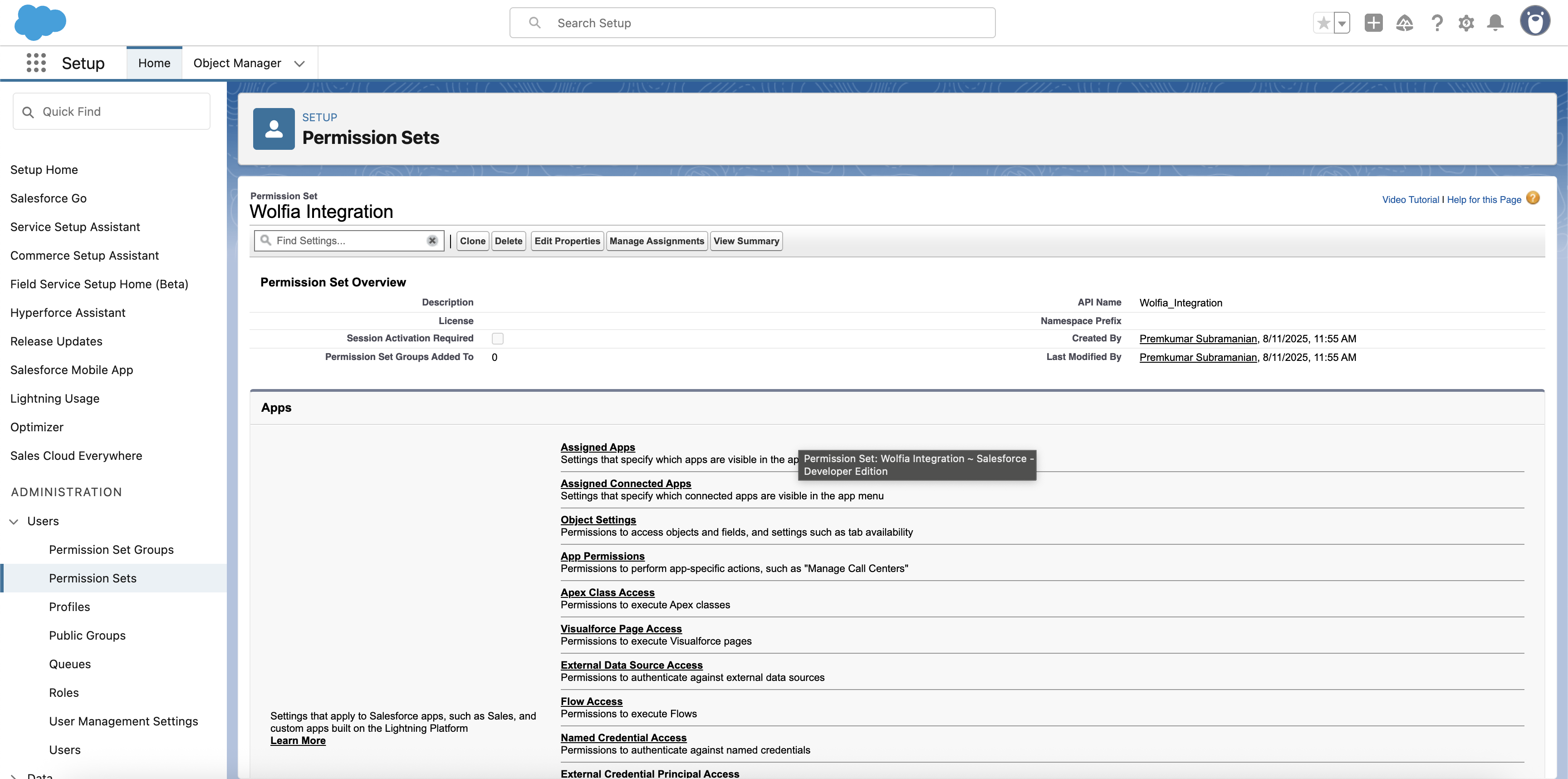 ### Step 2: Configure object permissions
Now we'll grant the necessary permissions for Accounts, Opportunities, and Leads.
1. In the permission set, navigate to **Object Settings**
### Step 2: Configure object permissions
Now we'll grant the necessary permissions for Accounts, Opportunities, and Leads.
1. In the permission set, navigate to **Object Settings**
 2. Select **Accounts** from the list
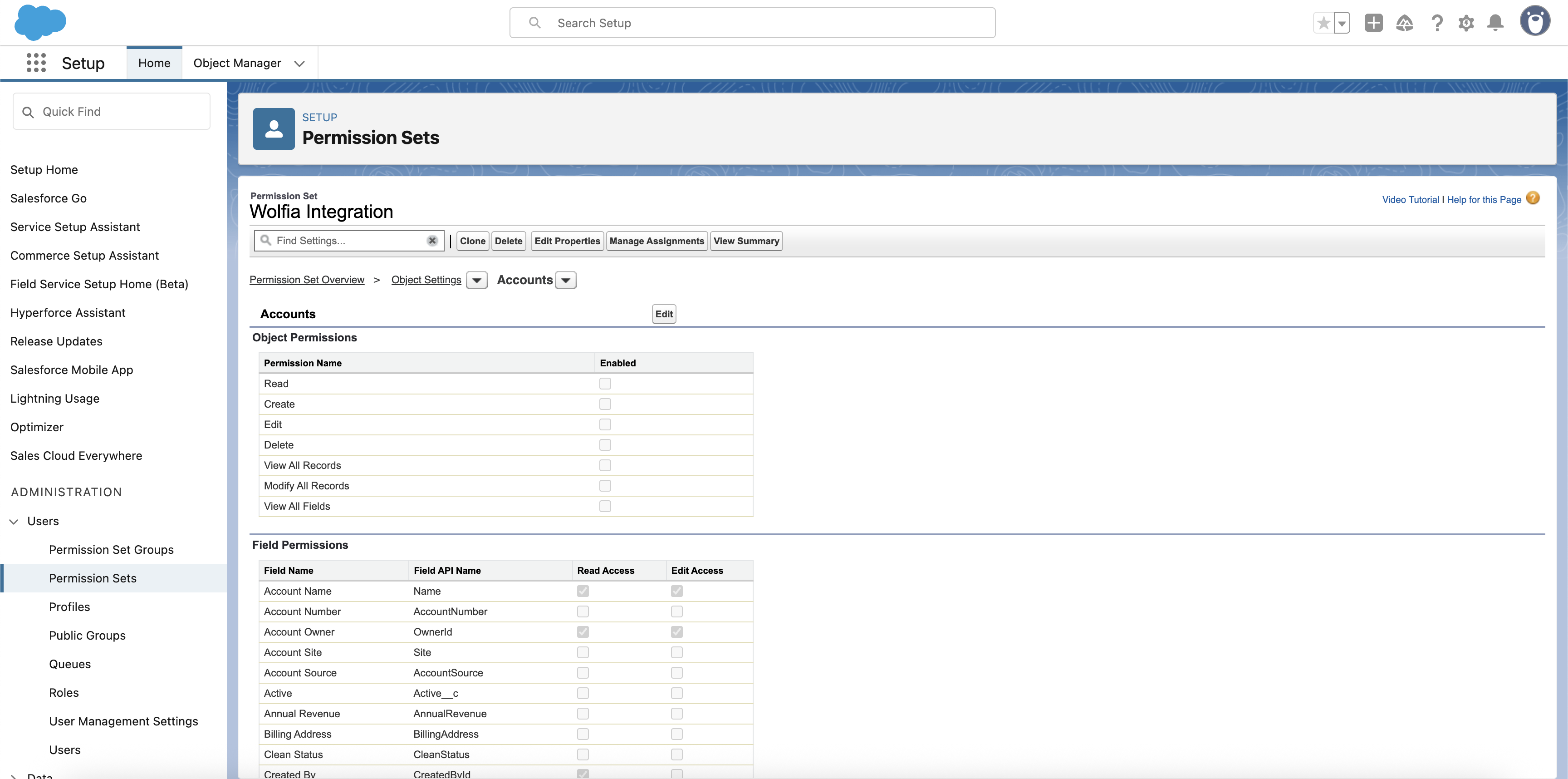 3. Click **Edit** to modify permissions
4. Under Object Permissions, enable:
* **Read**
* **Create**
* **Edit**
* **View All Records**
* **Modify All Records**
3. Click **Edit** to modify permissions
4. Under Object Permissions, enable:
* **Read**
* **Create**
* **Edit**
* **View All Records**
* **Modify All Records**
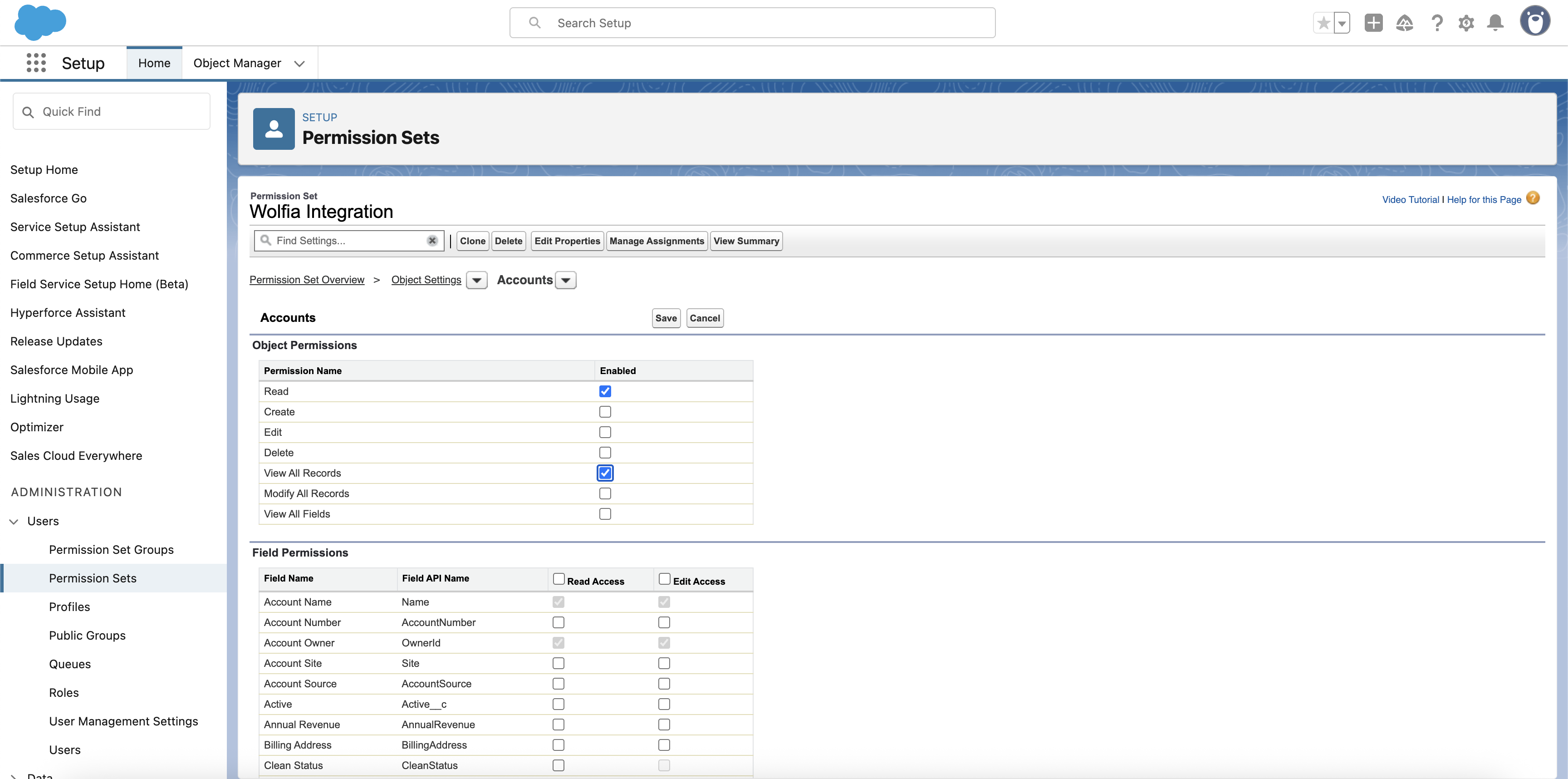 5. Click **Save** to apply the changes
6. Return to Object Settings and select **Opportunities**
5. Click **Save** to apply the changes
6. Return to Object Settings and select **Opportunities**
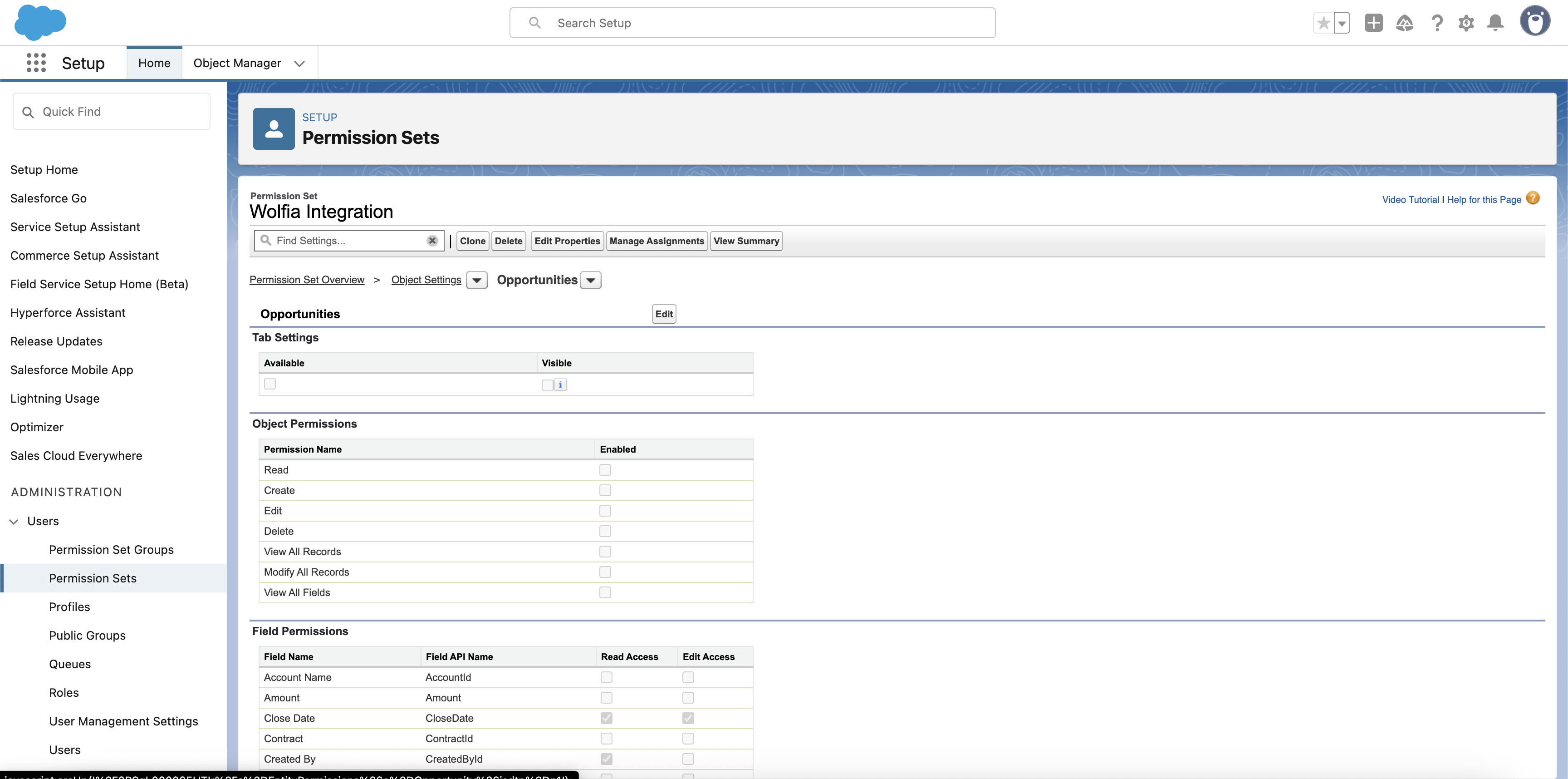 7. Click **Edit** and enable the same permissions:
* **Read**
* **Create**
* **Edit**
* **View All Records**
* **Modify All Records**
7. Click **Edit** and enable the same permissions:
* **Read**
* **Create**
* **Edit**
* **View All Records**
* **Modify All Records**
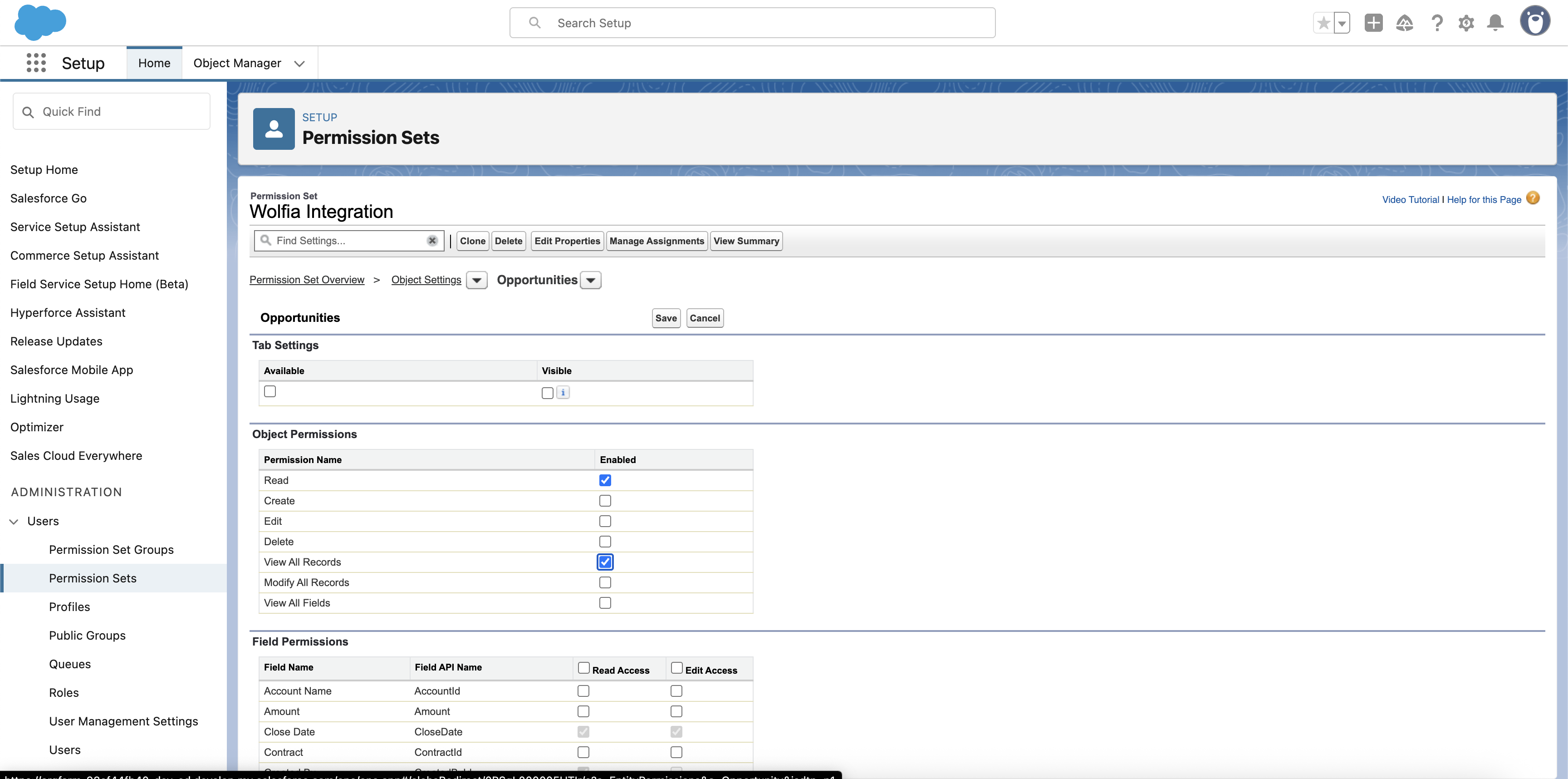 8. Click **Save** to apply the changes
9. Return to Object Settings and select **Leads**
10. Click **Edit** and enable:
* **Read**
* **Create**
* **Edit**
* **View All Records**
* **Modify All Records**
11. Click **Save** to apply the changes
### Step 3: Create an integration user
Next, we'll create a dedicated user for the API integration.
1. Navigate to **Setup → Users → Users**
2. Click **New User** to create a new user
3. Fill in the required information:
* **Email**: Use a dedicated email for this integration
* **Username**: Must be unique (e.g., `wolfia-integration@yourcompany.com`)
* **User License**: Select `Salesforce Integration`
* **Profile**: Select `Salesforce API Only System Integrations`
8. Click **Save** to apply the changes
9. Return to Object Settings and select **Leads**
10. Click **Edit** and enable:
* **Read**
* **Create**
* **Edit**
* **View All Records**
* **Modify All Records**
11. Click **Save** to apply the changes
### Step 3: Create an integration user
Next, we'll create a dedicated user for the API integration.
1. Navigate to **Setup → Users → Users**
2. Click **New User** to create a new user
3. Fill in the required information:
* **Email**: Use a dedicated email for this integration
* **Username**: Must be unique (e.g., `wolfia-integration@yourcompany.com`)
* **User License**: Select `Salesforce Integration`
* **Profile**: Select `Salesforce API Only System Integrations`
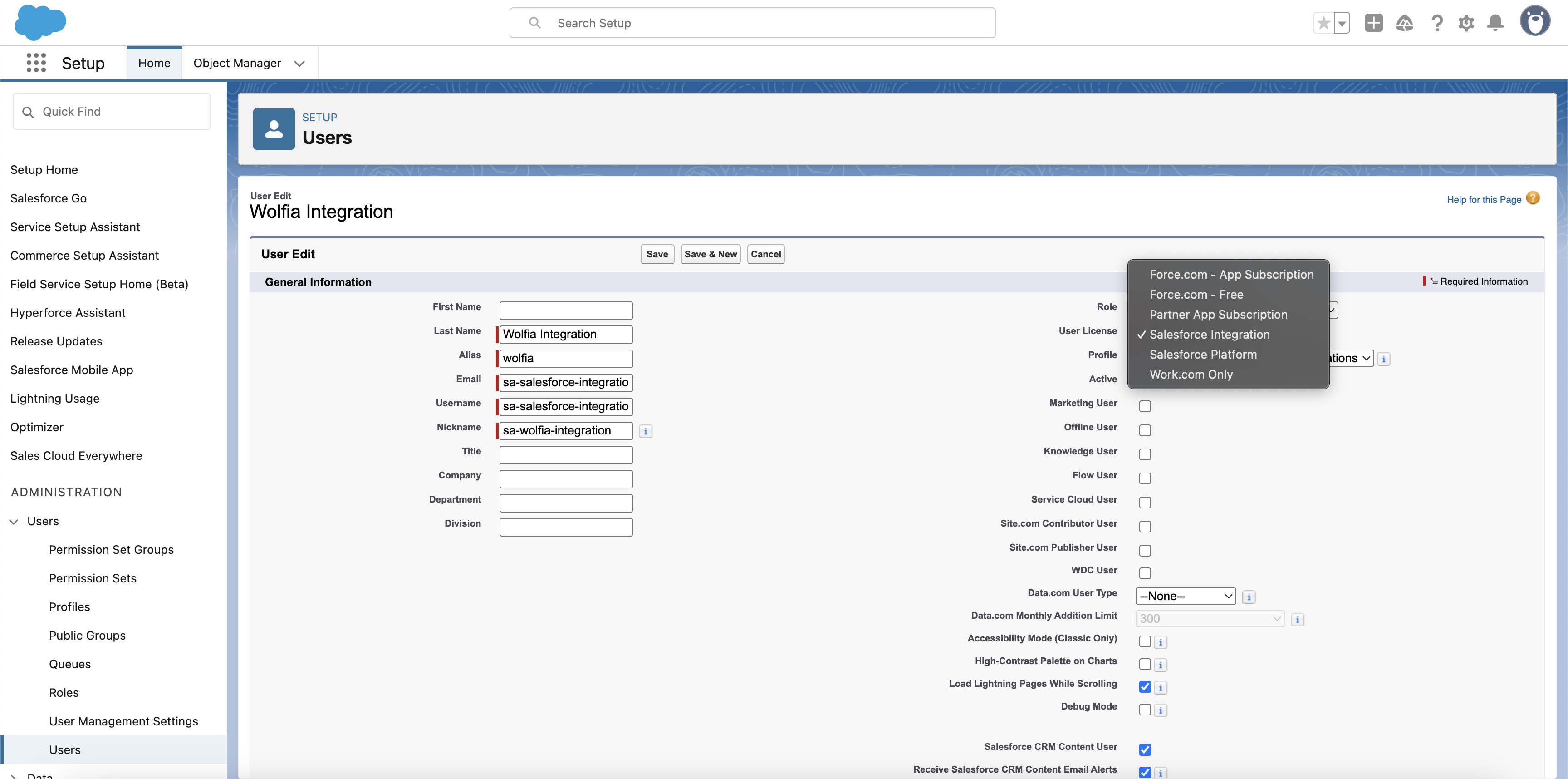
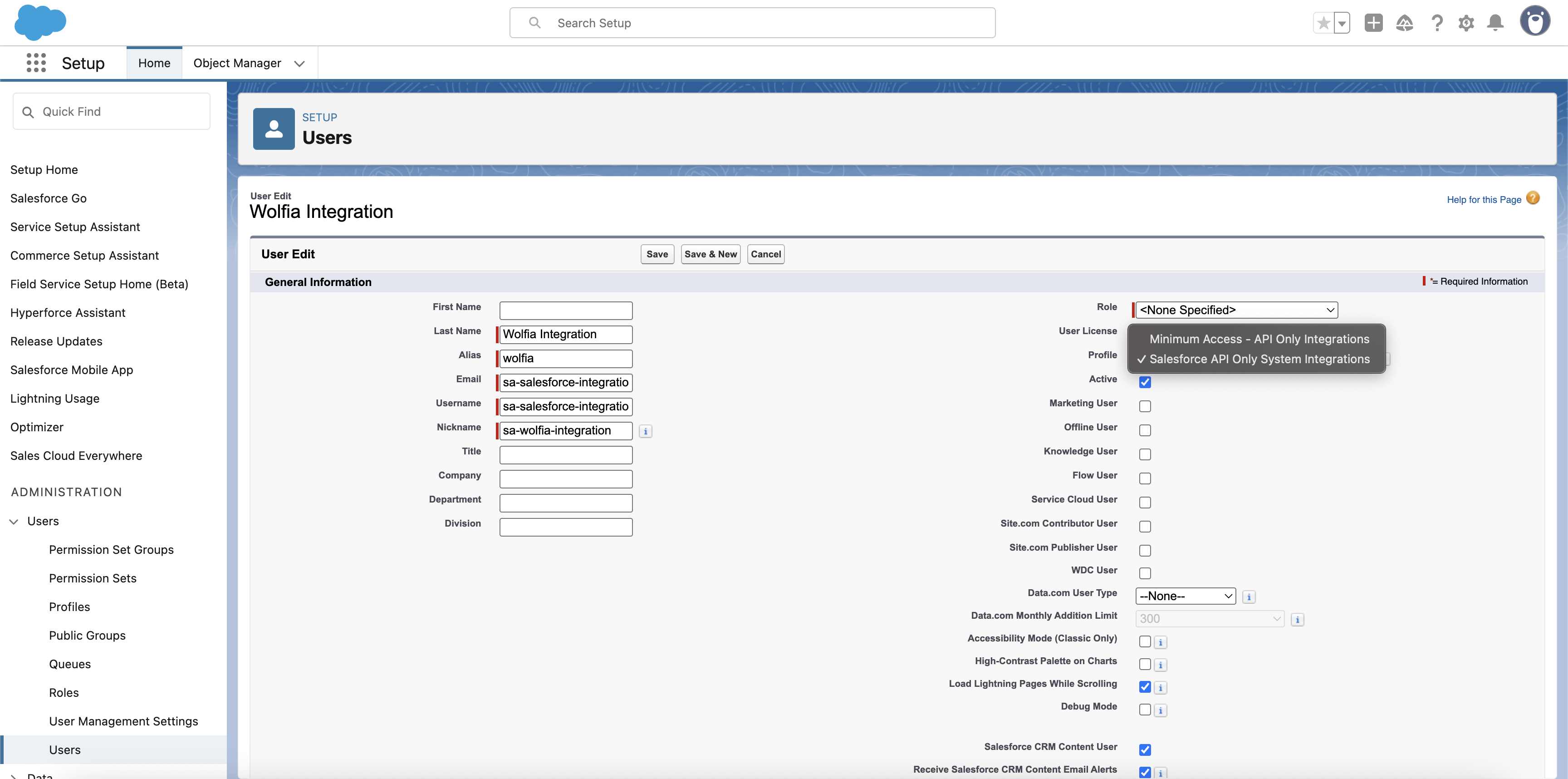 4. Click **Save** to create the user
### Step 4: Assign the permission set
Now we'll assign the Wolfia Integration permission set to the newly created user.
1. After creating the user, you'll be on the user detail page
4. Click **Save** to create the user
### Step 4: Assign the permission set
Now we'll assign the Wolfia Integration permission set to the newly created user.
1. After creating the user, you'll be on the user detail page
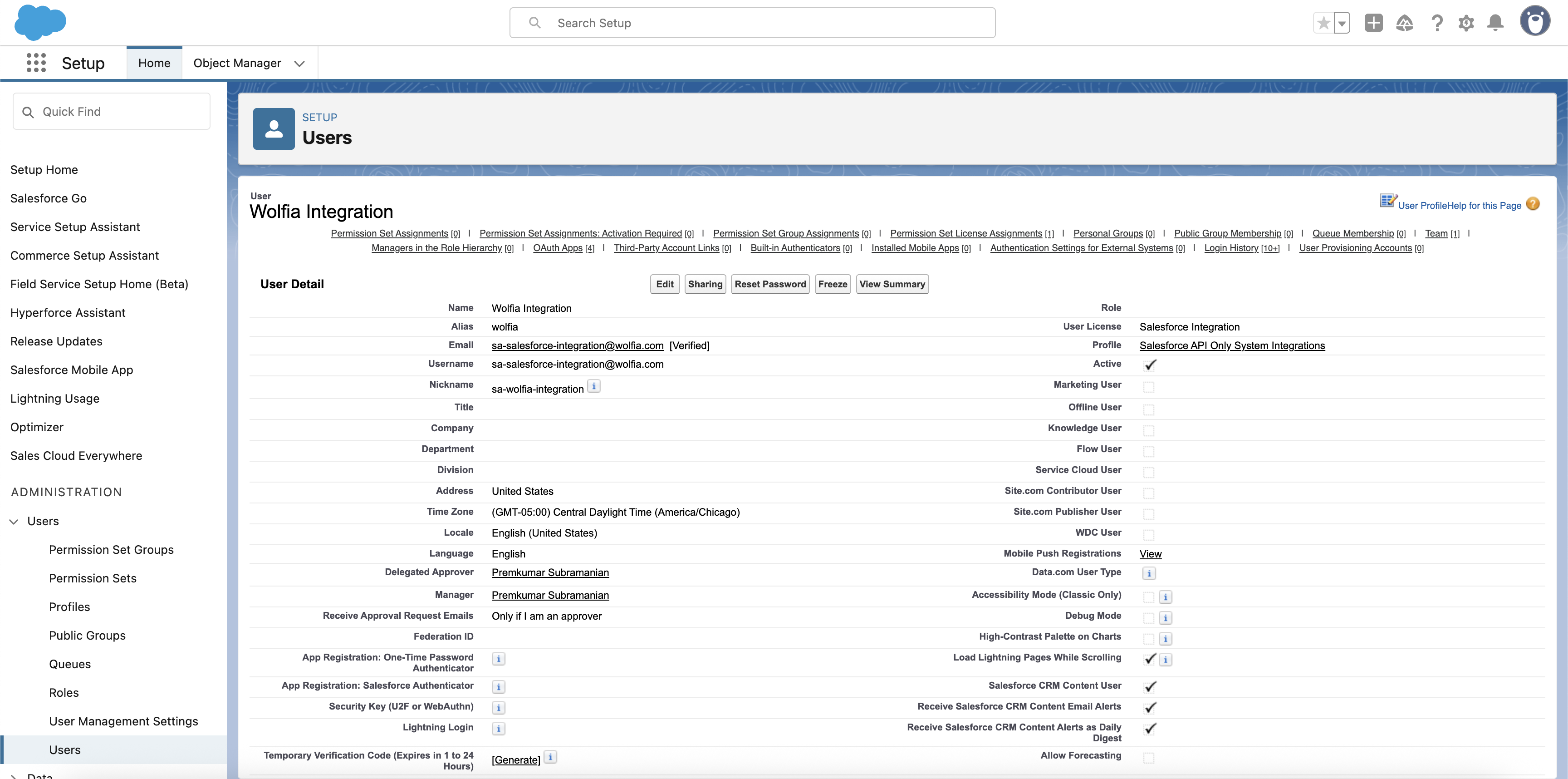 2. Scroll down to **Permission Set** section and select **Permission Set Assignments** tab
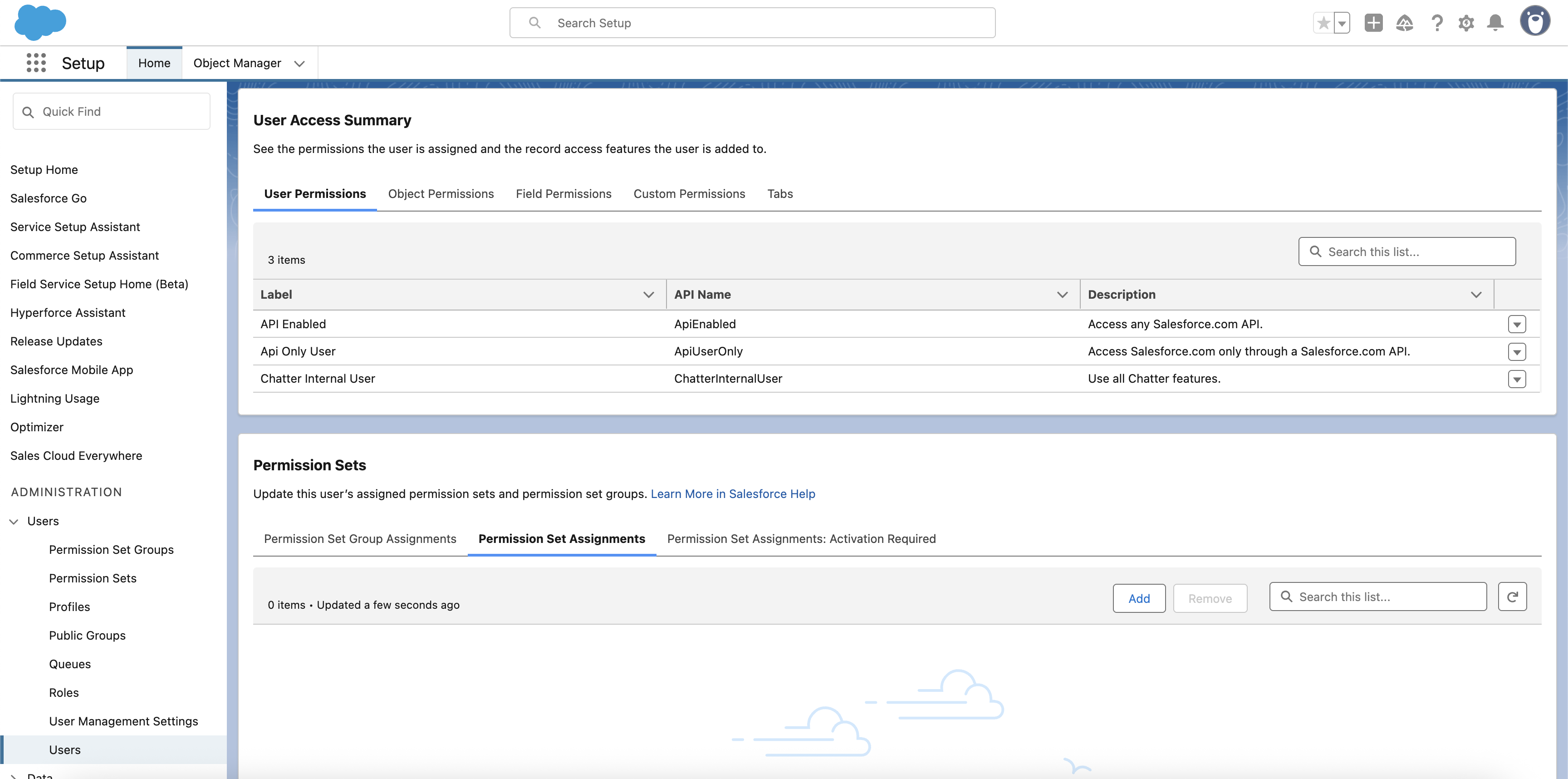 3. Click **Add** and Search for `Wolfia Integration` in the available permission sets
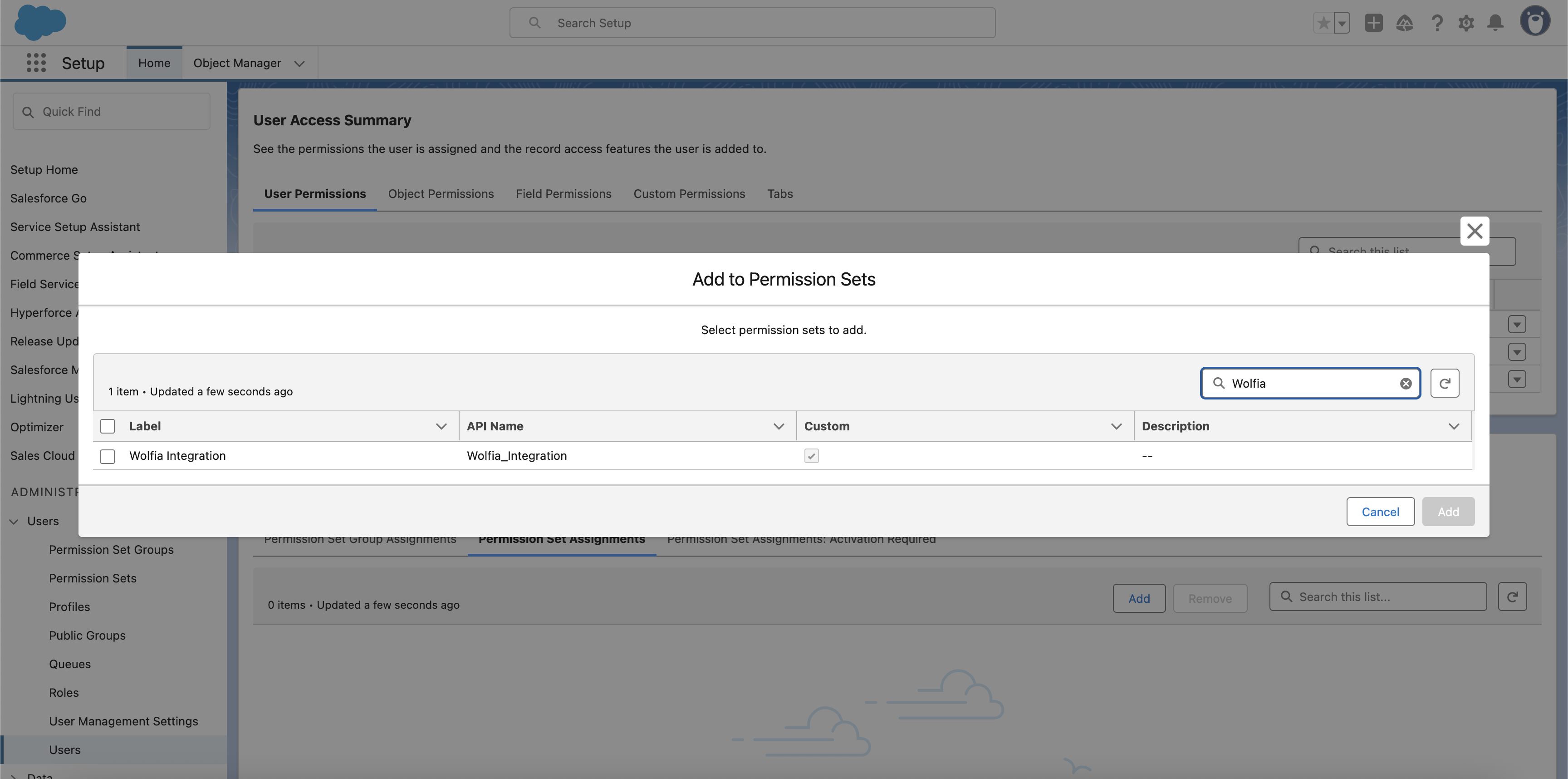 4. Select **Wolfia Integration** and click **Add** to move it to Enabled Permission Sets
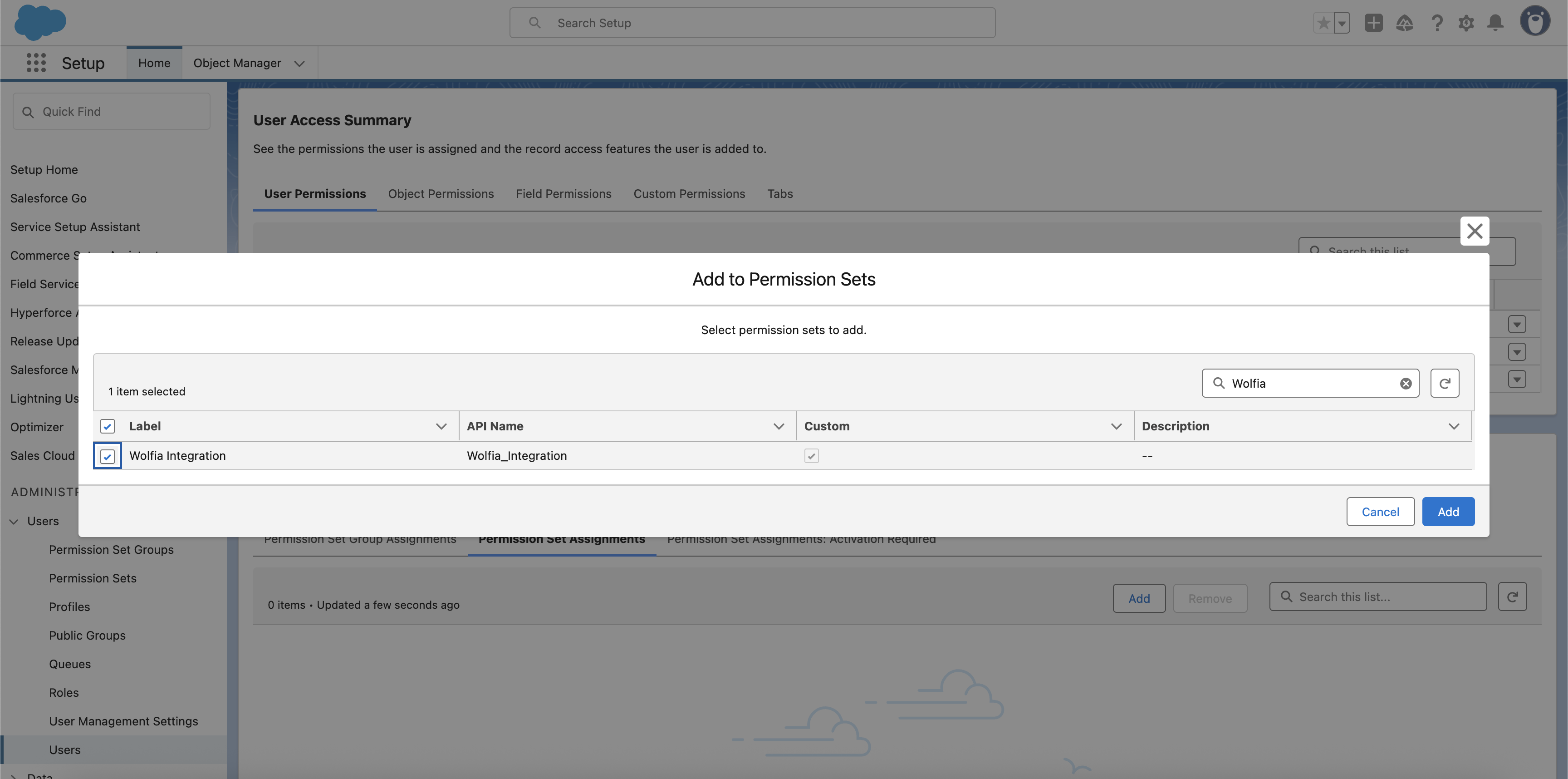 5. Click **Save** to assign the permission set
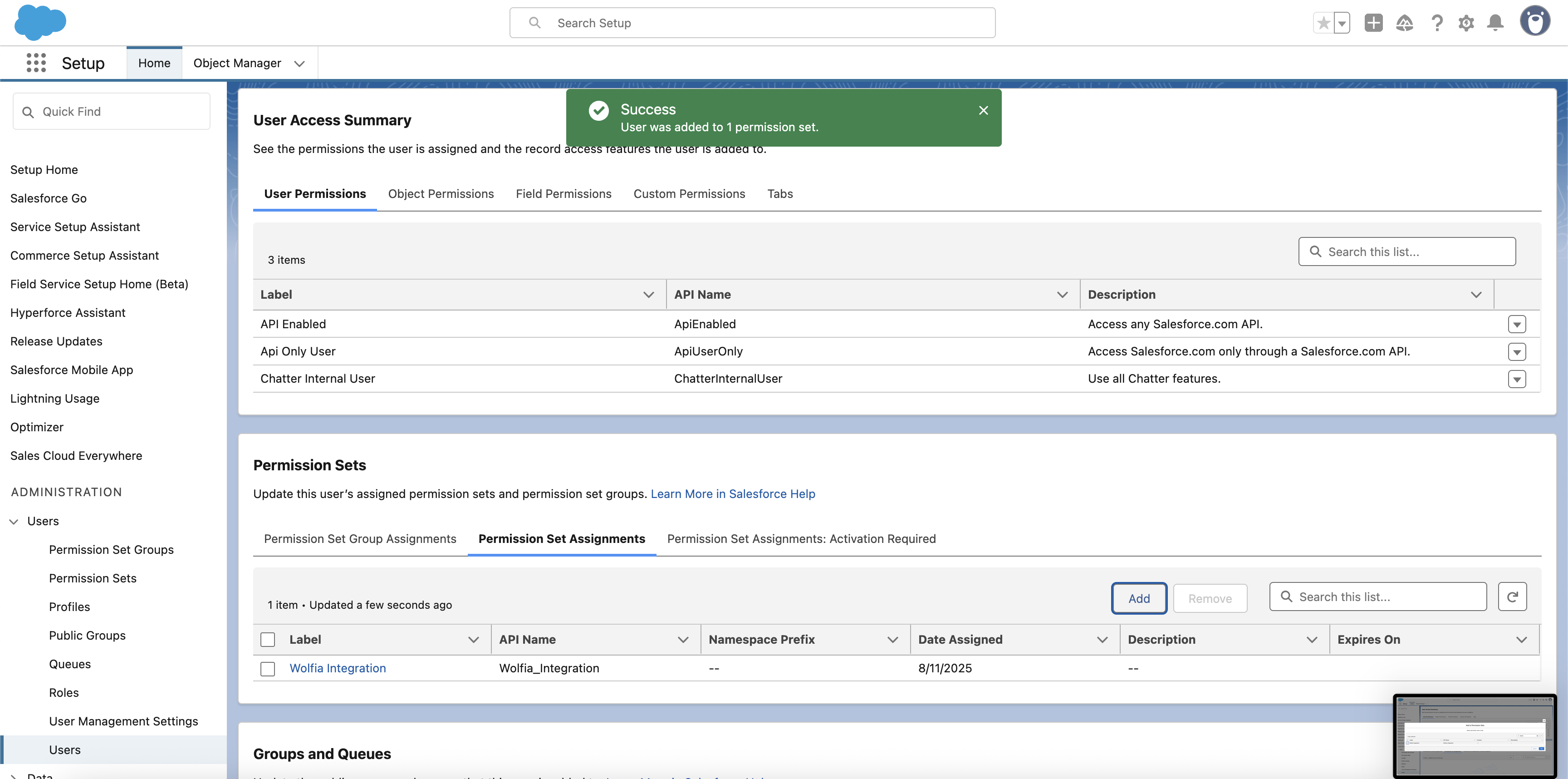 ### Step 5: Verify permissions
Let's verify that the permissions are correctly configured.
1. Navigate to the **User Access Summary** section
### Step 5: Verify permissions
Let's verify that the permissions are correctly configured.
1. Navigate to the **User Access Summary** section
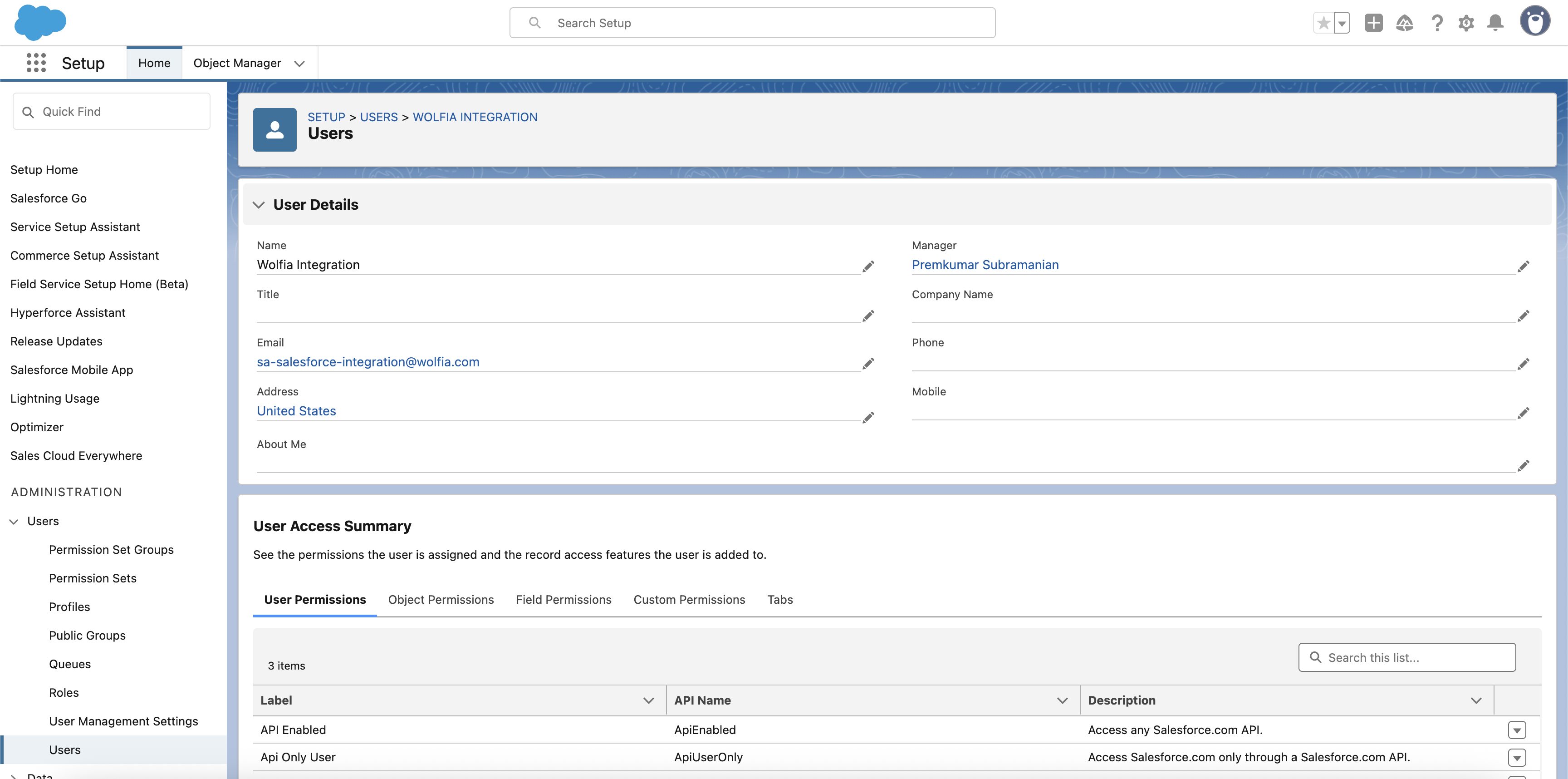 2. Click on the **Object Permissions** tab
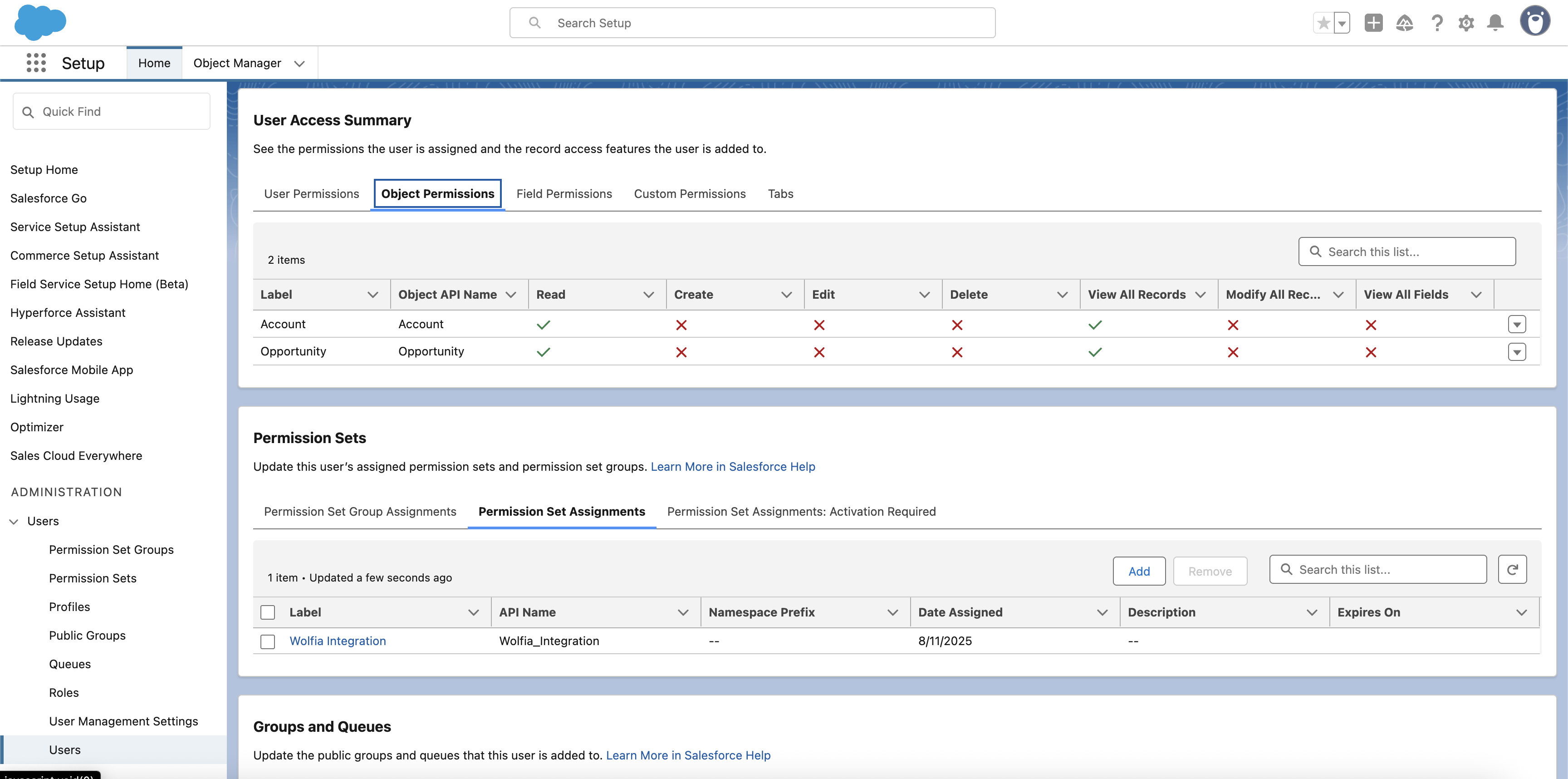 3. Verify that you can see:
* **Account** with `Read`, `Create`, `Edit`, `View All Records`, and `Modify All Records` permissions
* **Opportunity** with `Read`, `Create`, `Edit`, `View All Records`, and `Modify All Records` permissions
* **Lead** with `Read`, `Create`, `Edit`, `View All Records`, and `Modify All Records` permissions
### Step 6: Connect in Wolfia
Now connect Salesforce to Wolfia.
1. Log in to your Wolfia account
2. Navigate to **Trust Center → Integrations**
3. Find **Salesforce** in the list of available integrations
4. Click **Connect**
5. You'll be redirected to Salesforce to authorize the connection
6. Sign in with the integration user credentials and approve access
7. After authorization, you'll be redirected back to Wolfia
8. The integration will show as **Connected** and begin the initial data sync
## Security considerations
* The integration user has read and write access to Accounts, Opportunities, and Leads
* Enables bidirectional data sync for enriched context and workflow automation
* All data transmission is encrypted using HTTPS
* No delete permissions to prevent accidental data loss
## Troubleshooting
### Common issues
**Connection failed**
* Verify the username and password are correct
* Check that the instance URL is correct
**No data syncing**
* Verify the permission set includes "View All Records" and "Modify All Records" for Accounts, Opportunities, and Leads
* Ensure the permission set is assigned to the integration user
* Check that the user profile is set to "Salesforce API Only System Integrations"
**Permission denied errors**
* Review the Object Permissions in the User Access Summary
* Ensure Account, Opportunity, and Lead objects have Read, Create, Edit, View All Records, and Modify All Records permissions
## Support
If you encounter any issues during setup, please contact Wolfia support or consult your Salesforce administrator for assistance with permission configuration.
3. Verify that you can see:
* **Account** with `Read`, `Create`, `Edit`, `View All Records`, and `Modify All Records` permissions
* **Opportunity** with `Read`, `Create`, `Edit`, `View All Records`, and `Modify All Records` permissions
* **Lead** with `Read`, `Create`, `Edit`, `View All Records`, and `Modify All Records` permissions
### Step 6: Connect in Wolfia
Now connect Salesforce to Wolfia.
1. Log in to your Wolfia account
2. Navigate to **Trust Center → Integrations**
3. Find **Salesforce** in the list of available integrations
4. Click **Connect**
5. You'll be redirected to Salesforce to authorize the connection
6. Sign in with the integration user credentials and approve access
7. After authorization, you'll be redirected back to Wolfia
8. The integration will show as **Connected** and begin the initial data sync
## Security considerations
* The integration user has read and write access to Accounts, Opportunities, and Leads
* Enables bidirectional data sync for enriched context and workflow automation
* All data transmission is encrypted using HTTPS
* No delete permissions to prevent accidental data loss
## Troubleshooting
### Common issues
**Connection failed**
* Verify the username and password are correct
* Check that the instance URL is correct
**No data syncing**
* Verify the permission set includes "View All Records" and "Modify All Records" for Accounts, Opportunities, and Leads
* Ensure the permission set is assigned to the integration user
* Check that the user profile is set to "Salesforce API Only System Integrations"
**Permission denied errors**
* Review the Object Permissions in the User Access Summary
* Ensure Account, Opportunity, and Lead objects have Read, Create, Edit, View All Records, and Modify All Records permissions
## Support
If you encounter any issues during setup, please contact Wolfia support or consult your Salesforce administrator for assistance with permission configuration.