> ## Documentation Index
> Fetch the complete documentation index at: https://docs.wolfia.com/llms.txt
> Use this file to discover all available pages before exploring further.
# Import Trust Center Pages from GitHub, GitLab, or a Website
> Publish trust center custom pages straight from a GitHub repository, a GitLab project, or an existing web page, and keep them in sync automatically.
## Overview
Security teams usually maintain their public security documentation in version control, where it gets reviewed like code. Page import lets your trust center publish that same content directly, so an approved merge to your repository becomes the published page. There is nothing to copy, paste, or keep aligned by hand.
 ## Import sources
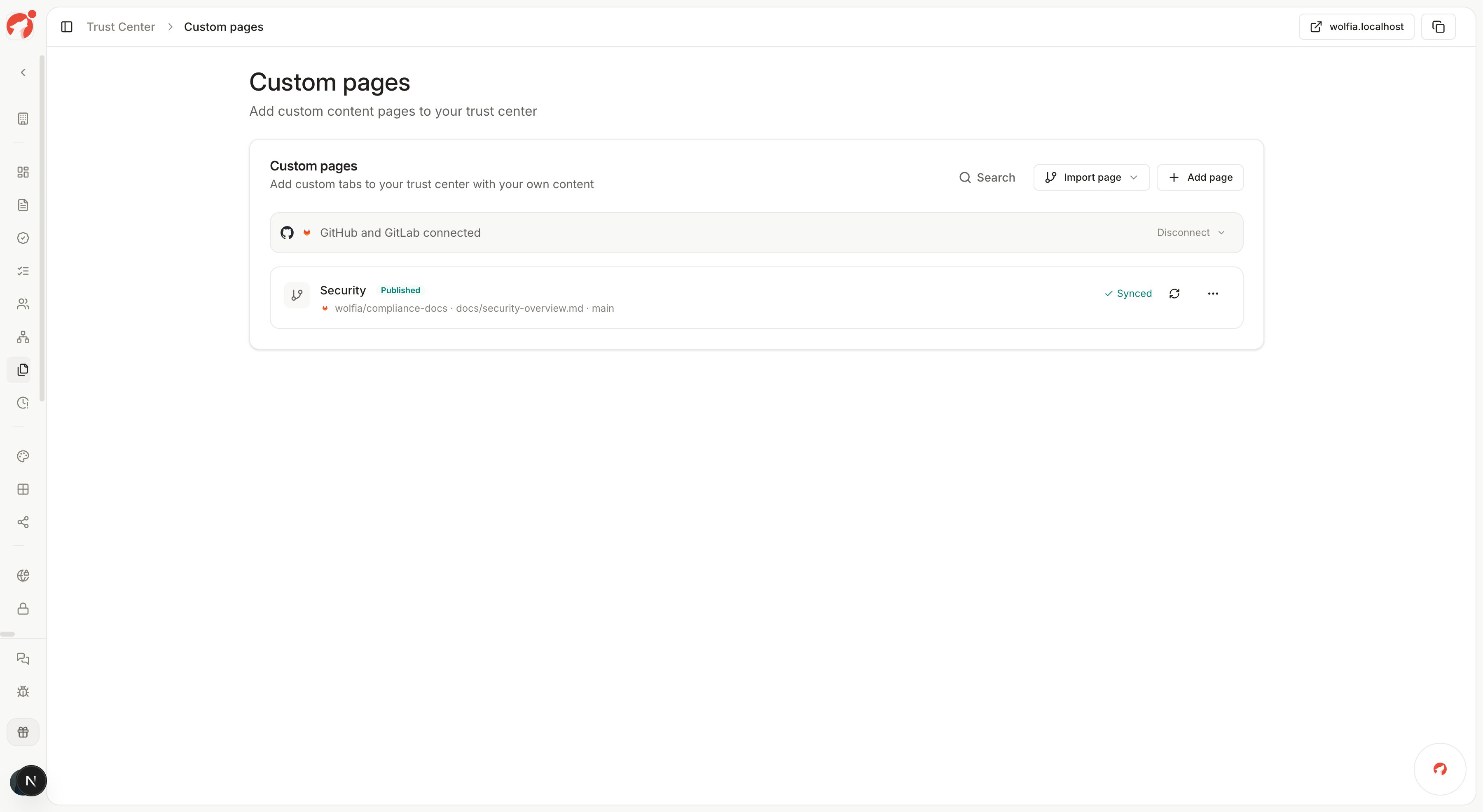
Click **Import page** on the Custom pages screen and choose where the content lives.
## Import sources
Click **Import page** on the Custom pages screen and choose where the content lives.
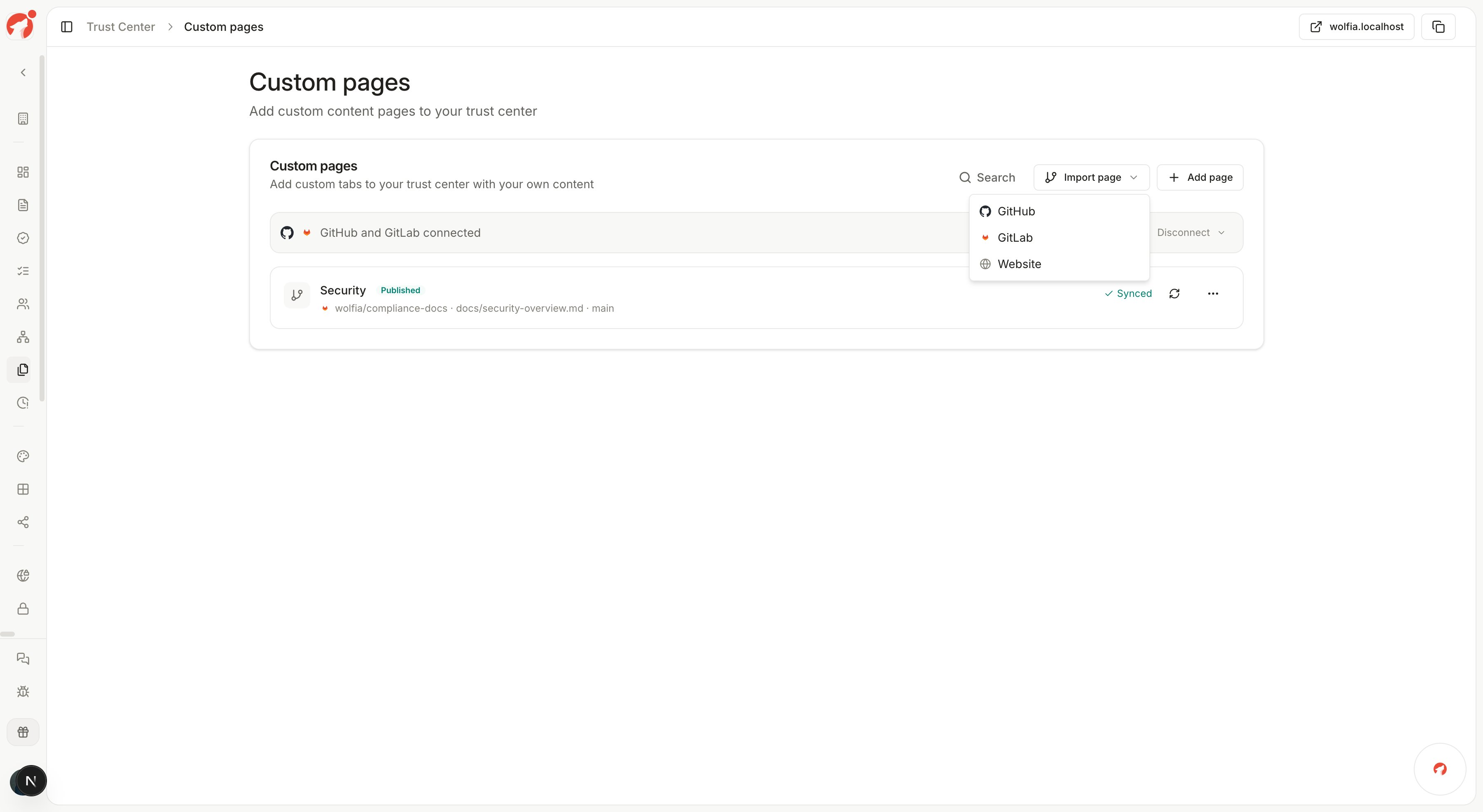 * **GitHub** - Import a Markdown file from a repository the Wolfia GitHub app can access
* **GitLab** - Import a Markdown file from a GitLab project you have authorized Wolfia to read
* **Website** - Import the content of an existing public web page
Each custom page has one source. A page imported from GitHub cannot also sync from GitLab, and the other way around.
## Import a page from a repository
If GitHub or GitLab is not connected yet, the import flow prompts you to connect first. The connection is read-only.
Choose the repository or project, the branch, and the Markdown file to import. The file browser shows the folder structure of the branch you selected.
Give the page a title, review the imported content, and publish it to your trust center. The page row shows the source path and branch it syncs from.
## How syncing works
* **Automatic refresh** - Imported pages refresh from their source once a day. You can also trigger a refresh from the page row at any time.
* **Auto-publish** - With auto-publish enabled, a change merged to the source file goes live on your trust center after the next sync. With it disabled, synced changes wait for your review before publishing.
* **Version history** - Every synced update creates a new version of the page, so you can see what changed and when.
* **Missing files are flagged** - If the source file is renamed or deleted in the repository, the page is marked so you can point it at a new file. Your published page keeps its last synced content in the meantime.
## Good practices
* Keep trust center content on your default branch so only reviewed, merged changes publish.
* Use one file per page with a clear name, for example `docs/security-overview.md`.
* Leave auto-publish on for pages that should always match the repository, and turn it off for pages you want to gate on a manual review.
## FAQ
Repository imports use Markdown files. The Website option imports the content of a public web page.
An imported page mirrors its source. To change the content, edit the file in the repository and let it sync, or convert the page to a manual page by removing the source link.
No. The connection is read-only for both GitHub and GitLab.
Pages keep their last synced content and stop updating until you reconnect and relink their sources.
## Related pages
Set up and customize your public trust center.
Sync repository documentation into your knowledge base.
Sync project documentation into your knowledge base.
Automate trust center updates programmatically.
* **GitHub** - Import a Markdown file from a repository the Wolfia GitHub app can access
* **GitLab** - Import a Markdown file from a GitLab project you have authorized Wolfia to read
* **Website** - Import the content of an existing public web page
Each custom page has one source. A page imported from GitHub cannot also sync from GitLab, and the other way around.
## Import a page from a repository
If GitHub or GitLab is not connected yet, the import flow prompts you to connect first. The connection is read-only.
Choose the repository or project, the branch, and the Markdown file to import. The file browser shows the folder structure of the branch you selected.
Give the page a title, review the imported content, and publish it to your trust center. The page row shows the source path and branch it syncs from.
## How syncing works
* **Automatic refresh** - Imported pages refresh from their source once a day. You can also trigger a refresh from the page row at any time.
* **Auto-publish** - With auto-publish enabled, a change merged to the source file goes live on your trust center after the next sync. With it disabled, synced changes wait for your review before publishing.
* **Version history** - Every synced update creates a new version of the page, so you can see what changed and when.
* **Missing files are flagged** - If the source file is renamed or deleted in the repository, the page is marked so you can point it at a new file. Your published page keeps its last synced content in the meantime.
## Good practices
* Keep trust center content on your default branch so only reviewed, merged changes publish.
* Use one file per page with a clear name, for example `docs/security-overview.md`.
* Leave auto-publish on for pages that should always match the repository, and turn it off for pages you want to gate on a manual review.
## FAQ
Repository imports use Markdown files. The Website option imports the content of a public web page.
An imported page mirrors its source. To change the content, edit the file in the repository and let it sync, or convert the page to a manual page by removing the source link.
No. The connection is read-only for both GitHub and GitLab.
Pages keep their last synced content and stop updating until you reconnect and relink their sources.
## Related pages
Set up and customize your public trust center.
Sync repository documentation into your knowledge base.
Sync project documentation into your knowledge base.
Automate trust center updates programmatically.