

send_message tool on the Wolfia MCP server lets your own tools ask those questions too: an internal Slack bot that answers teammates instantly, a helpdesk workflow that drafts a grounded reply before an agent picks up the ticket, or a script that sanity-checks a claim against your knowledge base.
Every answer comes from the full Wolfia answering pipeline, grounded in your knowledge base with citations, and scoped to what the calling credential is allowed to see.
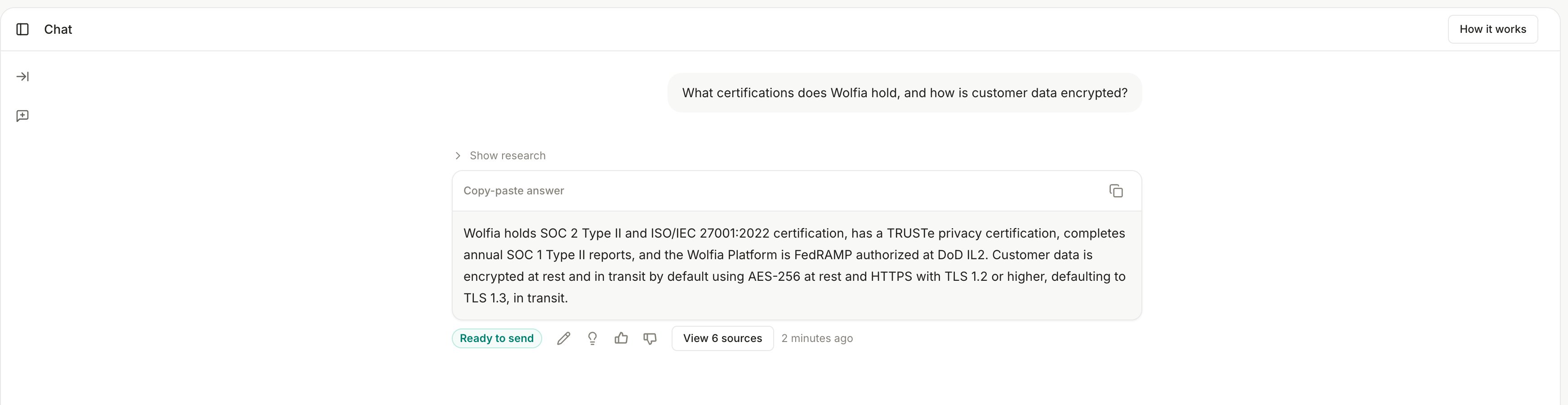
The same answer your team sees in the Wolfia app, available to your own code over MCP.
Looking for analytics on questions your team already asked? That is the Conversation insights API. It reads past conversations and never generates new answers, so it is the wrong endpoint for a bot that needs a live answer. Use
send_message for that.What you need
- A Wolfia account with Admin access (to create the service account and API key)
- The MCP endpoint:
https://api.wolfia.com/mcp/ - Any language that can speak MCP over streamable HTTP. The examples below use the official Python SDK.
Set up credentials
1
Create a service account
Go to Settings → Service accounts and click Create service account. Name it after the integration, for example 
internal-slack-bot.A service account keeps the integration’s access separate from any person’s login, so the bot keeps working when teammates change.2
Create an API key for it
Go to Settings → API, click Create API key, and attach the key to the service account you just created.Choose Restricted access and select only Knowledge: read. That is the only scope 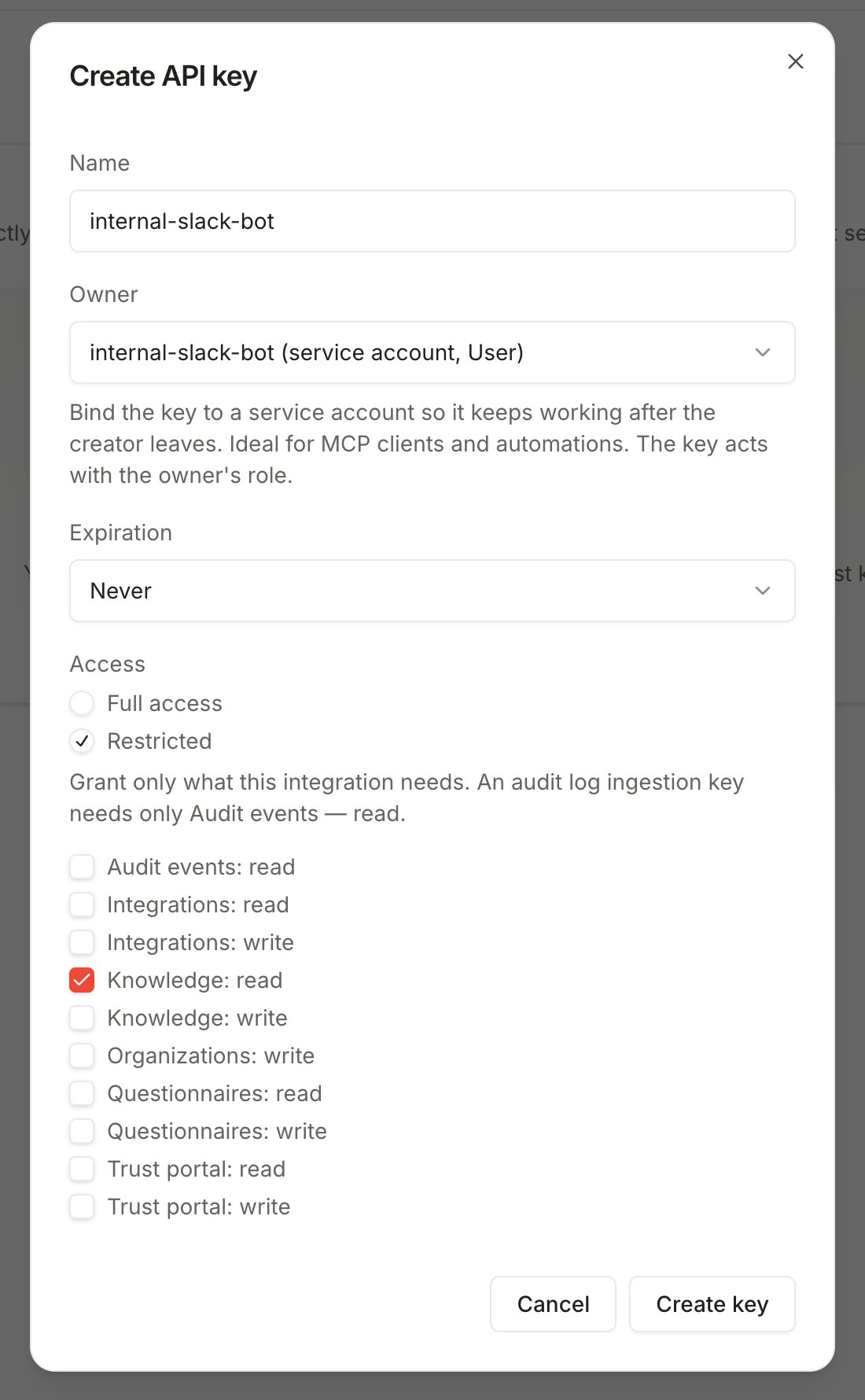
send_message needs, so a leaked key cannot touch questionnaires, integrations, or your trust center.3
Store the key securely
The key is shown once and looks like
wolfia-api-.... Put it in your secrets manager, never in source code.Call send_message
Connect to https://api.wolfia.com/mcp/ with the API key in the Authorization header, then call the send_message tool:
mcp Python SDK (version 2.x shown here).
The response contains:
Answers stream back as they generate, and a thorough answer to a hard question can take a couple of minutes. Call
send_message from a background job and post the answer when it arrives. Never block a user-facing request on it.
X-API-Key: wolfia-api-... works as an alternative to the Authorization: Bearer header. Both authenticate the same way.DIY: build an internal Slack bot
A common pattern: teammates ask security questions in an internal channel, the bot answers instantly from Wolfia, and the thread stays connected so follow-ups keep their context. Here is the full shape using Slack Bolt for Python:1
Create the Slack app
Create a Slack app with a bot token, subscribe it to the
app_mention event, and install it to the channel where questions get asked.2
Wire mentions to Wolfia
On each mention, acknowledge Slack immediately, then fetch the answer in the background and post it in the thread:
3
Keep follow-ups in context
The
thread_conversations map above ties each Slack thread to one Wolfia conversation. When a teammate asks a follow-up in the thread, the bot passes the saved conversation_id and Wolfia answers with the whole exchange in mind. Use a real store (Redis, a database) instead of an in-memory dict in production.4
Ship it
Run the bot anywhere that can reach Slack and
api.wolfia.com: a small container, a serverless function with a queue, or an existing internal service.Rate limits
send_message allows short bursts of up to 5 calls per second and a sustained 20 calls per minute per API key, with a shared ceiling across your organization. Rejected calls return a Retry-After header telling you when to retry. That is comfortable for a team-sized bot; if your integration needs more, contact support@wolfia.com.
Beyond Q&A
The same connection gives your integration every tool its scopes allow. Two that pair well with a bot:search_knowledgereturns raw knowledge base search results in seconds. Use it when you want sources to link rather than a written answer.submit_questionnaireaccepts a whole questionnaire for automated answering. If the bot receives a spreadsheet instead of a question, hand it off here.
Browse every MCP tool
The full tool reference, grouped by category, with what each tool does and which role it needs.
FAQ
Why does my Accept header matter?
Why does my Accept header matter?
Include
text/event-stream in the Accept header (MCP SDKs do this by default). Long answers stream progress while they generate, and send_message requires a streaming-capable connection so slow answers arrive reliably.Can I use OAuth instead of an API key?
Can I use OAuth instead of an API key?
Yes. Interactive clients such as Claude Code and Cursor sign in with OAuth as a real user. API keys exist for headless server-to-server use where nobody can click through a browser login. See MCP OAuth, direct connections and gateways.
Whose permissions do the answers respect?
Whose permissions do the answers respect?
The service account’s. It carries the role you assign it, and the API key’s scopes narrow that further. The bot only ever sees content that credential is allowed to see.
Is there a plain REST endpoint for this?
Is there a plain REST endpoint for this?
Live Q&A is available over MCP. The REST API covers user management, knowledge upload, questionnaires, and analytics. MCP client libraries exist for every major language, and the connection is a normal HTTPS request under the hood.
Related pages
MCP server overview
Connect Claude Code, Cursor, Windsurf, and other interactive clients.
Service accounts
Non-human identities for automations, and why keys should attach to them.
API overview
API key creation, scopes, and the REST endpoint catalog.
Conversation insights API
Analytics over the questions your team already asked.