

Overview
Teams that publish their product and security documentation on Mintlify can make every page answerable in Wolfia without exporting or copying anything. This works for public docs sites and for private sites that sit behind a login: Wolfia reads your pages through Mintlify’s own API using an assistant API key you provide, so content that a normal web crawler can never reach still lands in your knowledge base. Access is read-only. Wolfia never changes anything on your documentation site.Before you start
Setup goes fastest when you have three things ready:- You are an Admin in Wolfia. Only Admins can connect integrations.
- Your Mintlify assistant API key. In your Mintlify dashboard, open API keys and copy the assistant key. It starts with
mint_dsc_. The assistant key can only read and search documentation, so it is the safest key to share. - Your docs domain. The domain your documentation is served from, for example
docs.example.com.
If your documentation is private, also note which documentation groups your reviewers can access. Wolfia can only read the pages those groups can see.
Step 1: Connect Mintlify
1
Start the connection in Wolfia
Navigate to Knowledge Hub in the left sidebar, find the Mintlify integration, and click Connect.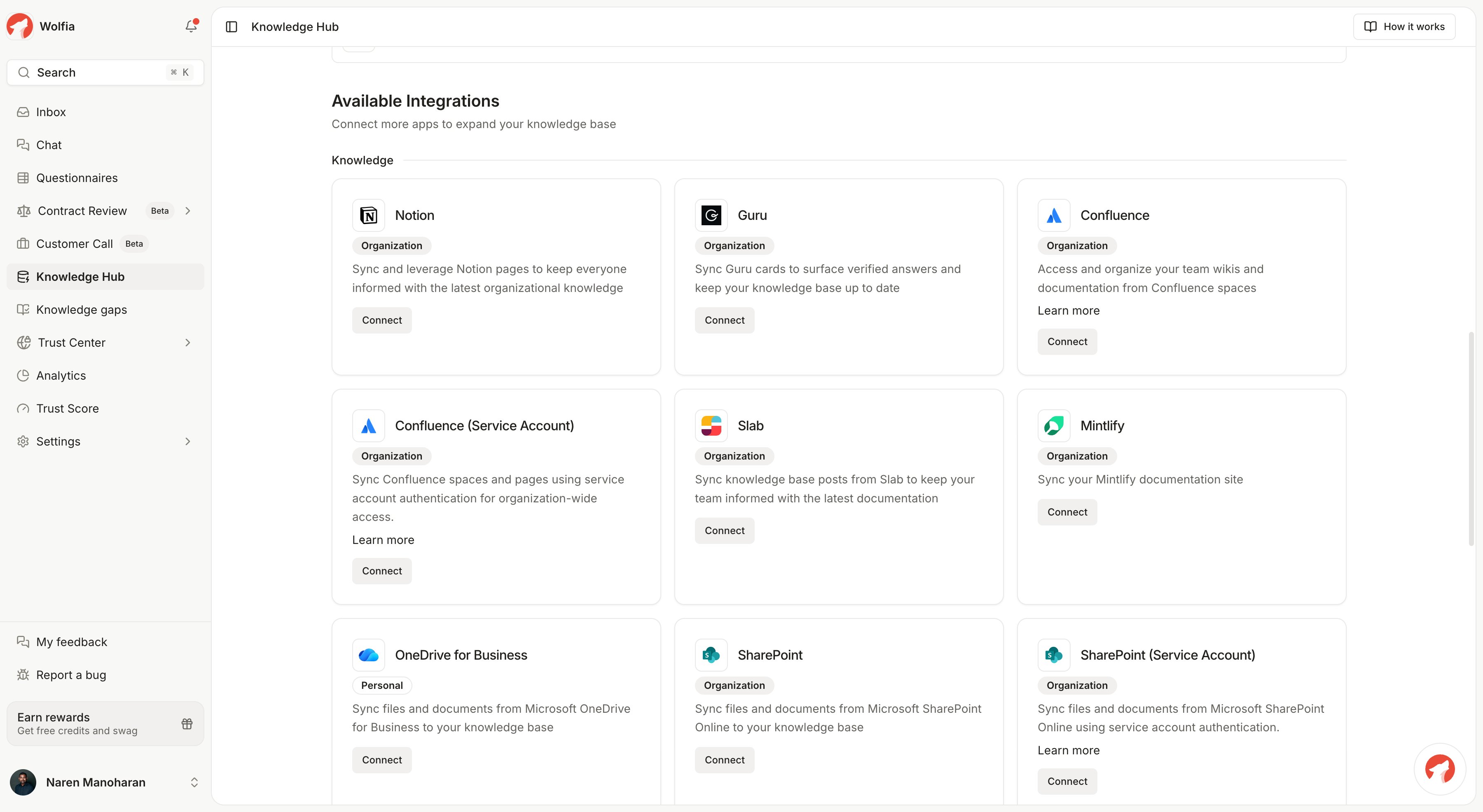
2
Enter your docs domain and assistant API key
Enter the domain your documentation is served from and paste your assistant API key.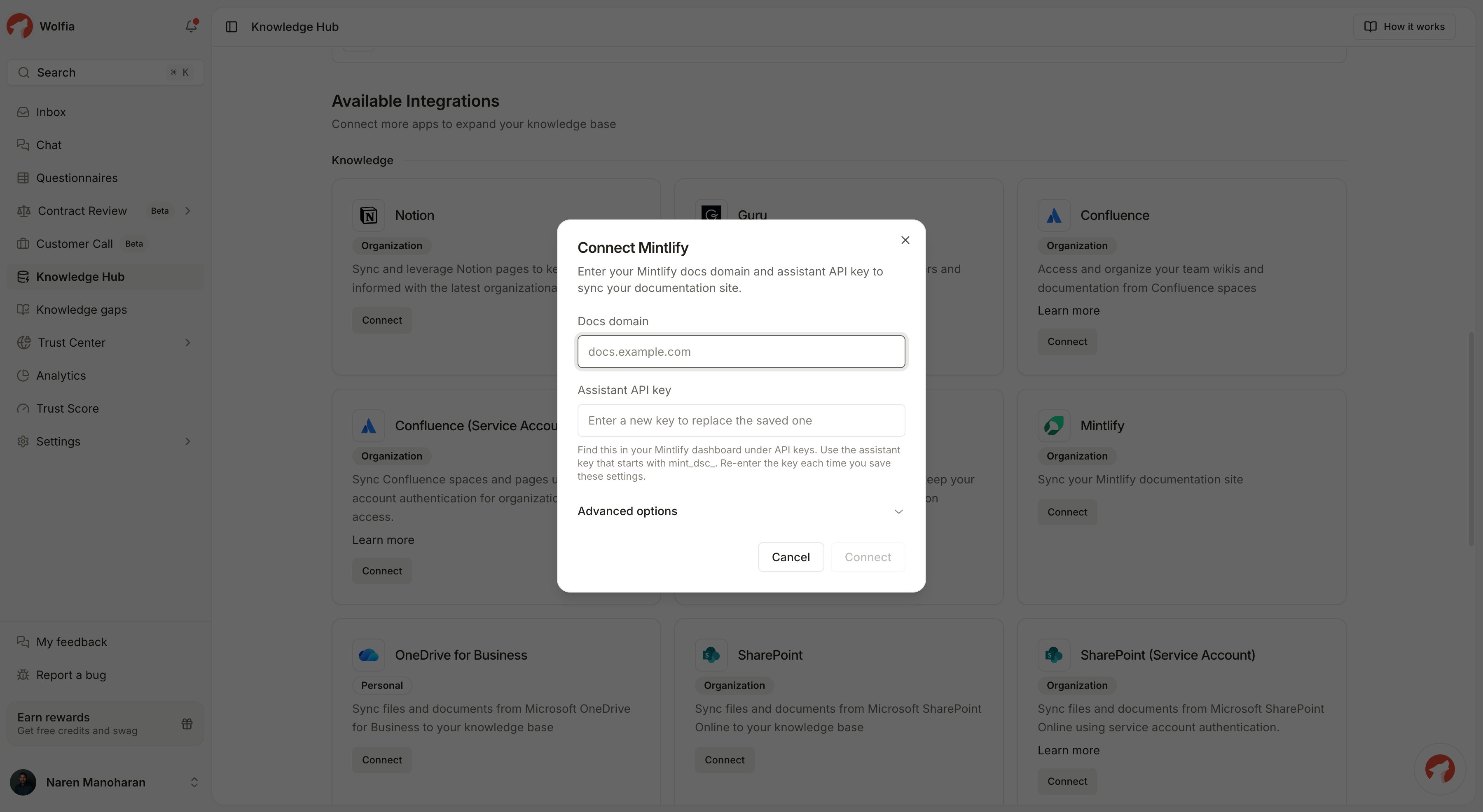
3
Optional: scope what syncs
Two optional fields control scope:
- Documentation groups applies when your docs are private. Enter the group names, separated by commas, and Wolfia reads the pages those groups can access.
- Manual page paths overrides automatic page discovery. When set, only the paths you list sync, and previously synced pages that are no longer listed are removed. Leave this empty to sync everything Wolfia discovers.
4
Save and let the first sync run
Click Connect. Wolfia discovers your pages from your documentation site’s index and starts syncing them right away. Pages appear in your knowledge base as they finish processing.
Step 2: Review your synced pages
On the Mintlify page in the Knowledge Hub you can see every synced page, when it last updated, and its processing status. From here you can also:- Sync now runs a sync immediately instead of waiting for the next scheduled one.
- Manage updates the connection. Your saved domain, groups, and page paths are prefilled. Enter the assistant API key again each time you save.
- Disconnect removes the integration and every page it synced.
How syncing works
Wolfia syncs your documentation automatically every day. Each sync:- Picks up new pages, updates changed pages, and removes pages deleted from your site.
- Skips pages that have not changed, so repeat syncs stay fast.
- Cleans navigation clutter from each page so your knowledge base holds the substance of the page.
Troubleshooting
The connection is rejected with a message about the docs domain
The connection is rejected with a message about the docs domain
Enter only the domain, such as
docs.example.com. Wolfia strips https:// automatically, and only publicly reachable documentation domains are accepted.Pages are missing after a sync
Pages are missing after a sync
If your docs are private, check the Documentation groups on the connection. Wolfia can only read pages those groups can access. If you use Manual page paths, remember it is an override: only the listed paths sync.
The sync shows a failed status
The sync shows a failed status
A failed sync usually means the assistant API key expired or was revoked, or the docs domain changed. Open Manage, confirm the domain, and enter a current assistant API key. Then click Sync now.
Where do I find the assistant API key?
Where do I find the assistant API key?
In your Mintlify dashboard under API keys. Use the assistant key that starts with
mint_dsc_. It can only read and search documentation, which is all Wolfia needs. Admin keys are never required.Related pages
GitHub integration
Sync documentation and policies straight from your repositories.
Confluence integration
Bring your Confluence spaces into the knowledge base.
Adding knowledge
All the ways to add content to your knowledge base.
Customizing AI answers
Shape how Wolfia answers from your synced content.