

Please make sure the extension is installed and you’re logged in before you start. If not, follow the installation guide first, then come back.
Scanning questions
1
Open the questionnaire in your browser
Go to the vendor portal and open the questionnaire. Scroll until you can see real questions on the screen, not a welcome page or a list of sections. This is the page Wolfia will read.
2
Open the Wolfia extension
Click the Wolfia icon in your browser’s toolbar (top-right). A side panel slides in from the right. Keep the questionnaire visible behind it.
3
Click 'Portal Autofill'
On the home screen of the side panel (“How can I help you today?”), click the Portal Autofill button below the chat box.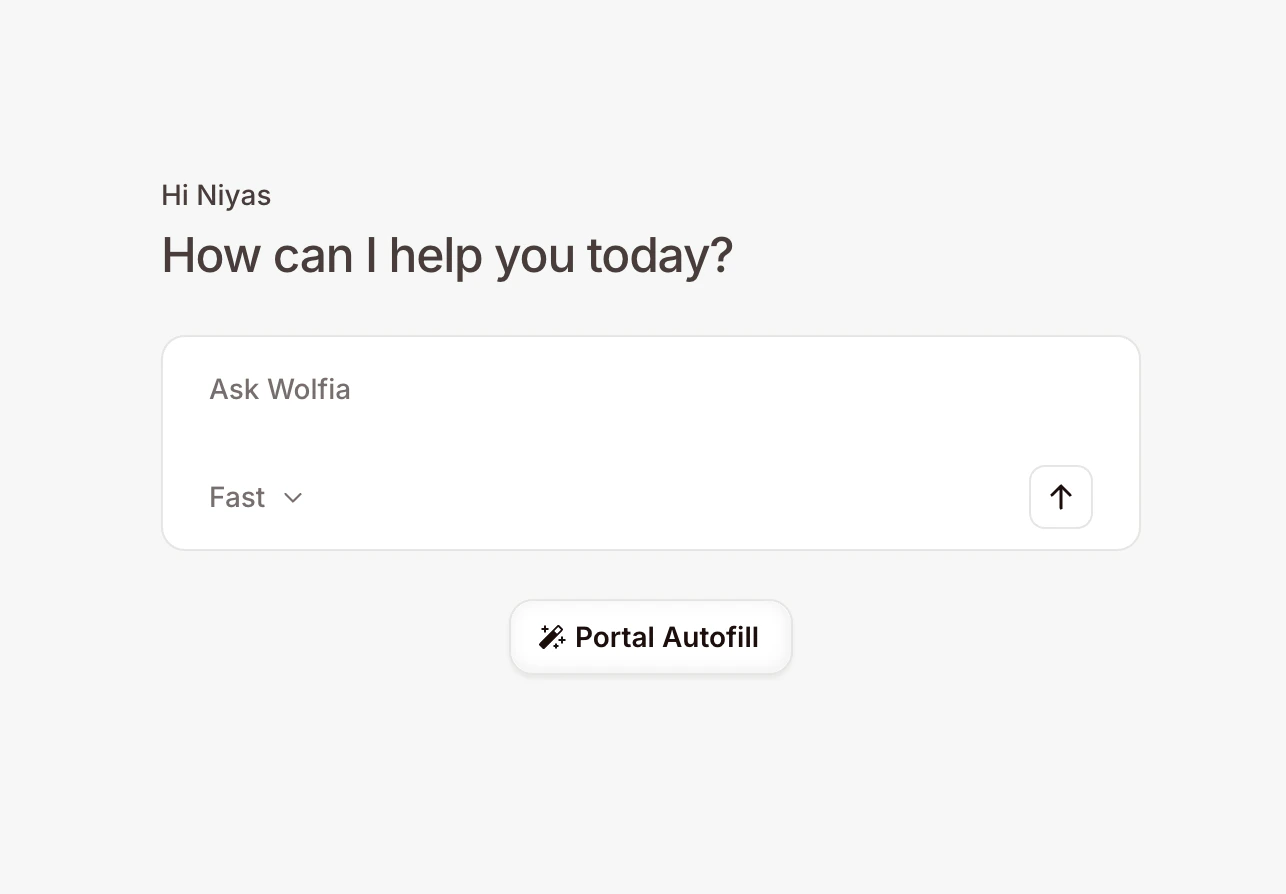
4
Tell Wolfia about the questionnaire
A short form opens. Fill in what you know: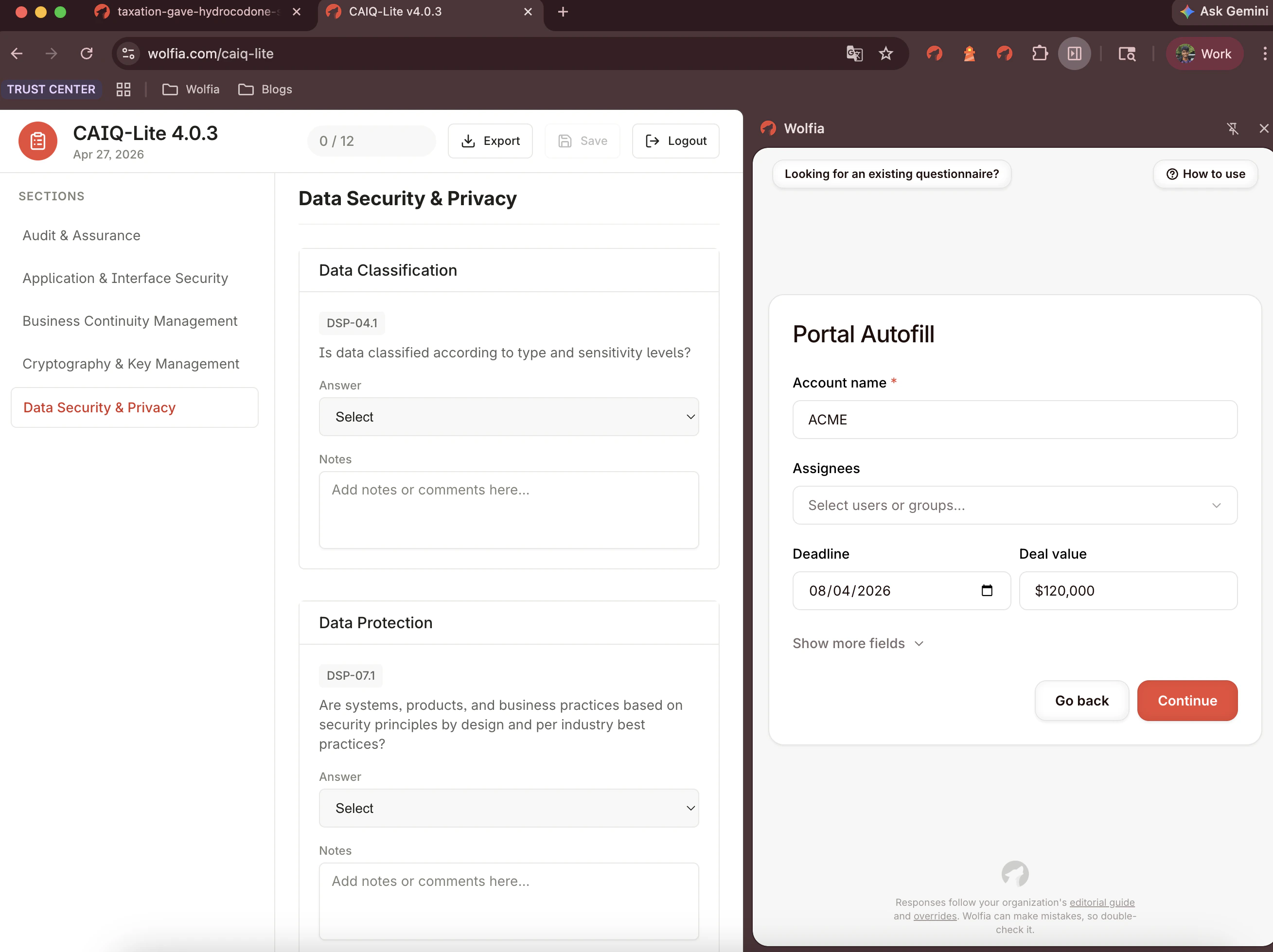
- Account name: the customer or vendor this questionnaire is for (e.g. Acme Inc.)
- Business segments: the segments that apply, so Wolfia uses the right knowledge
- Assignees: the people or groups responsible for the response
- Deadline: when the questionnaire is due
- Deal value: estimated deal size in USD
5
Click 'Continue', then 'Start auto-scan'
A Progress tracker opens, listing the steps Wolfia is about to walk through: scan, process, review, autofill. Click Start auto-scan to begin. Wolfia navigates through every section of the questionnaire and captures all the questions for you.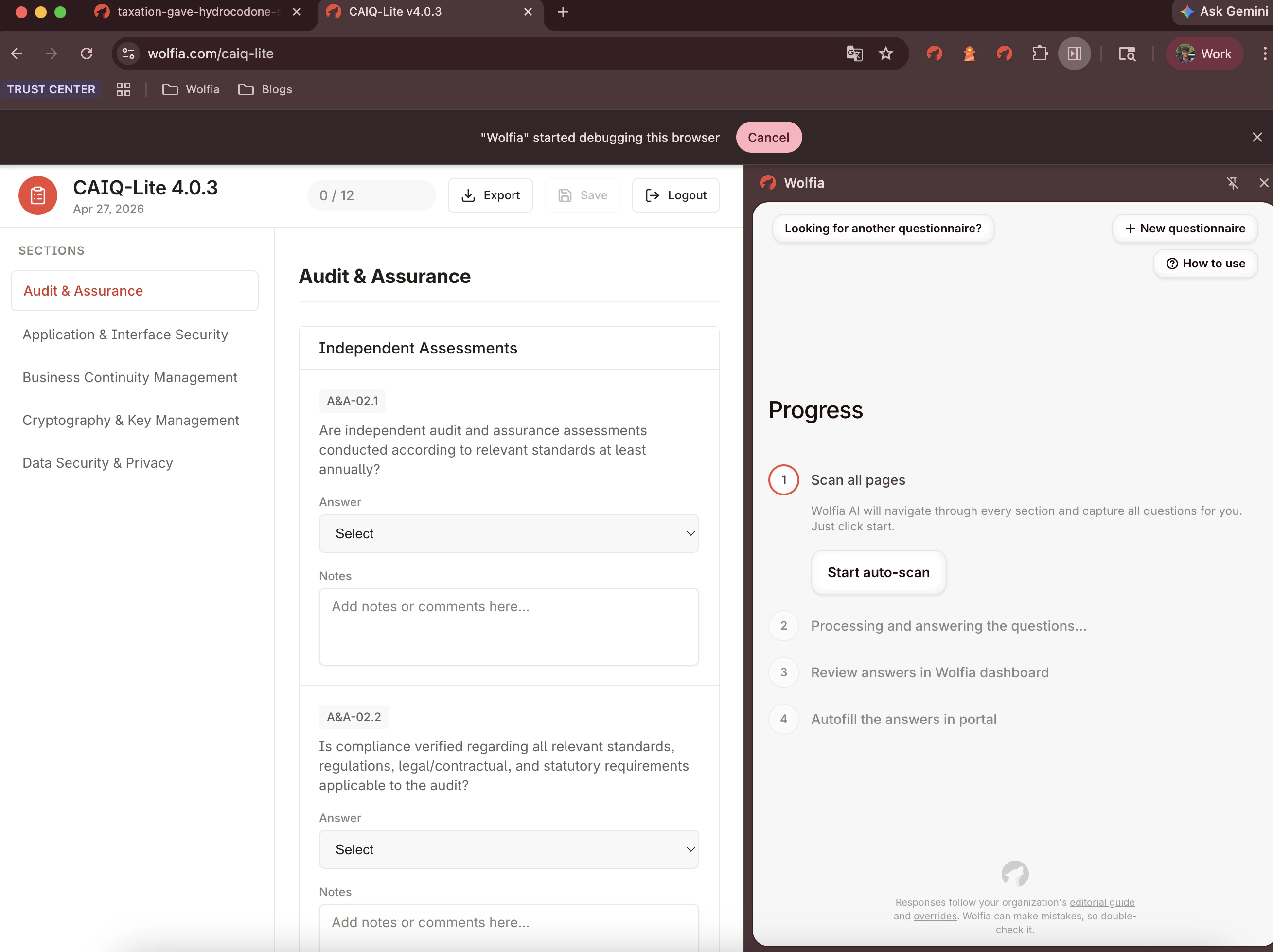
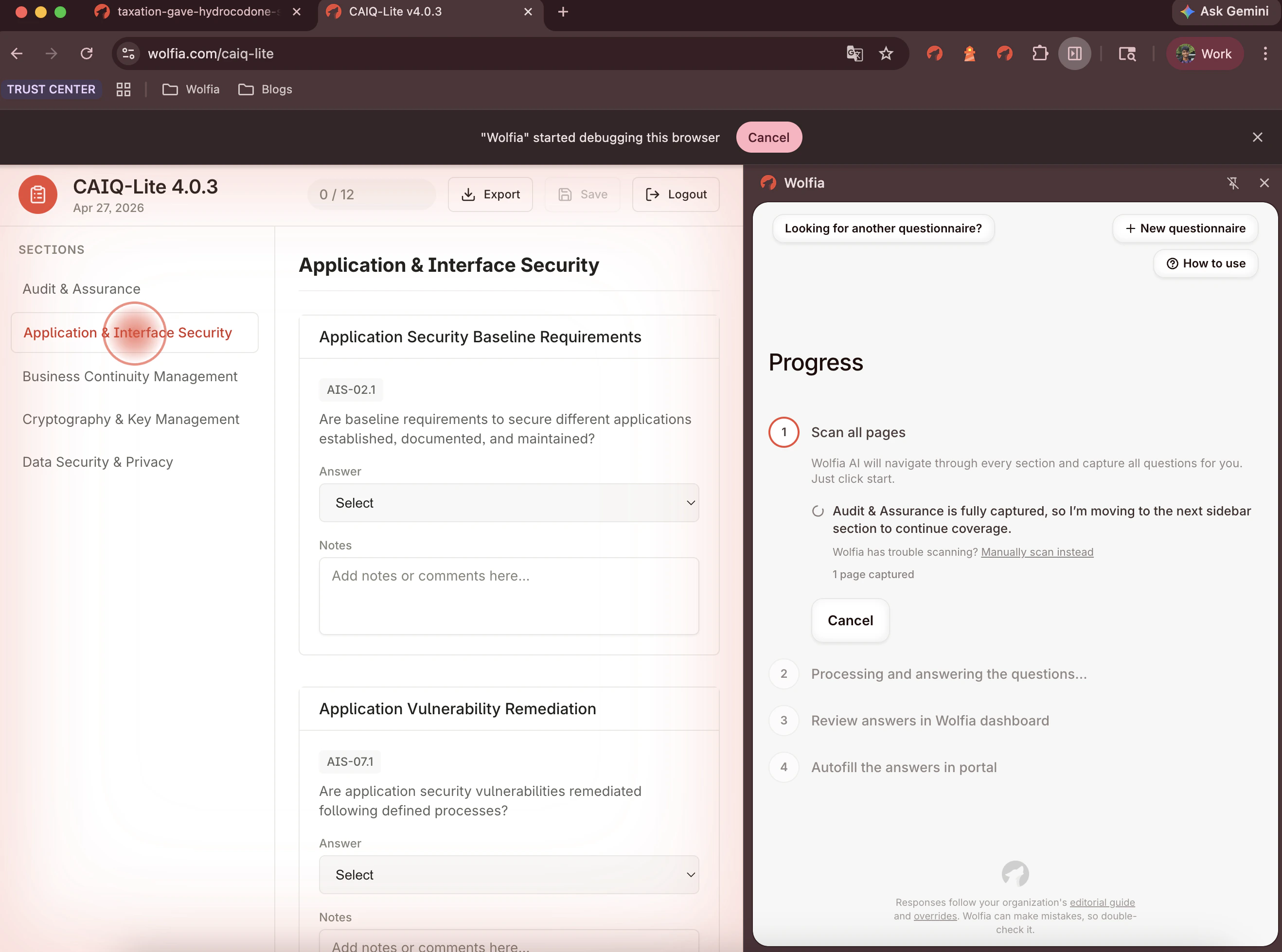
If you see a permission or capture error, close the extension, click back into the questionnaire so it’s the page you’re looking at, then open Wolfia again and click Start auto-scan once more.
Review the answers in the Wolfia dashboard
When Wolfia finishes scanning and processing, the tracker reaches the Review answers in Wolfia dashboard step and shows a Review button. Click it. A new tab opens to the questionnaire in your Wolfia dashboard, with every extracted question alongside the answer Wolfia drafted from your knowledge base and citations to the underlying facts.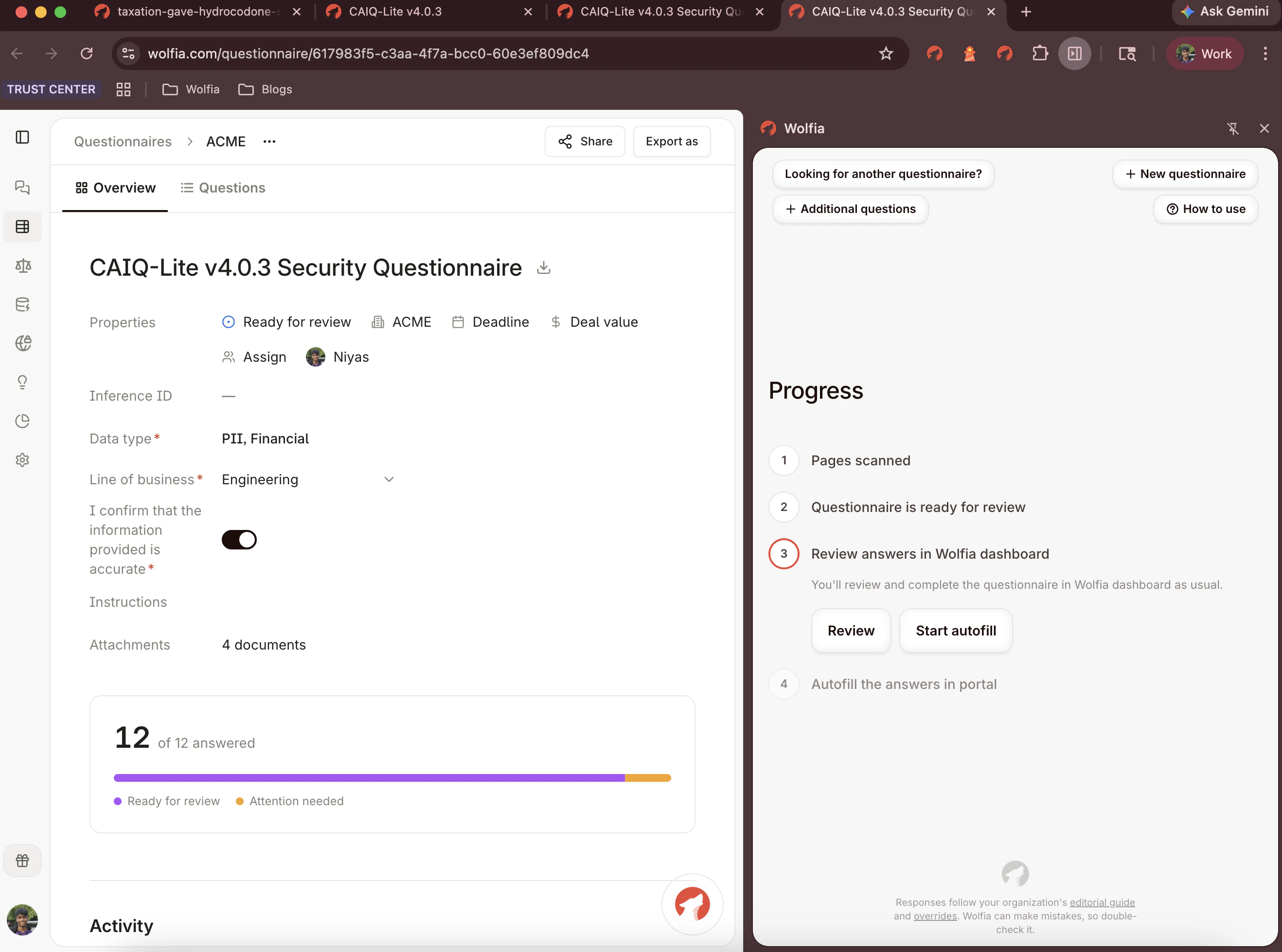
Autofill the portal
1
Go back to the portal in your browser
Switch back to the browser tab where the questionnaire is open. Open the Wolfia extension again. The Progress tracker is right where you left it, on the Review step.
2
Start the autofill
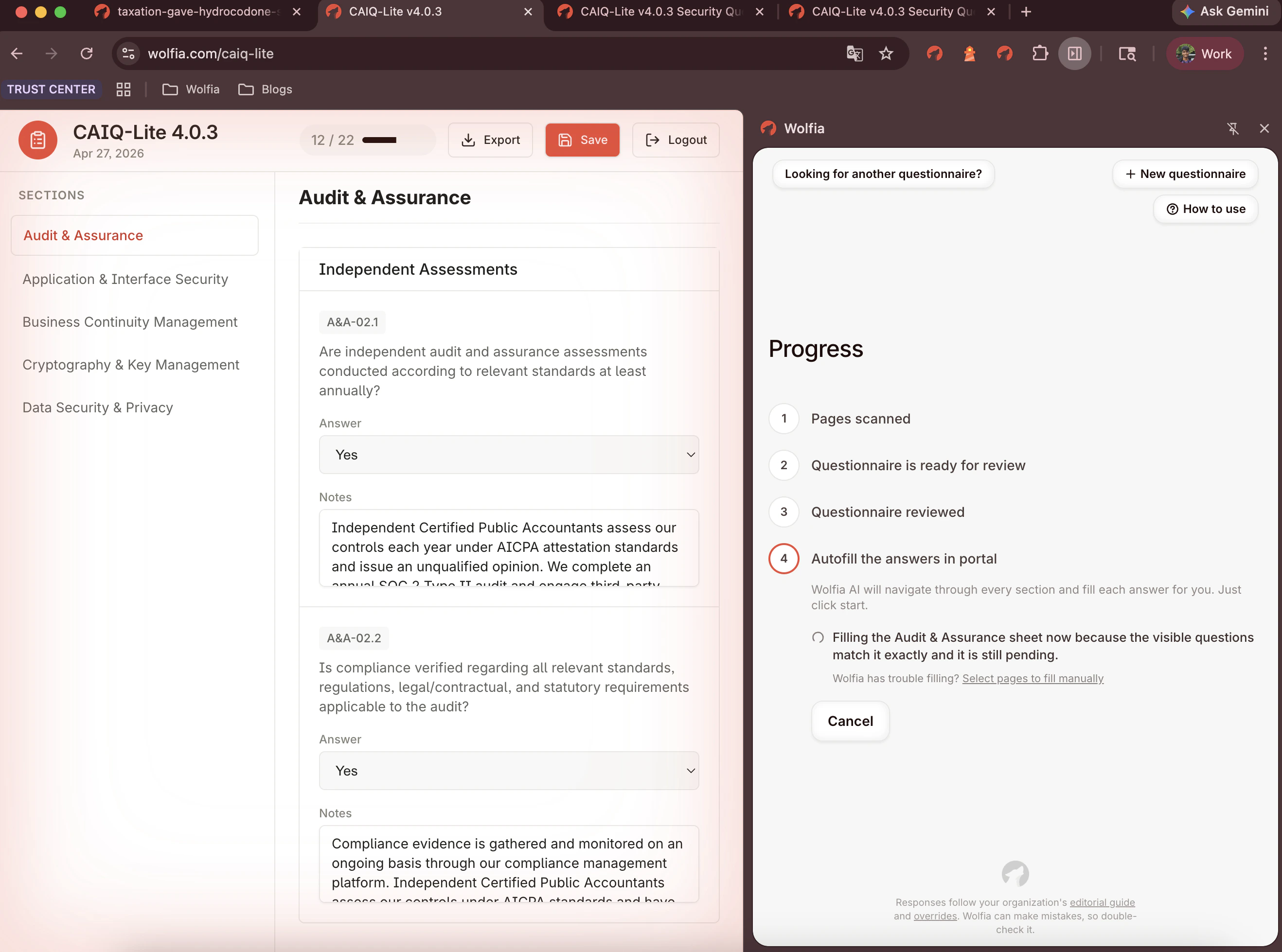
Click Start autofill next to the Review button. The tracker advances to the Autofill the answers in portal step. Click Start auto-fill there to begin.If the portal already has answers typed in, Wolfia shows a one-time If a field already has an answer prompt. Pick Keep existing answers to leave them or Override to replace them with your reviewed answers.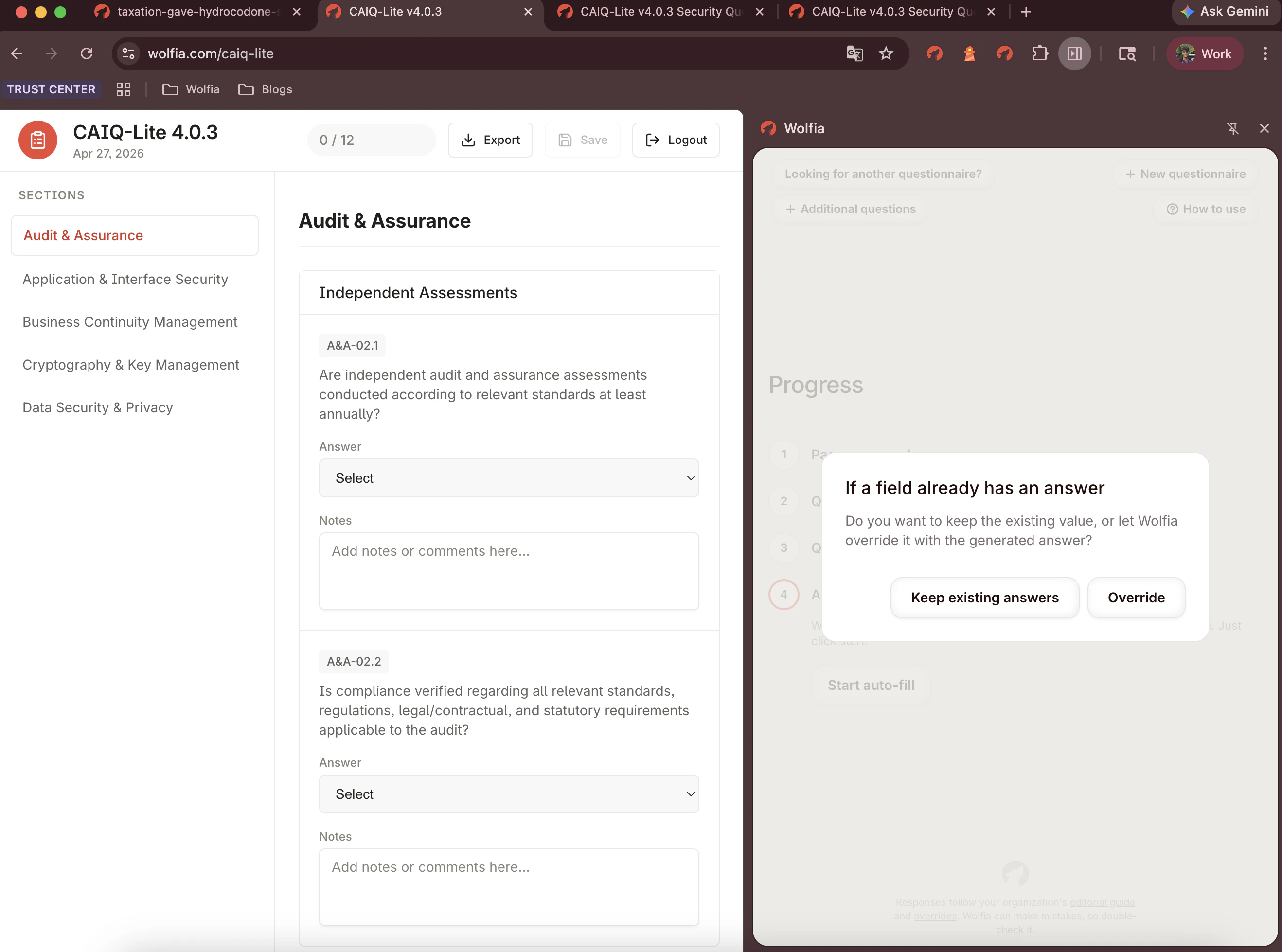
3
Submit when ready
Your reviewed answers are now in the portal’s form, ready for you to submit through the portal whenever you’re done.
Next steps
Help
Portal support, requesting a new portal, and troubleshooting.