

Scanning
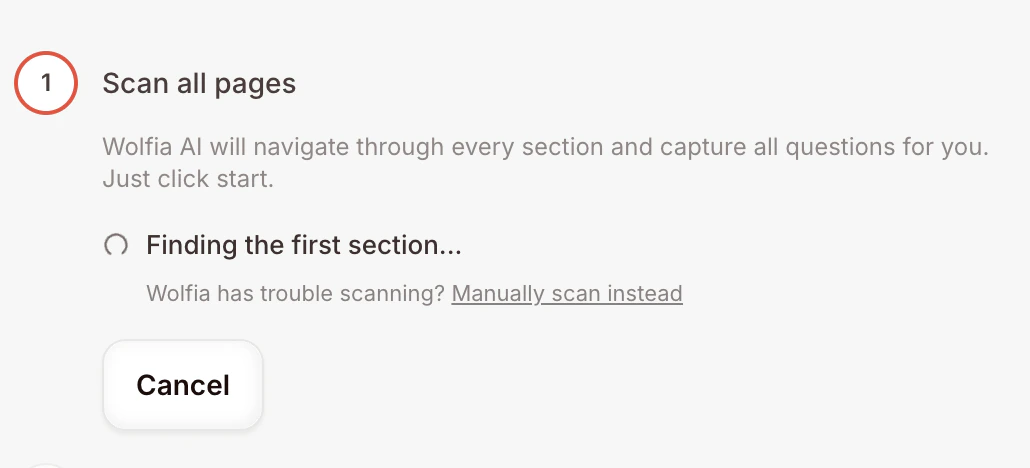
When the auto-scan is running, Wolfia walks the portal on its own and captures every question. If you see it spinning on the same screen, missing sections, or returning no questions at all, you can switch to manual scanning. While the scan is running, the extension shows a small line under the progress narration:Wolfia has trouble scanning? Manually scan insteadClick Manually scan instead to switch over.
How manual scan works
In manual scan, you drive the navigation. The rule is simple: one click captures the page you’re currently looking at. If the questionnaire has more sections, you navigate to each one in the portal yourself and capture it the same way.1
Open the portal page you want to capture
Make sure you can see the questions on screen, not a cover page or summary.
2
Click 'Scan page'
The extension grabs all the questions visible on this page.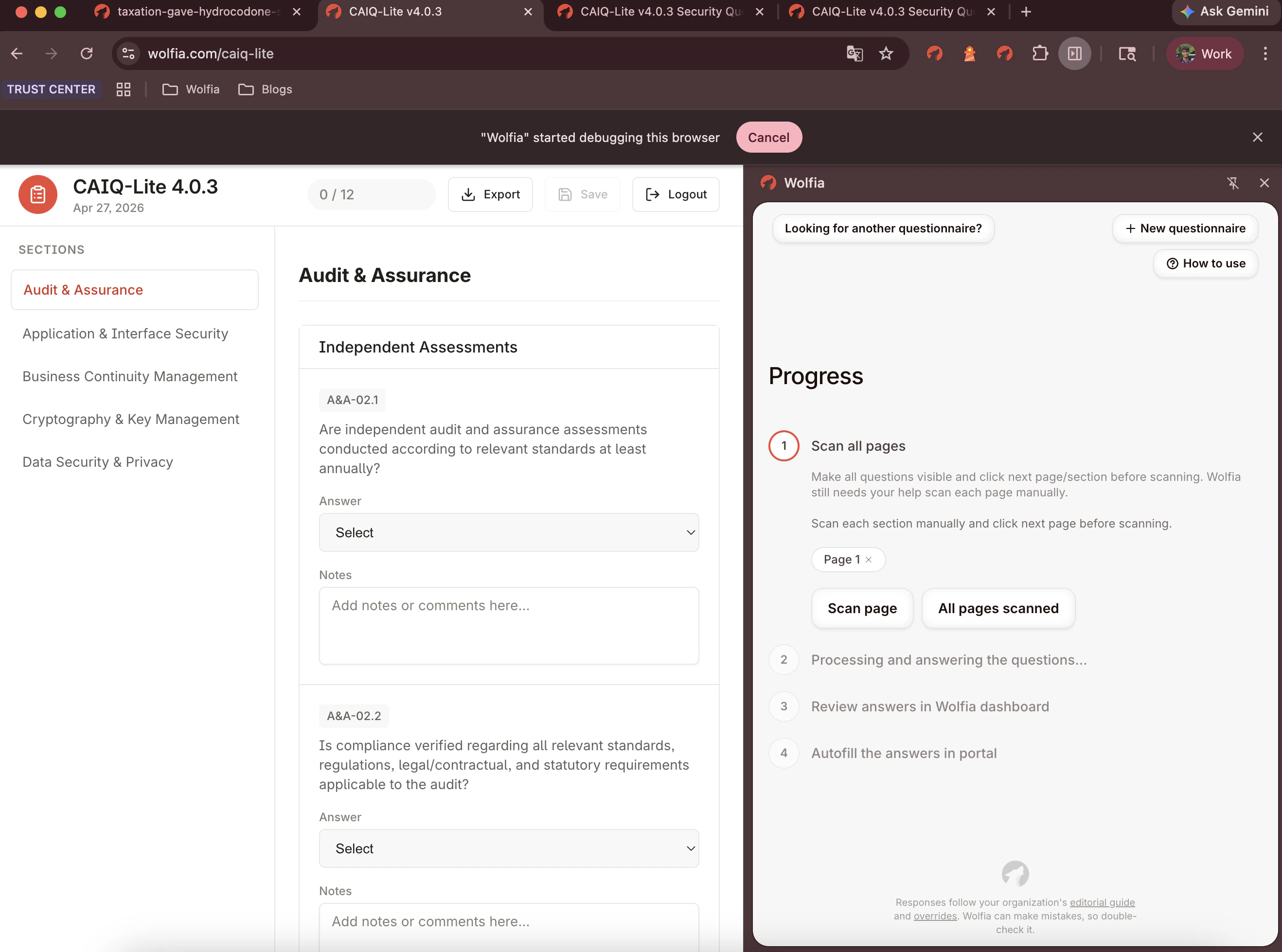
3
Navigate to the next section in the portal
Use the portal’s own navigation (next-page button, sidebar links, tab switcher) to load the next set of questions.
4
Click 'Scan page' again
Repeat for every section. Each click captures only what’s on screen at that moment.
Autofilling
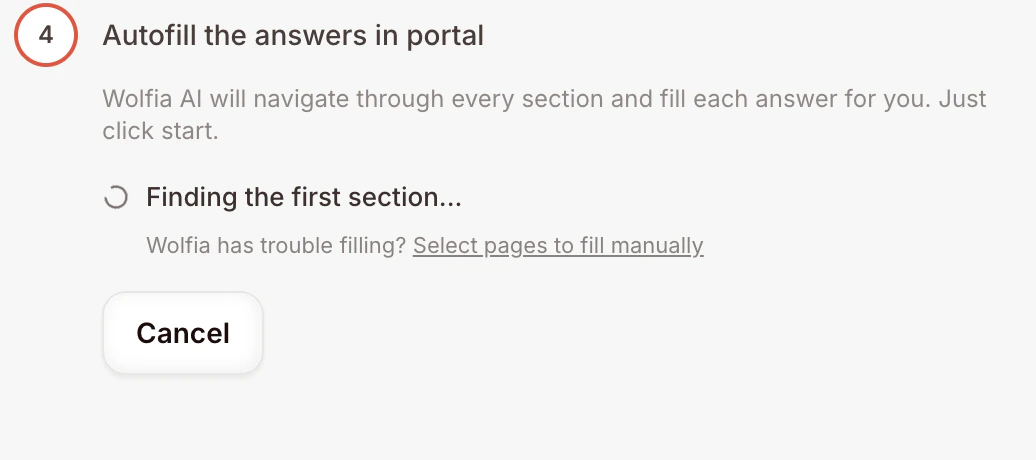
If auto-fill is running and the agent gets stuck, can’t find fields, or fails to write back, switch to manual filling. While auto-fill is running, the extension shows:Wolfia has trouble filling? Select pages to fill manuallyClick that link to switch.
How manual fill works
Same idea as manual scan, in reverse. You navigate to each portal page in the order it appears, and Wolfia fills only what’s on the page you’re looking at.1
Open the first page of the questionnaire
Start with the first section so the order matches what was scanned.
2
Click 'Fill Current Page'
The extension writes the answers for that page into the portal’s fields.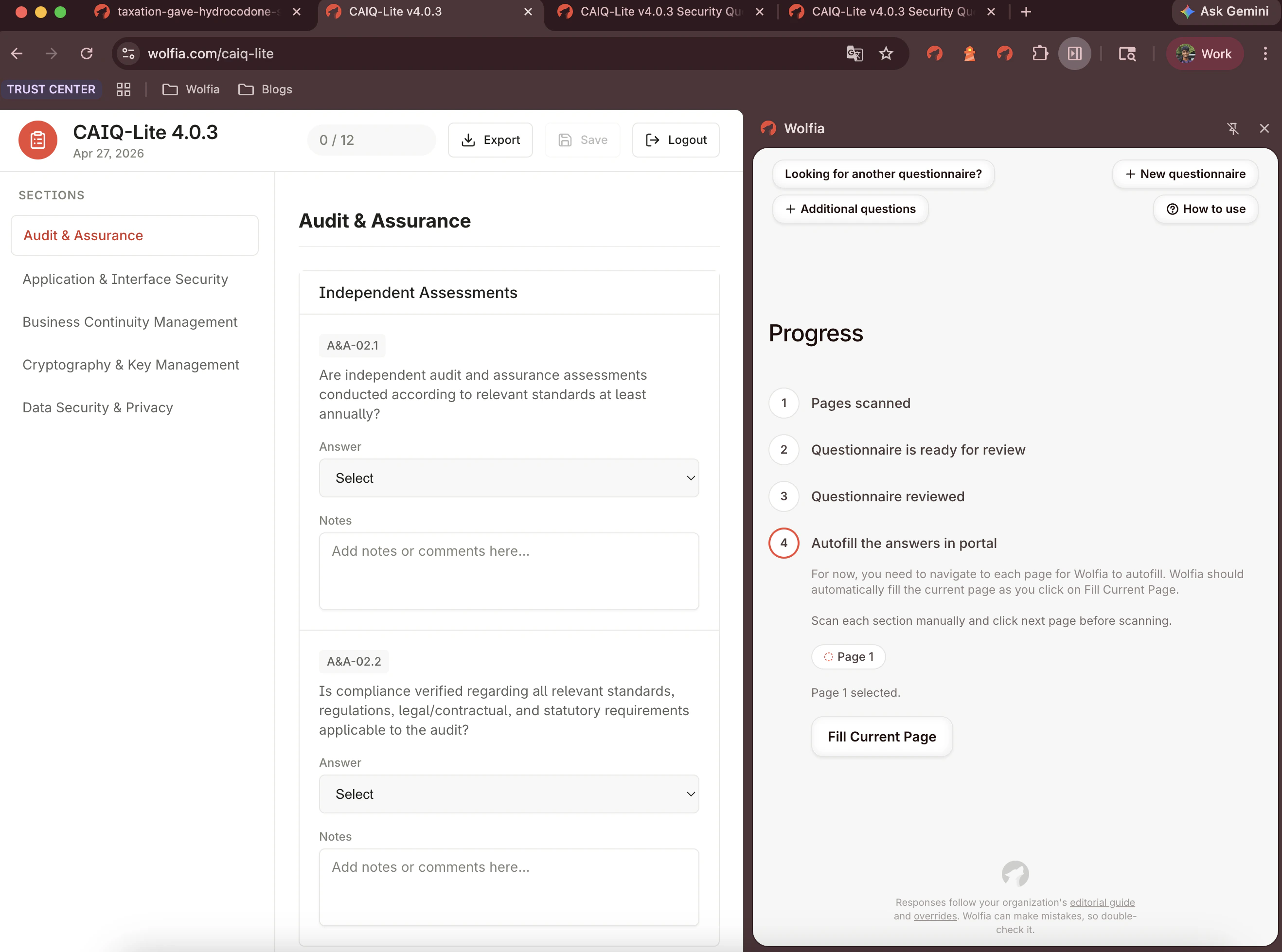
3
Navigate to the next page
Move to the next section in the portal, then click Fill Current Page again. Continue until every page is filled.