

What Wolfia reads
Documents and spreadsheets
PDF, Word, Excel, PowerPoint, CSV, text, Markdown, HTML, and JSON files are indexed.
Images and email files
PNG, JPEG, and WebP images, plus saved email files, are indexed as well.
Folders, including subfolders
Select a folder and Wolfia walks every subfolder inside it and indexes each supported file.
Individual files
Pick single files from anywhere in your Box account when you only need a few documents.
Before you start
- An admin, expert, or integration admin role in Wolfia. Only these roles can connect integrations.
- A Box account with access to the files and folders you want to index.
A Box connection is personal. It belongs to the Box account used to connect, and only the team member who connected it can see the connection, change the selection, or disconnect it. Other admins can connect their own Box accounts. Files are available to your whole organization once indexed.
Connect Box
1
Open the Knowledge Hub
In Wolfia, go to Knowledge Hub and find Box under Knowledge in the list of available integrations. The card is marked Personal.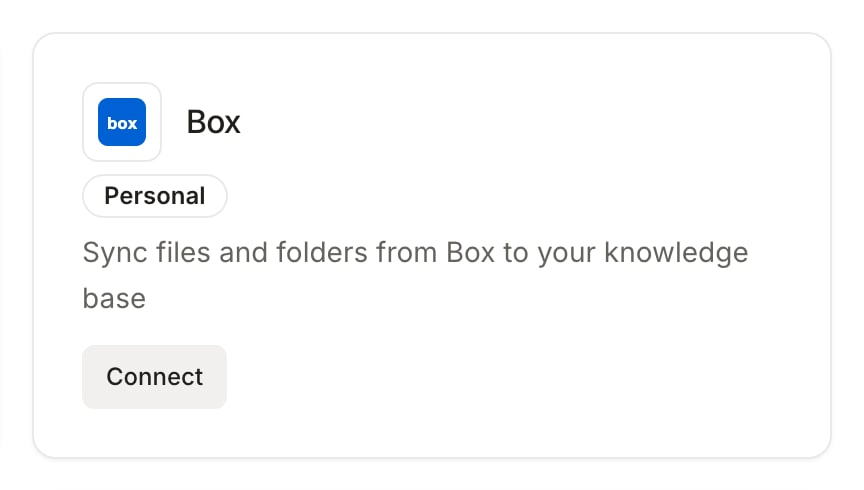
2
Sign in to Box
Click Connect. A Box sign-in window opens. Sign in with the Box account that has access to your documents and grant Wolfia access. You are returned to the Box page in Wolfia once the connection is verified.
3
Select files and folders
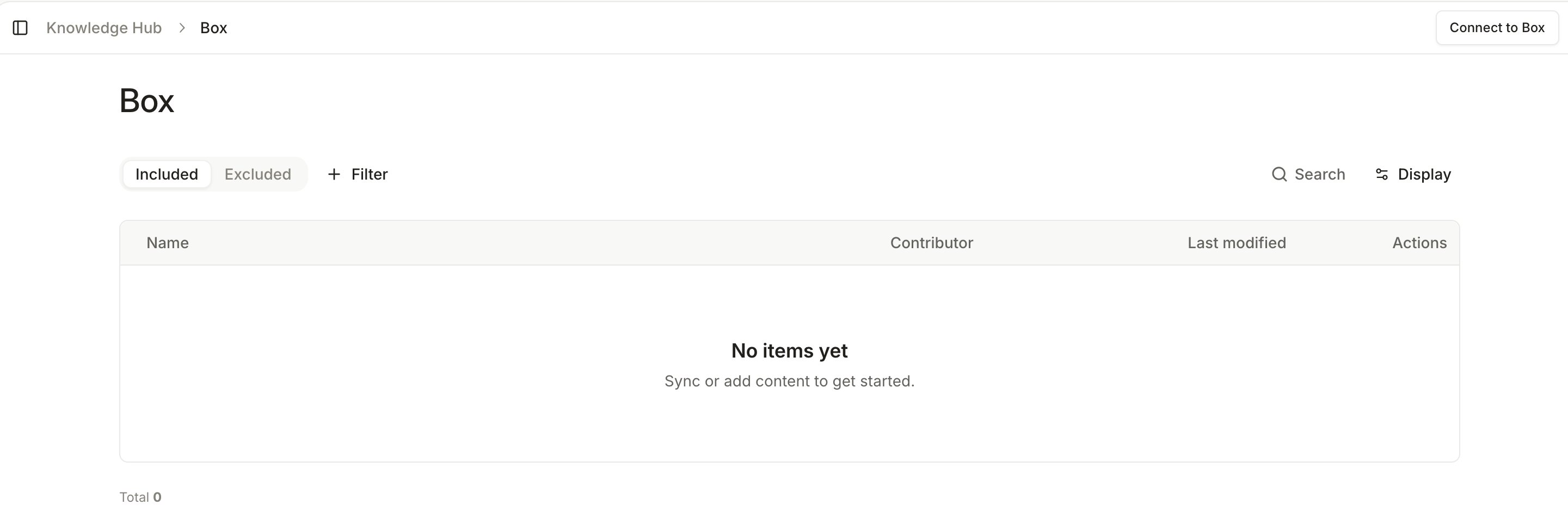
Click Manage to open the Select Box files and folders dialog, browse your Box account, tick any number of files and folders, and click Select. Wolfia starts indexing right away and your selection appears in the Box sources table as files finish. The connection is also listed under Connected integrations in the Knowledge Hub.
Keep Box in sync
- Automatic sync: Wolfia re-reads your selected files and folders every day. It picks up edited files, new files added to selected folders, and files removed from them. Files that have not changed since the last sync are left as they are.
- Sync now: click Sync now on the Box page to refresh immediately, for example right after you upload a new policy to Box.
- Add to the selection: click Manage again to pick more files and folders. New picks are added to what is already synced.
- Disconnect: click Disconnect, then confirm in the Confirm Box disconnect dialog. Wolfia revokes its access to Box and removes every file synced from this connection from the knowledge base. This cannot be undone.
Good practices
- Select folders over individual files. A folder keeps itself current as teammates add documents to it.
- Keep one folder for current policies and move superseded versions elsewhere, so answers cite the latest document.
- Connect with an account that will keep access to the folders, since the connection stops syncing if that account loses access.
Frequently asked questions
A file in a selected folder is not showing up
A file in a selected folder is not showing up
Check that the file type is supported and that the connected Box account can open it. Unsupported files appear in the table as skipped. Click Sync now after fixing access.
How do I remove a file or folder from the selection?
How do I remove a file or folder from the selection?
The picker adds to your selection; it does not remove from it. Move the file out of the selected folder in Box, or delete it in Box, and it drops out of the knowledge base on the next sync. To start over with a different selection, disconnect and connect again.
What happens when a file is deleted in Box?
What happens when a file is deleted in Box?
On the next sync Wolfia removes the file from your knowledge base and stops using it in answers.
Wolfia asks me to reconnect Box
Wolfia asks me to reconnect Box
The Box authorization was revoked or expired, for example after a password change or an admin policy update. The Box page shows the last successful sync and a Reconnect Box button. Reconnect with a Box account that can see the same content; your file and folder selection is kept and syncing resumes.
Can two teammates connect Box?
Can two teammates connect Box?
Yes. Each connection is tied to one Box account and is visible only to the person who created it. Each teammate can connect their own account and choose their own files. Everything indexed is shared with the organization.
Does Wolfia change anything in my Box account?
Does Wolfia change anything in my Box account?
No. Access is read only. Wolfia only reads the files you selected.
Related pages
Knowledge base
Every source Wolfia can index and how they fit together.
Google Drive
Sync folders and files from Google Drive the same way.
SharePoint
Sync documents from Microsoft 365.
Adding knowledge
Upload documents directly when they do not live in Box.