

What Wolfia reads
Every post in the workspace
Wolfia indexes the posts the bot token can see. There is no picker; the whole workspace syncs.
Title and body
Each post is indexed under its Slab title with its full text, so citations point at the page by name.
Edits and renames
A post that changes in Slab is refreshed on the next sync. Posts with no changes are left as they are.
Removals
A post that no longer exists in Slab is removed from the knowledge base on the next sync.
Before you start
- An admin, expert, or integration admin role in Wolfia. Only these roles can connect integrations.
- A Slab bot token for your workspace. Wolfia points you to
https://{portal}.slab.com/admin/developer, where{portal}is your workspace subdomain. Opening that page generally requires Slab admin access; check with your Slab admin if you cannot see it.
A Slab connection is shared across your organization. One bot token serves the whole workspace, and anyone who can manage integrations can update it from the Knowledge Hub.
Connect Slab
1
Create a bot token in Slab
Open
https://{portal}.slab.com/admin/developer for your workspace and create a bot token. Copy it; you will paste it into Wolfia in the next step.2
Open the Knowledge Hub
In Wolfia, go to Knowledge Hub and find Slab in the list of integrations. It is listed under Knowledge with an Organization badge.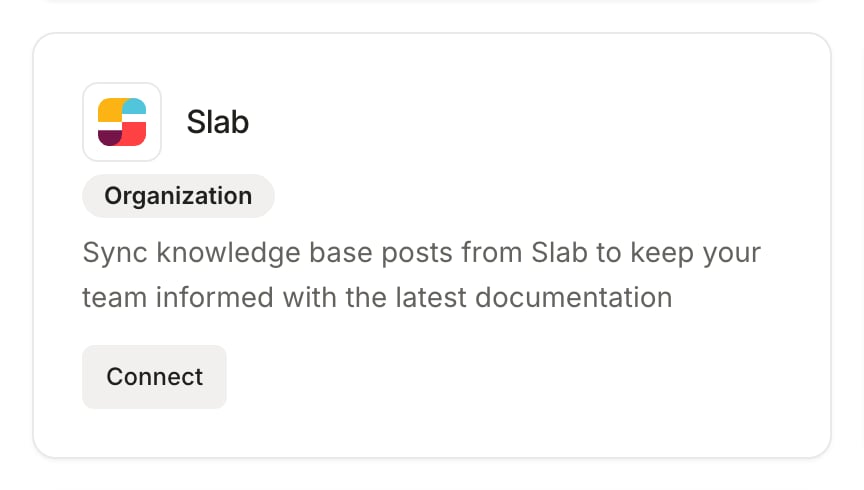
3
Paste the token
Click Connect. In the Connect Slab dialog, paste the token into Bot token and click Connect. Wolfia stores the token securely and confirms with Slab integration connected successfully. The first sync starts on its own.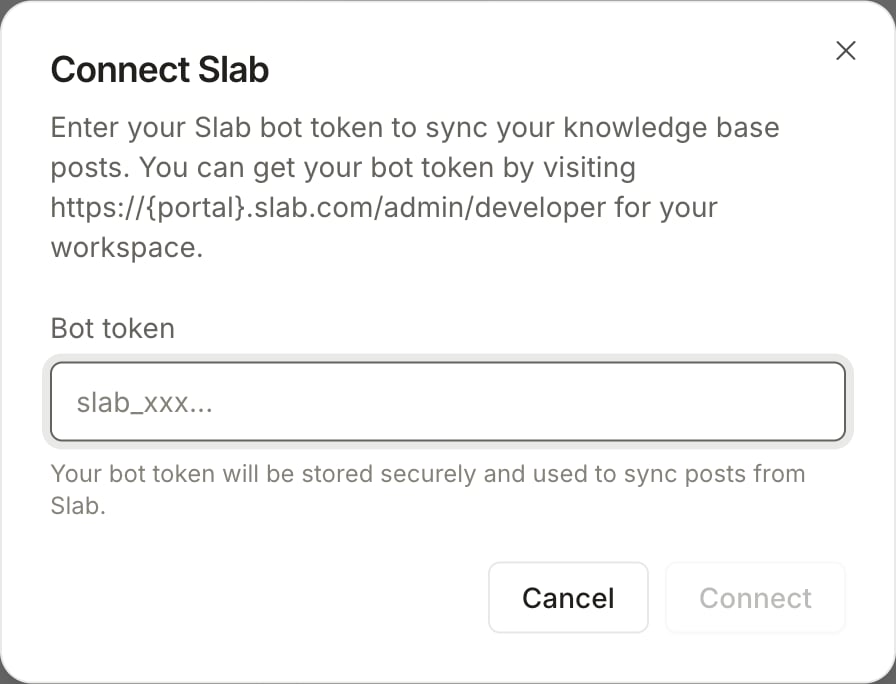
4
Watch posts arrive
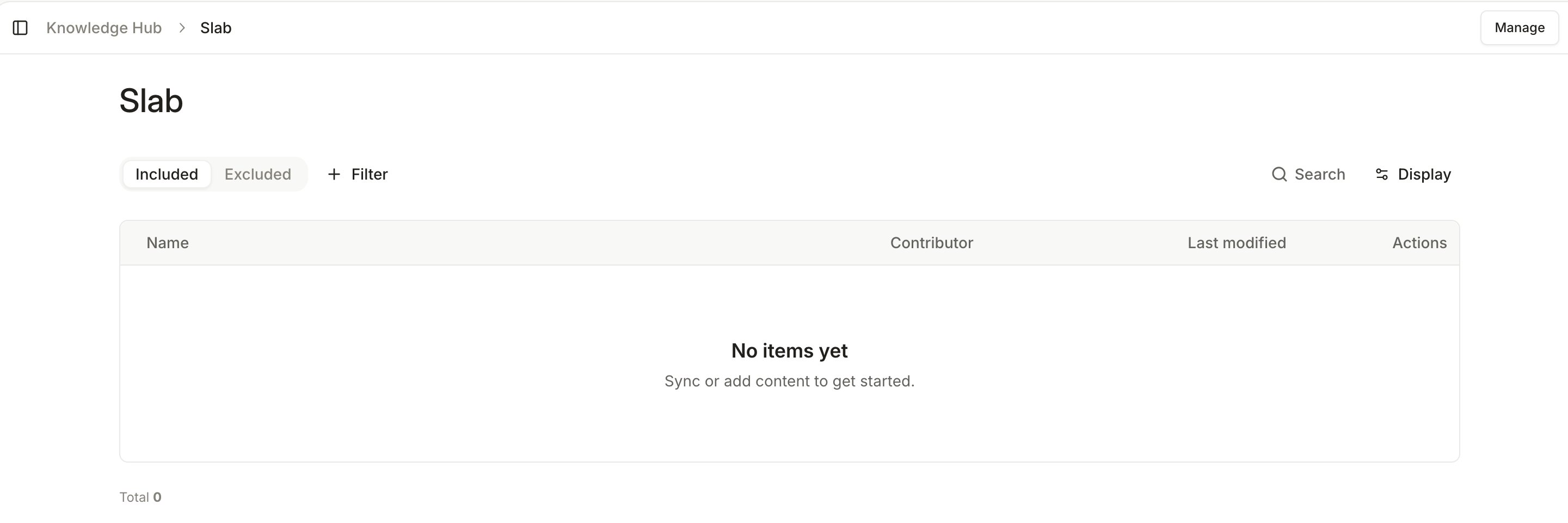
Open the Slab page in the Knowledge Hub. Posts appear in the table as Wolfia indexes them, and the connection shows under Connected integrations.
Keep Slab in sync
- Automatic sync: Wolfia re-reads your workspace every day, picking up new posts, edits, and removals.
- Sync now: click Sync now on the Slab page to refresh immediately, for example after publishing a policy update.
- Check status: click Manage to open Manage Slab integration. It shows the sync status (Completed, In Progress, Failed, or Draft) and the Last synced time, and has its own Sync now button.
- Rotate the token: in the same dialog, paste a new token under New bot token and click Save bot token. Do this whenever the token is regenerated in Slab.
- Exclude a post: in the Slab table, use Exclude from knowledge base on any post you do not want answers to draw on. Excluded posts stay excluded across future syncs until you choose Include in knowledge base.
- Disconnect: click Disconnect and confirm. This removes every post Wolfia synced from Slab from the knowledge base and cannot be undone.
Good practices
- Create the bot token from a workspace admin account rather than a personal one, so the connection survives team changes.
- Keep drafts and superseded pages out of Slab, or exclude them in Wolfia, so answers cite the current version.
- After rotating the token in Slab, update it in Wolfia right away. A stale token makes the next sync fail.
Frequently asked questions
Can I choose which posts to sync?
Can I choose which posts to sync?
Not at connection time. Wolfia syncs every post the bot token can see. To keep specific posts out of answers, exclude them from the Slab table in the Knowledge Hub.
The sync status shows Failed
The sync status shows Failed
The most common cause is a bot token that was revoked or regenerated in Slab. Click Manage, paste the current token under New bot token, click Save bot token, then Sync now.
A post is missing from the table
A post is missing from the table
Confirm the post has body text; empty posts show a Failed status. Then click Sync now. If the post is still missing, check whether the bot token can open it in Slab.
Does Wolfia change anything in my Slab workspace?
Does Wolfia change anything in my Slab workspace?
No. Access is read only. Wolfia only reads post titles and content.
Do edits in Slab reprocess the whole workspace?
Do edits in Slab reprocess the whole workspace?
No. Only posts whose content changed are reprocessed. Unchanged posts keep their existing knowledge.
Related pages
Knowledge base
Every source Wolfia can index and how they fit together.
Adding knowledge
Upload documents directly when they do not live in Slab.
Confluence
Sync wiki pages from Confluence the same way.
Mintlify
Index a public documentation site alongside your wiki.