

What Wolfia reads
The email itself
The subject, sender, recipients, date, and message text become one source, named after the subject line.
Attachments
Each file attached to the email becomes its own source, named after the file. Attachments up to 25 MB are indexed; larger files are skipped.
Forwarded and embedded emails
An email attached inside another email is treated as an attachment and indexed too.
Duplicates
If the same message or the same attachment is forwarded twice, Wolfia keeps the first copy and skips the rest.
Before you start
- An admin, expert, or integration admin role in Wolfia to open the setup dialog from the integration gallery. Admins and experts can delete sources on the Email page; depending on your organization’s settings, other teammates may also include or exclude sources.
- An email account on your organization’s domain. Wolfia matches each forwarded email to your organization by the sender’s domain, so forward from your work address.
Email is an organization integration. Anything forwarded by a teammate on your domain lands in the shared knowledge base, and every forwarded source is visible to the whole organization.
Set up email forwarding
1
Open the Knowledge Hub
In Wolfia, go to Knowledge Hub and find Email under the Communication category in the list of available integrations.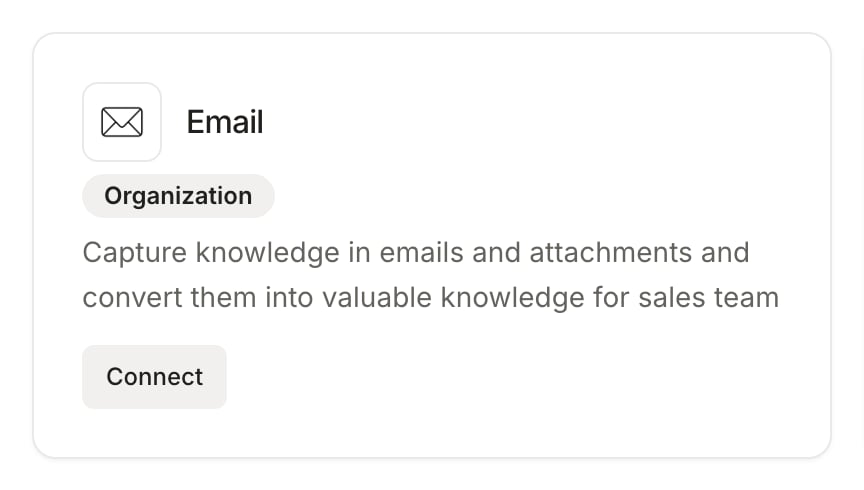
2
Read the forwarding instructions
Click Connect to open the Forward your emails dialog. It shows the forwarding address, knowledge@wolfia.com, and a short summary of how forwarded content is handled. There is nothing to authorize and no mailbox to link.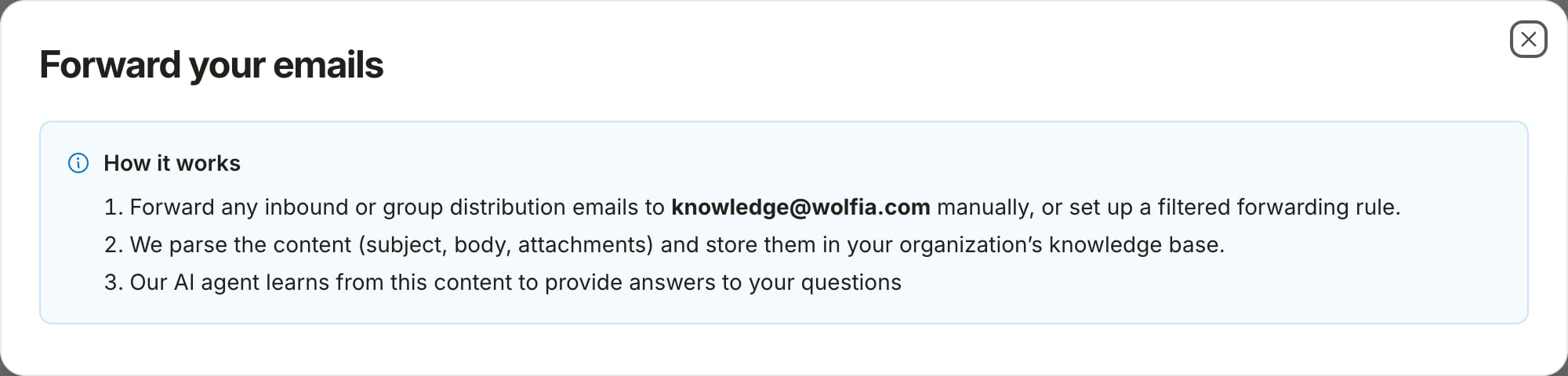
3
Forward an email
From your work email, forward a message to knowledge@wolfia.com. Attachments travel with it. You can forward individual emails by hand, or set up a filtered forwarding rule in your email client so that a distribution list or a label is forwarded automatically.
4
Check the Email page
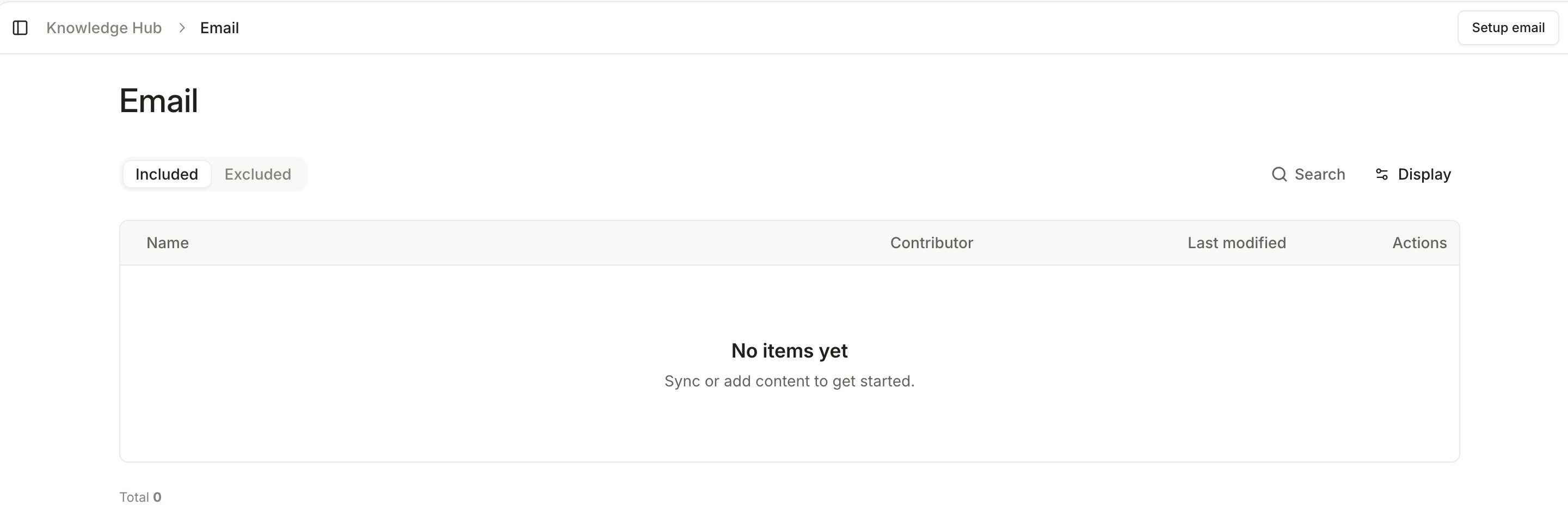
Wolfia checks for new forwarded emails every few minutes. Once the first one is indexed, Email appears under Connected integrations in the Knowledge Hub, and the gallery button changes from Connect to Manage. Open the Email page to see each email and attachment listed as a source.
Manage forwarded sources
The Email page lists every forwarded email and attachment with its name, category, contributor, and the dates it was last modified and last synced. From here you can:- Setup email: reopen the forwarding instructions at any time.
- Exclude from knowledge base or Include in knowledge base: toggle a single source in or out of answering without deleting it. Use the Status filter to switch the table between Included and Excluded sources.
- Delete: remove a source permanently. Admins and experts can delete.
Good practices
- Forward from a group address or a shared filter rather than relying on one person to remember. A rule that forwards every reply on a security alias captures knowledge as it is written.
- Forward the final reply in a thread. Earlier messages are usually quoted inside it, so one forward covers the conversation.
- Attach the documents that answer the question. Links in the message text are preserved, but only attached files are indexed as sources.
- Review the Email page after a bulk forward and exclude anything that should not shape answers, such as pricing negotiations or internal debate.
Frequently asked questions
I forwarded an email and nothing appeared
I forwarded an email and nothing appeared
Confirm the email was sent from an address on your organization’s domain. Wolfia uses the sender’s domain to route the email to your knowledge base, so a forward from a personal account is ignored. New emails are picked up every few minutes, so allow a short wait before checking again.
An attachment is missing
An attachment is missing
Attachments larger than 25 MB are skipped. An attachment that is identical to one already indexed, with the same file name, is skipped as a duplicate. Check the original email for the file size and forward a smaller version if needed.
Can I forward the same email twice?
Can I forward the same email twice?
Yes, but it will not create a second copy. Wolfia recognizes the message and skips it.
Does Wolfia read my mailbox?
Does Wolfia read my mailbox?
No. Wolfia only receives what you forward to the forwarding address. It never connects to your mailbox or reads emails you did not send it.
Who can see forwarded emails?
Who can see forwarded emails?
Everyone in your organization. Sources from the Email integration are part of the shared knowledge base, so forward only what your whole team should be able to cite.
Related pages
Knowledge base
Every source Wolfia can index and how they fit together.
Adding knowledge
Upload documents directly when they do not arrive by email.
Slack
Ask Wolfia questions directly in Slack channels.
Gong
Index customer calls alongside customer emails.