

What Wolfia reads
A single page
Add one URL, such as your security page or a pricing page, and Wolfia indexes just that page.
A whole site
Turn on Also crawl all pages on this site and Wolfia discovers the linked pages on the site and indexes them.
Multiple sites and subdomains
Monitor your marketing site, docs site, and help center side by side. Each one appears as its own row.
Sites behind a login
Provide basic auth credentials or session cookies so Wolfia can read a customer portal or an internal docs site.
Before you start
- Permission to edit the knowledge base in Wolfia to add, edit, or remove websites. Connecting the integration for the first time requires an admin, expert, or integration admin role. Team members without these permissions can still browse crawled pages.
- The URL you want to index. For a whole-site crawl, start from the site’s home page or the root of the section you care about.
- For a site that requires sign-in, a username and password, or the name and value of the site’s authentication cookie.
Website monitoring belongs to your organization. Any teammate with knowledge base edit access can add or remove sites, and everything crawled is available to the whole organization.
Add a website
1
Open the Website page
In Wolfia, go to Knowledge Hub and find Website in the list of integrations. Click Connect. Once at least one site is monitored, the card shows Manage instead, and the Website page lists every site under Connected integrations.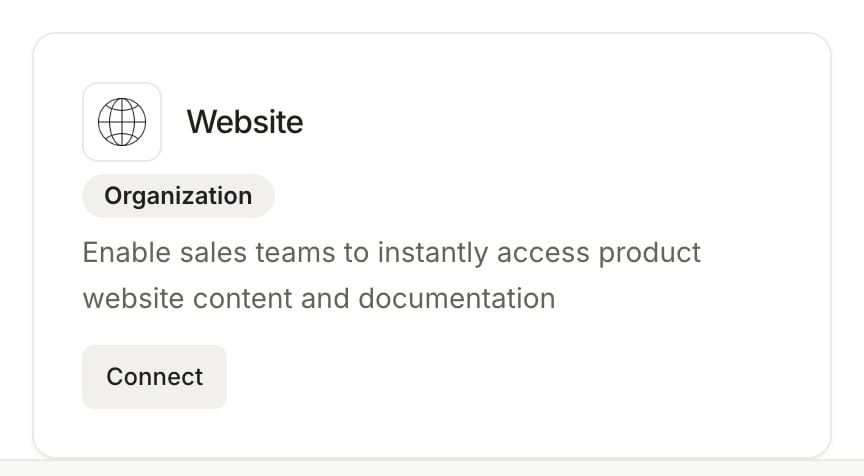
2
Enter the URL
Click Add page. In the Add website dialog, enter the address under Website link, for example
yourcompany.com or docs.yourcompany.com. Wolfia prefills your company domain when it can.Optionally add Context to tell Wolfia how to treat the site, for example that it belongs to an acquired subsidiary.3
Choose single page or whole site
Leave the checkbox off to index only the page you entered. Turn on Also crawl all pages on this site to have Wolfia discover and index the site’s linked pages. When crawling, you can add Exclude patterns such as
/blog/* or /internal/* to skip sections you do not want in the knowledge base.4
Add authentication if needed
If the site requires sign-in, turn on Website requires authentication and pick Basic auth (username and password) or Cookies (the name and value of the session cookie from your browser). The dialog includes short instructions for finding the cookie in your browser’s developer tools.
5
Start the import
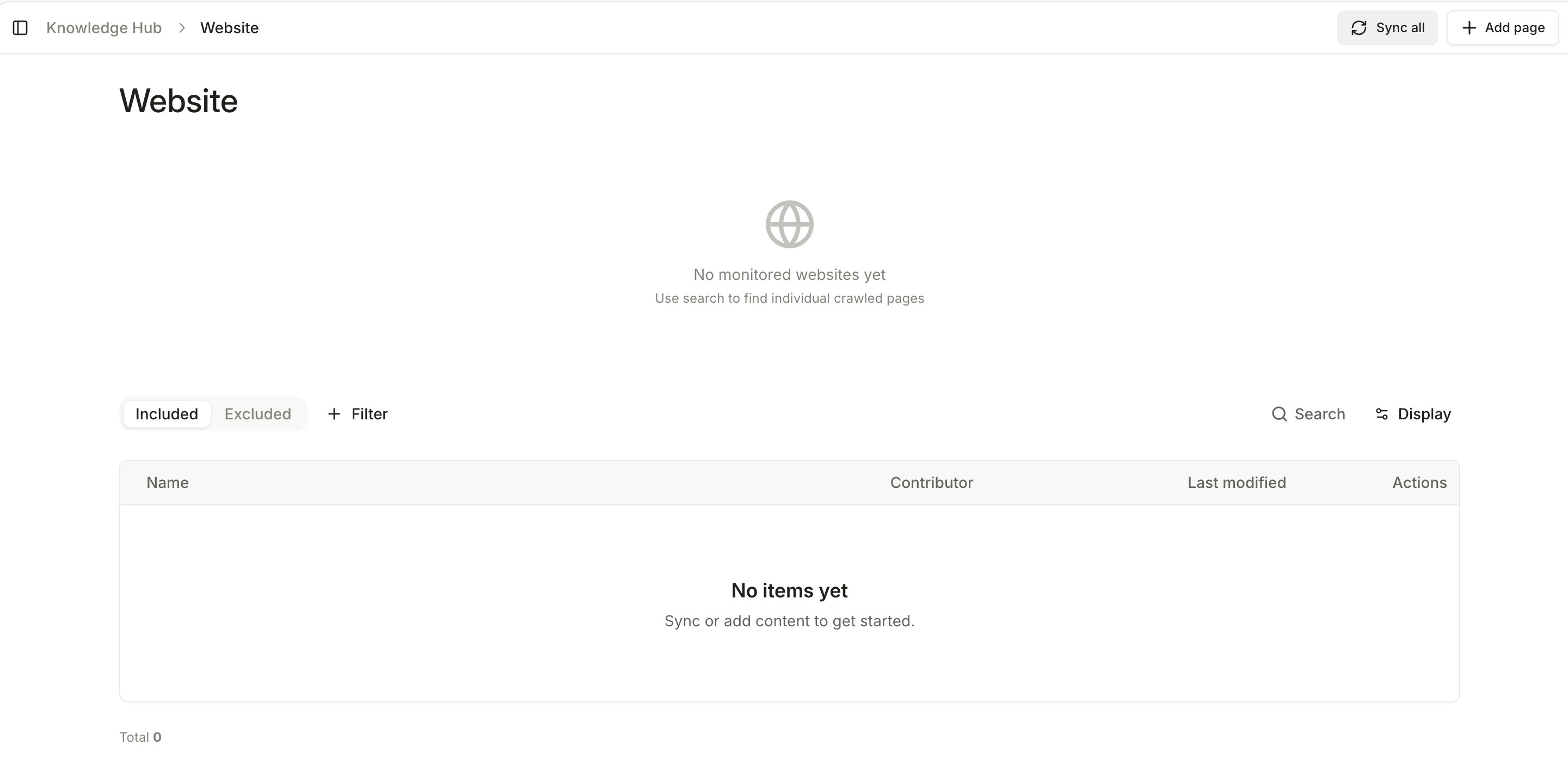
Click Start import. Wolfia confirms with Site added! All pages will be discovered and re-crawled. for a crawl, or Page added! This page will be re-synced. for a single page. The site appears in the monitored websites table with a Crawl or Single page badge, and the page count fills in as pages finish.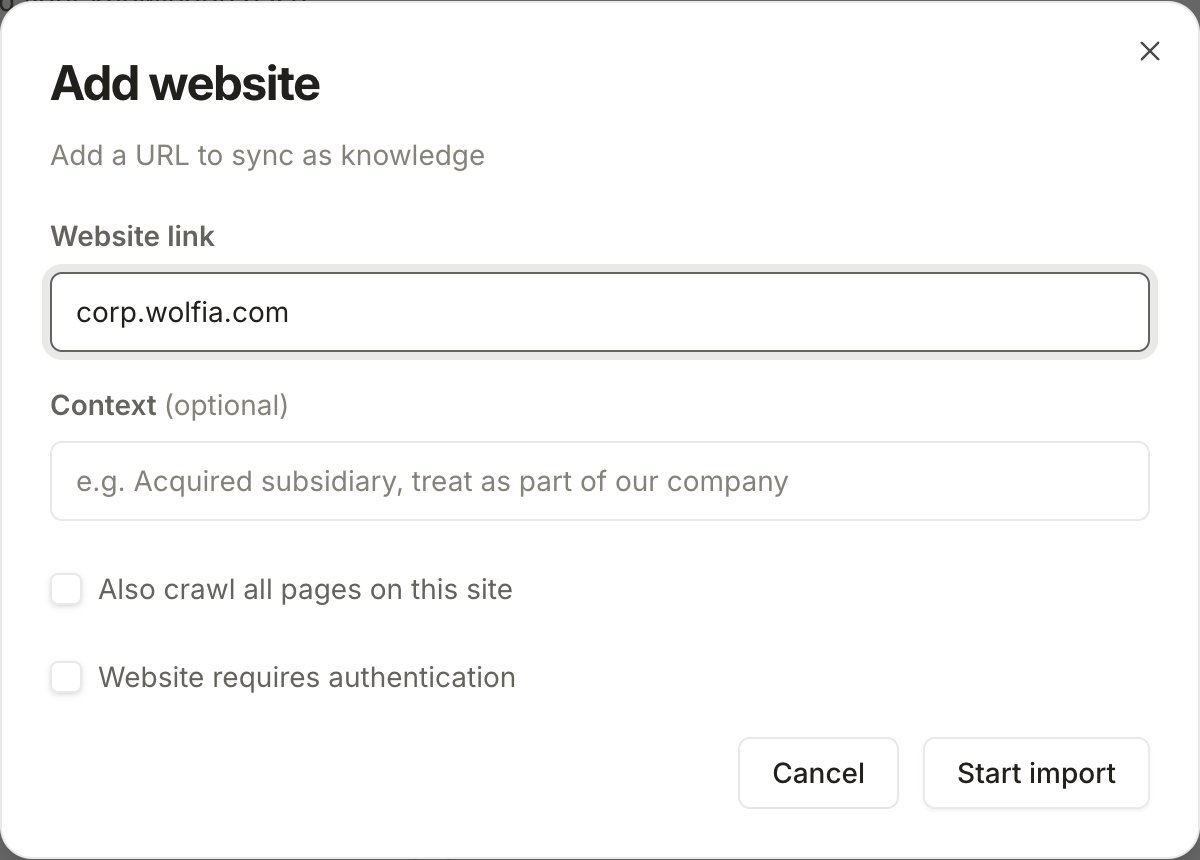
Keep your site in sync
- Automatic sync: Wolfia re-crawls monitored websites on a recurring schedule, picking up new pages, edits, and removed pages without any action from you.
- Sync one site: open the row’s actions menu and choose Sync this domain to refresh a single site right away, for example after you publish a new security page.
- Sync everything: click Sync all, then Start sync in the Confirm website re-sync dialog, to re-map every monitored site and reprocess all discovered pages.
- Edit a site: choose Edit from the row’s actions menu to change the context, the crawl setting, exclude patterns, or authentication. To change the URL itself, remove the site and add it again.
- Stop monitoring: choose Stop monitoring from the row’s actions menu and confirm. Wolfia stops re-crawling the site and retires the pages it had crawled from it so they no longer feed answers.
Good practices
- Add your documentation site and your marketing site as separate entries. Each gets its own page count and sync status, which makes problems easier to spot.
- Use Exclude patterns to keep blogs, changelogs, and careers pages out of the crawl. They add noise without helping answer security or product questions.
- Prefer a whole-site crawl for docs and help centers. New articles are picked up on the next sync without anyone remembering to add them.
- Use Context when a site belongs to a subsidiary, a legacy brand, or a partner, so Wolfia knows how to attribute what it reads there.
Frequently asked questions
Some pages show errors
Some pages show errors
Expand the row in the monitored websites table to see how many pages failed to crawl, then search that domain in the pages table and filter by errors to see which ones. Pages that need a login, return an error, or block automated access are the usual causes. Fix access or add authentication, then choose Sync this domain.
I already see my company website listed
I already see my company website listed
Wolfia offers to import your company website during signup. If you accepted, it is already a monitored site. Edit it to turn on a full crawl or add exclude patterns.
Can I index a site that requires sign-in?
Can I index a site that requires sign-in?
Yes. Turn on Website requires authentication when adding the site and provide either basic auth credentials or the session cookie. Credentials are stored securely and are only used to fetch pages. If the session cookie expires, edit the site and paste a fresh one.
The URL is already being monitored
The URL is already being monitored
Each URL can be monitored once. If you see This URL is already being monitored. Remove it first to re-configure., edit the existing row instead, or stop monitoring it and add it again.
Does Wolfia change anything on my site?
Does Wolfia change anything on my site?
No. Wolfia only reads pages. It never posts, edits, or submits forms.
Related pages
Knowledge base
Every source Wolfia can index and how they fit together.
Adding knowledge
Upload documents directly when the content is not published on a website.
Mintlify
Sync a Mintlify documentation site directly from its source.
Google Drive
Sync policies and past responses stored in Drive.