

What Wolfia reads
Pages
Every page you share with Wolfia is indexed as a document, including its text, headings, lists, and tables.
Sub-pages
Share a top-level page and Wolfia includes the pages nested beneath it automatically.
Databases
Databases you share, and databases embedded in shared pages, are indexed as tables with their properties.
Attachments
Files and PDFs attached to a shared page are downloaded and indexed alongside the page. Very large files are skipped.
Before you start
- An admin, expert, or integration admin role in Wolfia. Only these roles can connect Notion, change which pages are shared, or disconnect it.
- A Notion account with Full Access to the pages you want to share. Notion only lets you share a page with an integration when you can fully edit that page, so a workspace owner is usually the right person to connect.
A Notion connection belongs to your whole Wolfia organization. Anyone who can manage integrations can see the shared pages and manage the connection, and the indexed content is available to every team member.
Connect Notion
1
Open the Knowledge Hub
In Wolfia, go to Knowledge Hub and find Notion under Knowledge in the list of available integrations.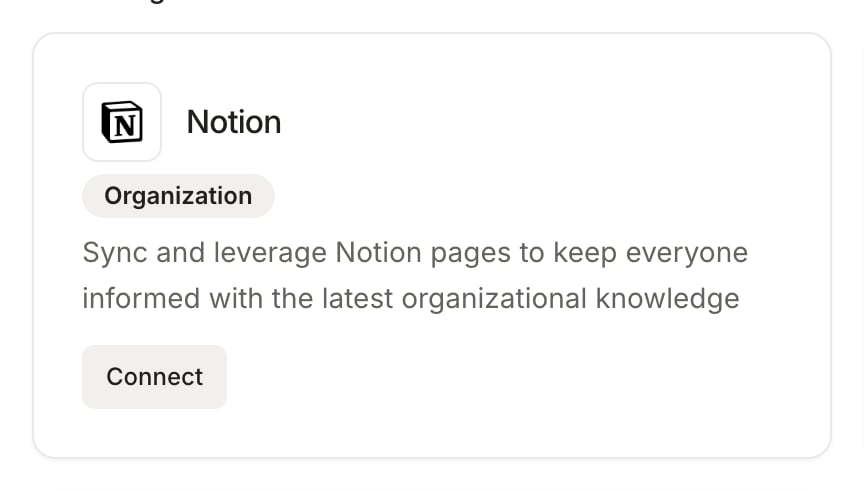
2
Authorize Wolfia in Notion
Click Connect on the Notion card, or Connect to Notion on the Notion page. You are sent to Notion, where you sign in and pick the workspace to connect. Notion then asks which pages to share with Wolfia.
3
Select the top-level pages
Choose the top-level pages and databases you want Wolfia to read. Their sub-pages are included automatically, so a single wiki home page is often enough. Confirm, and Notion returns you to the Notion page in Wolfia.
4
Watch the first sync land
Wolfia starts reading the shared pages right away. The Connected pages section lists what Wolfia can see from your workspace grouped by top-level page, with a count of pages, databases, and top-level items. Each item shows Synced, Not synced, or a count of items beneath it. Expand a page to see the pages nested under it.

Keep Notion in sync
- Automatic sync: Wolfia re-reads your shared pages every week. Only pages that changed since the last sync are read again, so a large workspace does not slow anything down.
- Share more pages: click Manage Notion to reopen Notion’s page picker. Add or remove pages, confirm, and Wolfia refreshes what it can see.
- Check a specific page: in Connected pages, use Search by page name or paste a Notion URL to see whether a page is synced. If Wolfia cannot see it, you will see This page is not accessible to Wolfia with a reminder to share its top-level page.
- Removed or unshared pages: when a page is deleted in Notion or unshared from Wolfia, Wolfia drops it and the answers built from it, and lists it under a Coverage lost notice on the Notion page so you can reshare it if the removal was a mistake.
- Disconnect: click Disconnect, then confirm in the Confirm Notion disconnect dialog. This removes every page, database, and attachment synced from Notion, along with the knowledge extracted from them, and cannot be undone.
Good practices
- Share a few high-level pages rather than many individual ones. A wiki home page or a “Security” parent page keeps itself current as teammates add sub-pages beneath it.
- Connect with a workspace owner’s account. Sharing a page with Wolfia requires Full Access on that page, and an owner can share every top-level page in one pass.
- Keep archived or superseded policies outside the shared tree, or leave them untouched, so answers cite the version your team maintains.
Frequently asked questions
A page is not showing up in Connected pages
A page is not showing up in Connected pages
Paste its Notion URL into the search box under Connected pages. If Wolfia reports the page is not accessible, its top-level page has not been shared with the Wolfia integration. Click Manage Notion, add that top-level page, and confirm. Pages not edited in over a year are also skipped, so editing a page brings it back into scope.
I see a Coverage lost notice
I see a Coverage lost notice
One or more pages Wolfia previously read are no longer reachable, usually because they were deleted in Notion or unshared from the integration. Hover the notice to see which pages, then reshare the ones you still want indexed through Manage Notion.
Can a teammate without workspace ownership connect Notion?
Can a teammate without workspace ownership connect Notion?
They can connect, but Notion only lets them share pages they have Full Access to, so coverage may be incomplete. For full coverage, ask a workspace owner to connect and share the top-level pages.
Does Wolfia change anything in my Notion workspace?
Does Wolfia change anything in my Notion workspace?
No. Access is read only. Wolfia reads the pages, databases, and attachments you shared and nothing else.
Related pages
Knowledge base
Every source Wolfia can index and how they fit together.
Confluence
Sync wiki spaces from Atlassian Confluence the same way.
Google Drive
Pick folders and files from Drive to keep in sync.
Adding knowledge
Upload documents directly when they do not live in Notion.