

What Wolfia reads
Controls
Every active control in your primary workspace: name, code, description, control question and activity, framework tags, mapped requirements, owners, custom fields, and readiness and monitoring status.
Policies
Every active, published policy: name, scope, status, version, renewal date, publish and approval dates, owner, and the controls it is linked to.
Evidence library
Every evidence item with a current version: name, description, implementation guidance, linked controls, evidence source links, and renewal frequency.
Before you start
- An admin, expert, or integration admin role in Wolfia. Only these roles can connect integrations.
- Admin access in Drata, which is required to create an API key.
- A Drata API key with read access. When Drata asks for access scopes, All read is enough.
A Drata connection belongs to your whole organization. Anyone who can manage integrations can see it, trigger a sync, or disconnect it, and the synced records are available to everyone in your organization.
Connect Drata
1
Create an API key in Drata
In Drata, open Settings from the account menu, choose API Keys, then Create API Key. Give the key read access and copy it right away. Drata shows the full key only once.
2
Open the Knowledge Hub
In Wolfia, go to Knowledge Hub and find Drata in the list of integrations. It is listed under the Security category with the Organization scope.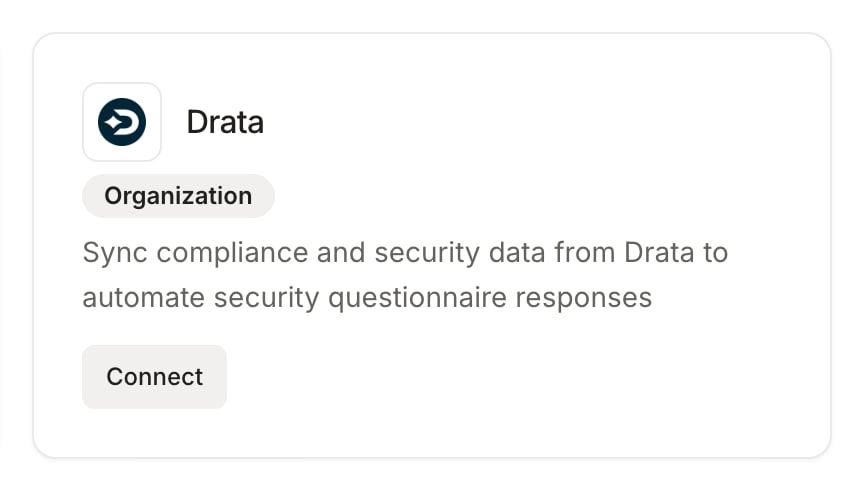
3
Connect with the API key
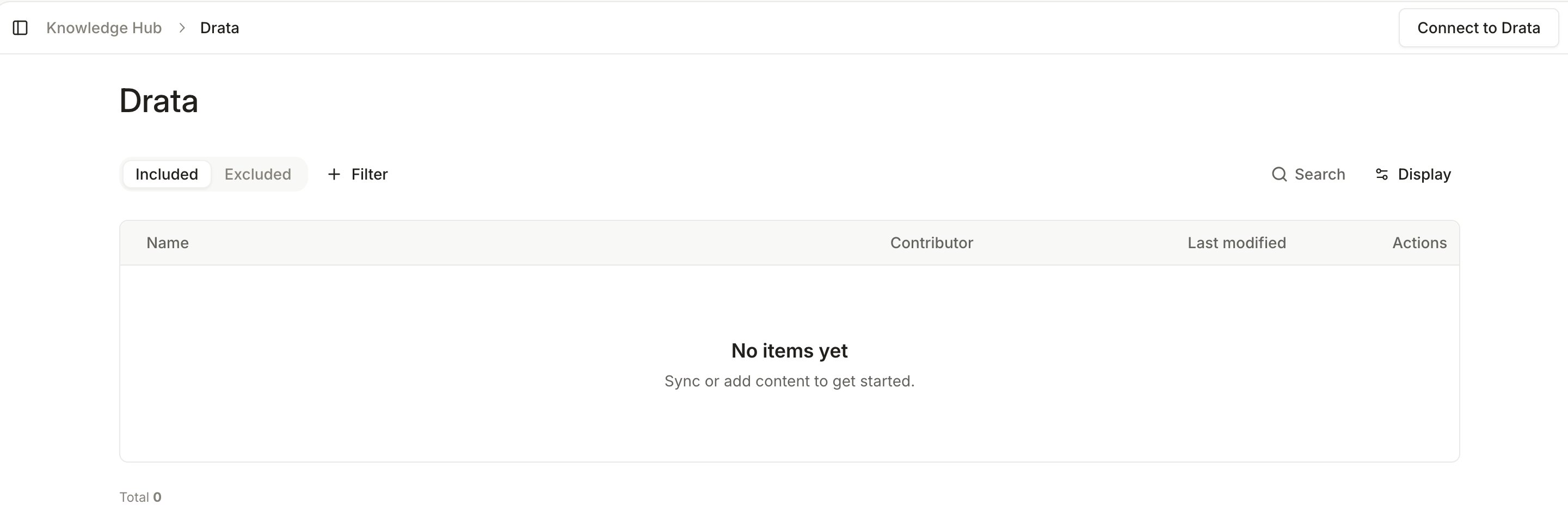
Click Connect on the Drata card, or Connect to Drata on the Drata page. A connection form opens; paste the API key you copied from Drata and submit. Wolfia confirms with Drata connected successfully! and opens the Drata page.
Keep Drata in sync
- Automatic sync: Wolfia re-reads your controls, policies, and evidence library every day. New records are added, changed records are refreshed, and records removed or archived in Drata are removed from the knowledge base.
- Sync now: click Sync now on the Drata page to refresh immediately, for example right after publishing a policy revision. Wolfia confirms with Drata sync started.
- Disconnect: click Disconnect on the Drata page and confirm in the Confirm Drata disconnect dialog. This removes every synced Drata record from Wolfia and cannot be undone. Reconnecting later runs a fresh sync.
Good practices
- Publish policies in Drata rather than leaving them in draft. Wolfia only reads policies that are active and published, so publishing is what makes a policy citable.
- Fill in control descriptions, control questions, and activities in Drata. Those fields carry the substance Wolfia uses to answer, and a control with only a name gives it little to work with.
- Keep evidence descriptions and implementation guidance current. They are what Wolfia reads for evidence items, since attached files are not downloaded.
Frequently asked questions
A control or policy is missing from Wolfia
A control or policy is missing from Wolfia
Check its state in Drata. Archived controls, unpublished or inactive policies, and evidence with no current version are excluded on purpose. Once the record is active and published, click Sync now.
Does Wolfia read our policy PDFs and evidence files?
Does Wolfia read our policy PDFs and evidence files?
No. Wolfia reads the details Drata exposes for each record, such as descriptions, guidance, versions, owners, and links between policies and controls. To make a full policy document citable, upload it to Wolfia directly or sync it from the document store where it lives.
Which Drata workspace is synced?
Which Drata workspace is synced?
Your primary workspace. Controls and evidence come from that workspace; policies come from your Drata account as a whole.
Wolfia says Drata lost access
Wolfia says Drata lost access
The API key was revoked, expired, or lost its permissions in Drata. Create a new key with read access and reconnect from the Knowledge Hub.
Does Wolfia change anything in Drata?
Does Wolfia change anything in Drata?
No. Access is read only. Wolfia only reads controls, policies, and evidence.
Related pages
Knowledge base
Every source Wolfia can index and how they fit together.
Adding knowledge
Upload policy documents and evidence files directly.
Vanta
Connect a Vanta compliance program the same way.
Google Drive
Sync the folders where your full policy documents live.